Personal License
Non-commercial use
Free for personal use
- Perpetual license
- Non-commercial use only
Remote Process Explorer is an easy-to-use solution for managing processes on a remote computer!
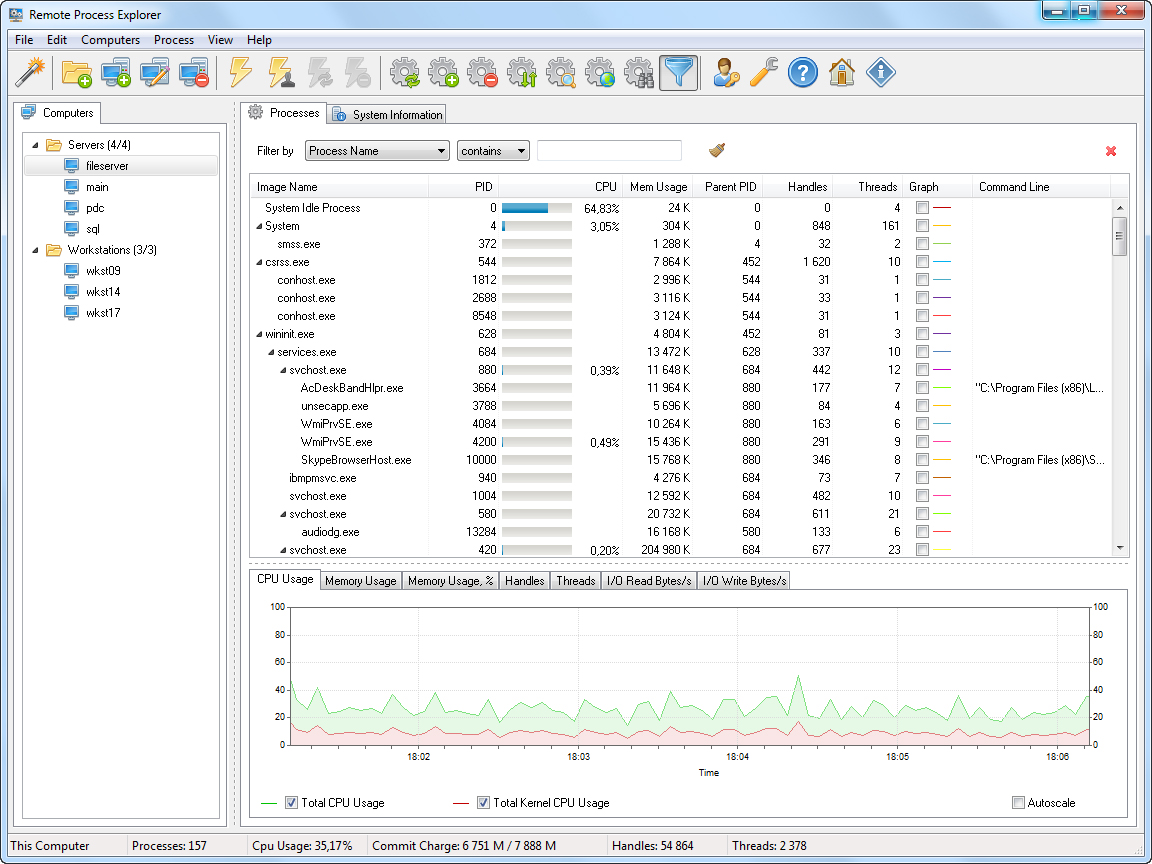
With Remote Process Explorer, you will be able to get the list of processes and will also be in a position to manage them. On a local or remote computer, users can kill a process, run a new one or change the priority of a process.
In order to do this, you are not required to install additional software on a remote computer since the program uses the in-built functions of the operating system. With Remote Process Explorer, you will be able to see complete information about each running process. It will also indicate the time the process began, the user who started the process the path to its executable file as well as the amount of memory and CPU it uses.
This information is available in the Task Manager and can be obtained for a local as well as a remote computer. For managing a remote computer, Remote Process Explorer has in-built tools built that it uses.
Monitoring all running processes on a local and remote computer.
Showing the parameters of running processes (Process ID, Parent PID, CPU, Memory Usage, Priority, Handles, Threads and much more) in real time.
Displaying the process tree.
Killing the selected process at any time.
Changing the priority of a process on a remote computer.
Running new processes on a remote computer.
Switching off and restarting a remote computer.
Searching the Internet for information about the selected process.
Add Computers Wizard.
Groups in the computer list.
Showing the state of a computer in the list (on/off).
Automatically refreshing the list of computers.
Using different accounts for each computer.
Additional administrative tools
Released May 16, 2025. The headline changes in this release.
Full release notesIt runs on a standard Windows PC.
Buy once and keep it.
Non-commercial use
Commercial, per machine
Whole organization