What is netsh?
netsh, the network shell, is a command-line utility that displays and changes the network configuration of a Windows computer, locally or over the network. It also runs a batch of commands from a script file, and it can dump a configuration to a text file that you replay on another machine.
netsh ships with every supported version of Windows and Windows Server. Microsoft now recommends the PowerShell networking cmdlets over netsh for managing networking, but netsh is still shipped, still works, and every command below runs on current Windows.
How to use netsh
Run netsh from an elevated Command Prompt or PowerShell window, then switch to the context that holds the command you want.
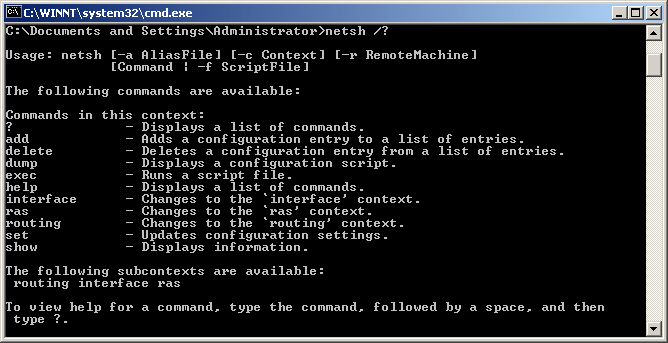
netsh [-a AliasFile]
      [-c Context]
      [-r RemoteMachine]
      [-u DomainName\Username]
      [-p Password]
      [Command | -f ScriptFile]
-a AliasFile Specifies that an alias file is used. An alias file contains both a list of netsh commands and an aliased version of each. You can use the aliased command to shorten a netsh command.
-c Context Specifies the default context for subsequent commands at the netsh command prompt. Without the -c option, the default context is the root context netsh>.
-r RemoteMachine Runs the netsh commands against a remote computer, named or addressed by IP. The Remote Registry service has to be running there, or netsh reports that the network path was not found.
-u DomainName\Username Runs the command under a specific user account.
-p Password Supplies the password for that account.
Command Specifies the netsh command to run. You must specify a full netsh command, complete with parameters. Otherwise, netsh displays command-line help. If the -c option is used, the context is included as part of the netsh command.
-f ScriptFile Specifies that all of the netsh commands in the ScriptFile file are run.
Available commands after you have entered the netsh command (typing netsh at the prompt and pressing enter):
..         Goes up one context level.
?          Displays a list of commands.
abort      Discards changes made while in offline mode.
add        Adds a configuration entry to a list of entries.
alias      Adds an alias.
bye        Exits the program.
commit     Commits changes made while in offline mode.
delete     Deletes a configuration entry from a list of entries.
dump       Displays a configuration script.
exec       Runs a script file.
exit       Exits the program.
help       Displays a list of commands.
interface  Changes to the 'interface' context.
offline    Sets the current mode to offline.
online     Sets the current mode to online.
popd       Pops a context from the stack.
pushd      Pushes current context on stack.
quit       Exits the program.
ras        Changes to the 'ras' context.
routing    Changes to the 'routing' context.
set        Updates configuration settings.
show       Displays information.
unalias    Deletes an alias.
Using netsh
View your TCP/IP settings
netsh interface ip show config
Here is an example of command output:
Configuration for interface "Local Area Connection 1"
    DHCP enabled:                         Yes
    InterfaceMetric:                      1
    DNS servers configured through DHCP
    WINS servers configured through DHCP

Configuration for interface "Local Area Connection 2"
    DHCP enabled:                         No
    IP Address:                           192.168.0.20
    SubnetMask:                           255.255.255.0
    InterfaceMetric:                      1
    Statically Configured DNS Servers:    None
    Statically Configured WINS Servers:   None
Reset the TCP/IP stack
netsh interface ip reset log.txt
A common use of netsh is to reset the TCP/IP stack to its default, known-good parameters. You can name a log file, which is then filled with the values netsh changed.
Delete the arp cache
netsh interface ip delete arpcache
Deletes the arp cache entries for all available adapters.
Configure your computer's IP address and other TCP/IP related settings
netsh interface ip set address name="Local Area Connection" static 192.168.0.20 255.255.255.0 192.168.0.1 1
This command configures the interface named Local Area Connection with the static IP address 192.168.0.20, the subnet mask 255.255.255.0, and a default gateway of 192.168.0.1.
Configure your NIC to automatically obtain an IP address from a DHCP server:
netsh interface ip set address "Local Area Connection" dhcp
Configure DNS:
netsh interface ip set dns "Local Area Connection" static 192.168.0.200
Configure WINS:
netsh interface ip set wins "Local Area Connection" static 192.168.0.200
Configure your NIC to obtain its DNS settings dynamically:
netsh interface ip set dns "Local Area Connection" dhcp
Import and export your TCP/IP settings
Export your current IP settings to a text file:
netsh -c interface dump > c:\MySettings.txt
Import settings back from a file:
netsh -f c:\MyAnotherSettings.txt
Configure the firewall
The netsh firewall context is superseded. netsh advfirewall firewall replaced it, it understands the Domain, Private, and Public profiles, and it is what Microsoft recommends.
| Task | Command |
|---|---|
| Turn the firewall off for the current profile | netsh advfirewall set currentprofile state off |
| Turn it back on | netsh advfirewall set currentprofile state on |
| Open TCP port 3234 | netsh advfirewall firewall add rule name="Open Port 3234" dir=in action=allow protocol=TCP localport=3234 |
| Open UDP port 7365 | netsh advfirewall firewall add rule name="Open Port 7365" dir=in action=allow protocol=UDP localport=7365 |
| Allow a program through | netsh advfirewall firewall add rule name="My Program" dir=in action=allow program="C:\MyProgram.exe" enable=yes |
| List every rule | netsh advfirewall firewall show rule name=all |
| Restore the defaults | netsh advfirewall reset |
Microsoft advises against turning the firewall off at all. If you have to, switch off the profile state as above. Stopping the Windows Defender Firewall service instead breaks things that depend on it, the Start menu among them.
Show network parameters
The netsh diag context belonged to Windows XP and is not present on current versions of Windows. PowerShell answers the same questions:
| What you want to see | Command |
|---|---|
| Network adapters | Get-NetAdapter |
| IP address, gateway, and DNS per interface | Get-NetIPConfiguration |
| The DNS servers an interface uses | Get-DnsClientServerAddress |