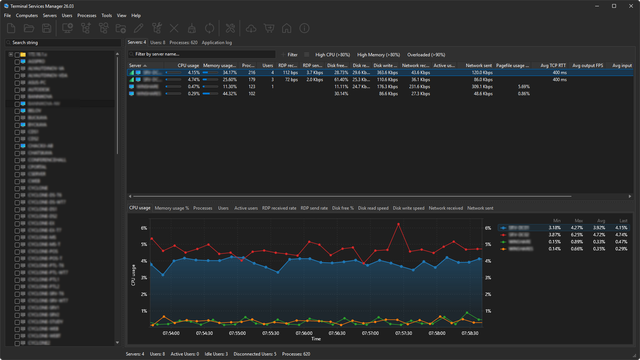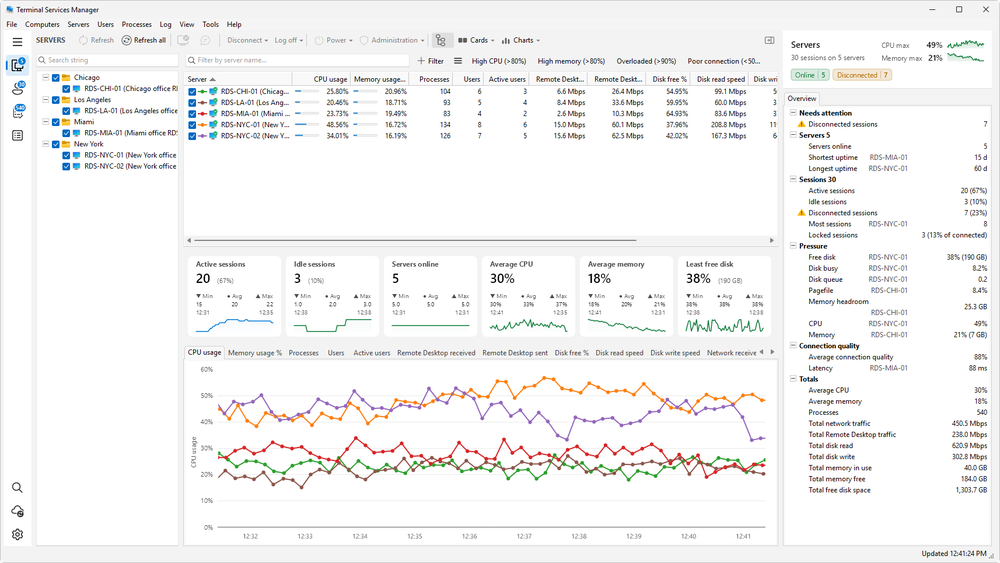
A sidebar, an inspector with Active Directory details, summary cards, and a command palette.
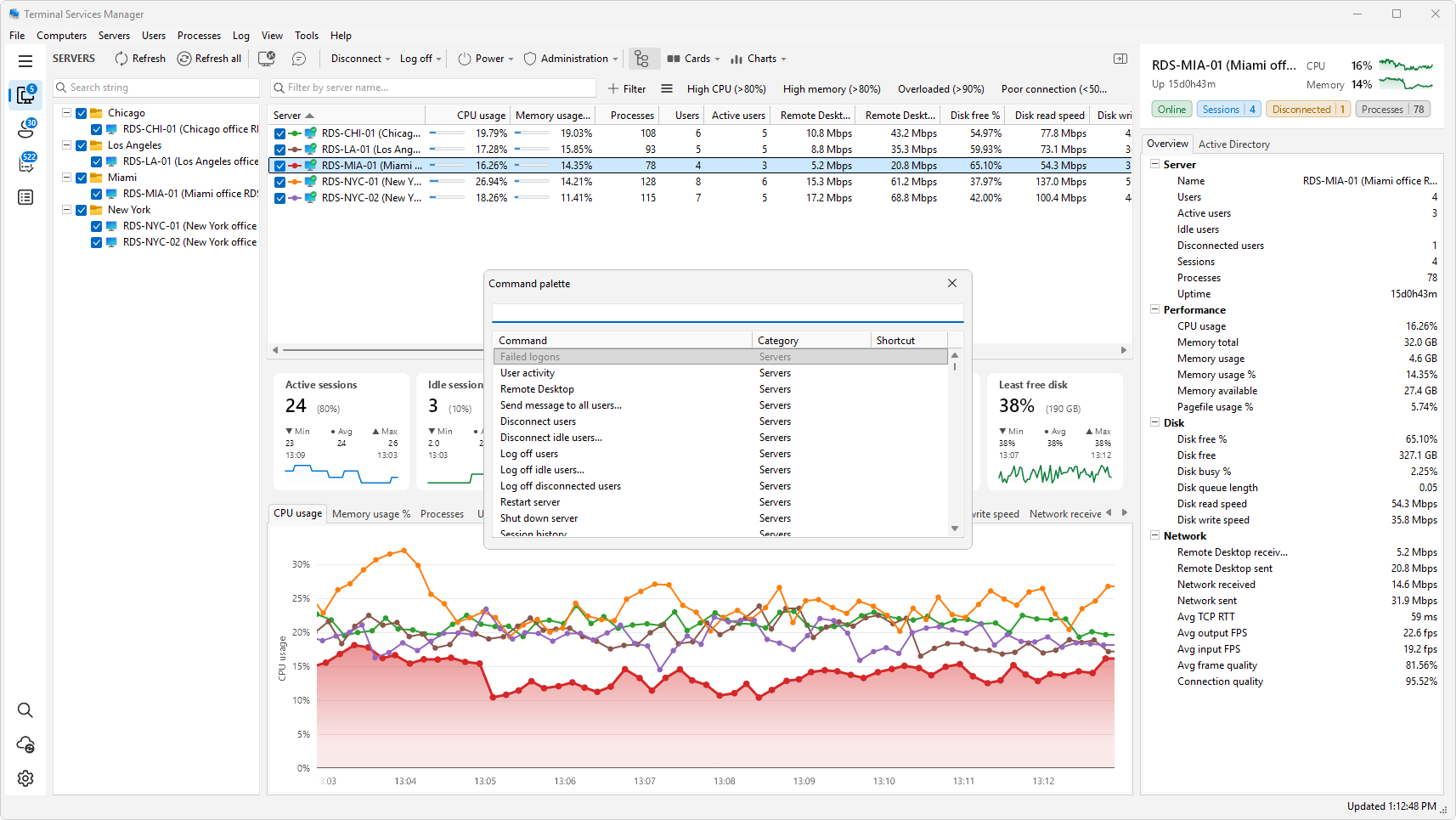
Terminal Services Manager 26.10 changes how the main window is laid out. Navigation moves to a sidebar, every row gets a detail panel, and a command palette gets you to any command from the keyboard.
Sidebar
A sidebar down the left of the window leads to the four sections and shows how many servers, user sessions, and processes there are. It replaces the toolbar and the row of tabs. The Servers, User sessions, and Processes lists also have a row of commands across the top.
Inspector
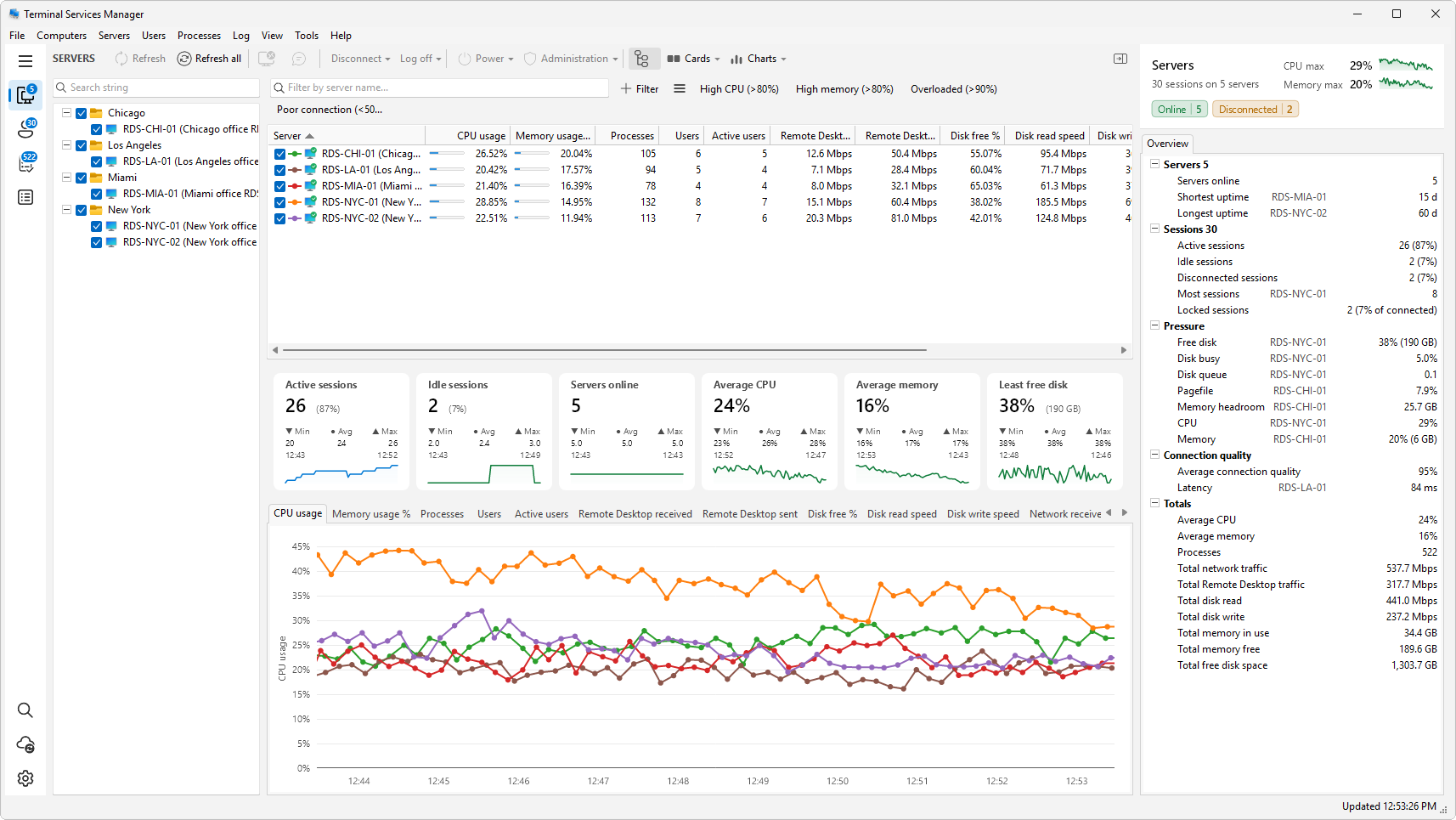
Pick a row and the inspector on the right describes it: CPU and memory with their recent trend, the state, and every property the list holds. With nothing picked, it sums up the whole list and puts any reading past its threshold at the top, worst first. A reading that passes its threshold gets a triangle (warning) or a diamond (critical) before its name.
For servers and users, the inspector adds an Active Directory tab with what the domain knows. Processes have no Active Directory tab.
Servers
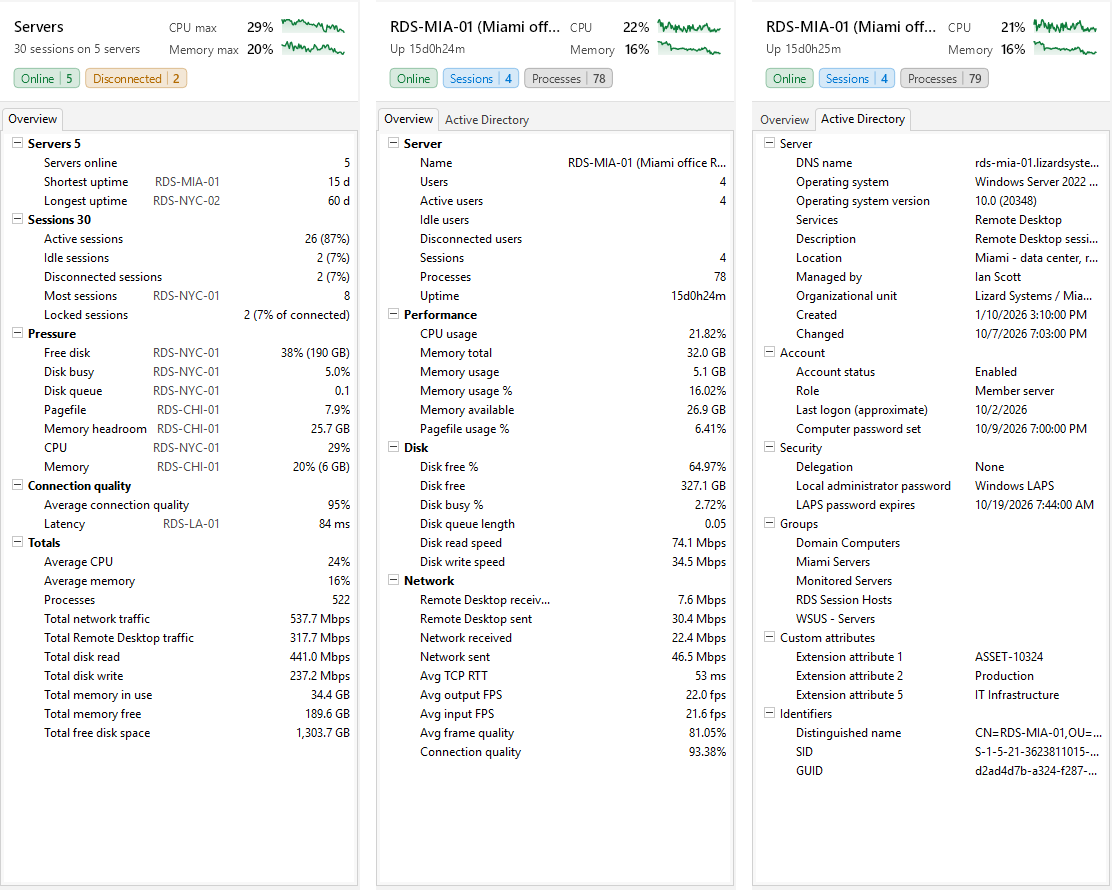
Left to right: the whole Servers list, the Overview of one server, and the Active Directory tab of that server.
For a server, the Active Directory tab shows the computer account, role, registered services, delegation, Kerberos encryption, LAPS, notes, extension attributes, SID, and GUID.
User sessions
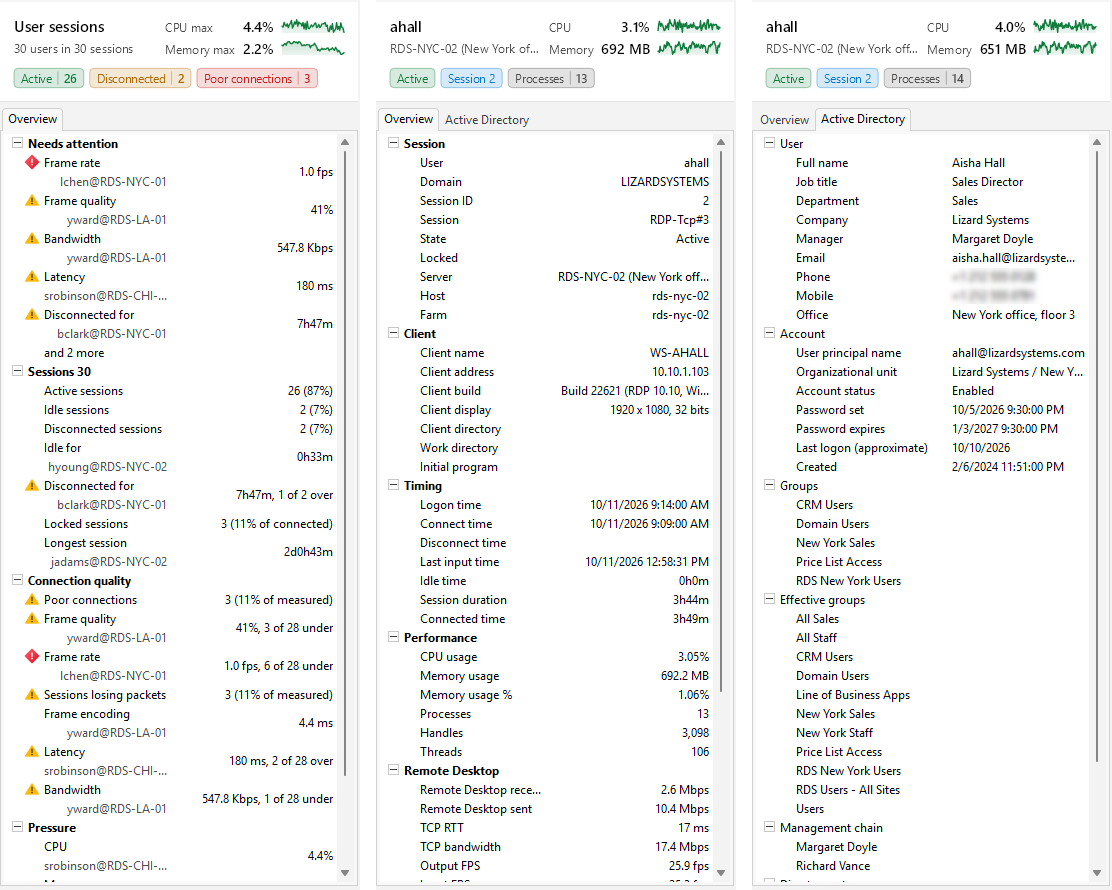
Left to right: the whole Users list with its Needs attention block, the Overview of one user session, and the Active Directory tab of that user.
For a user, the Active Directory tab shows job title, department, manager, contacts, account state, password expiry, groups, and the management chain.
When a user calls about a slow session, you can see how the session is doing, who they are, and who their manager is without leaving the window.
Summary cards
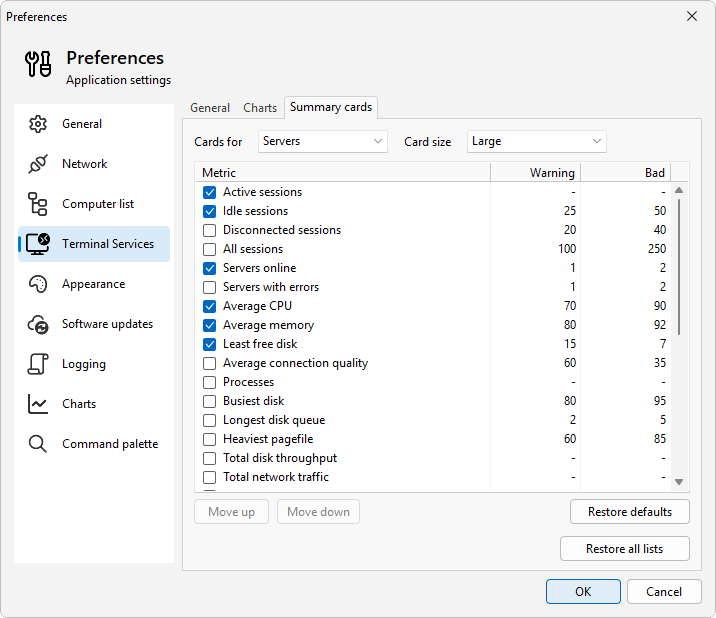
Between each list and its charts there is now a row of summary cards. Each card shows the current figure, its low, average, and high over the chart's time window, and a sparkline.
You choose what to watch. Preferences > Terminal Services > Summary cards sets the cards for each list, their order and size, and the levels at which they turn amber and red. To hide the cards, clear Show the card band in the Cards menu above the list. Restore defaults resets the list on screen, and Restore all lists resets all three.

Command palette
Press Ctrl+Shift+P and start typing. The palette finds any menu command or Tools command, in English or in your language. It puts the commands for the selected row first, then the ones you run recently and often. Tools commands can now also act on a session or a process, with the user, client, session, and process available as variables.
Also in this release
- File > Report builds a self-contained HTML status report of the monitored servers.
- A Locked column on the User sessions list shows which sessions sit on their lock screen.
- Preferences > Terminal Services > Connection options passes extra switches to Remote Desktop, with separate fields for connecting and for shadowing.
- Hold Ctrl, Shift, or Alt on a list checkbox to check or clear the whole list, invert it, or keep only the row you clicked.
- The application log keeps the last 10,000 entries instead of 1,000, and a new Log menu clears, exports, and copies.
- Terminate process is now End task, and a few other menu items were renamed. View > Users is now View > User sessions.
- Fixes for the CPU time filter on processes, the servers pausing for an hour when daylight saving time ended, the shared license in system-wide configuration mode, and a crash on closing.
The full list is in the release notes.
System requirements: Windows 10 x64 or later.
Download: Terminal Services Manager download page