Know why a server is red, copy what the inspector shows, and see sessions sooner.
Terminal Services Manager 26.11 is a smaller release. The program now tells you more about what went wrong, and the release fixes problems users reported after 26.10.
What failed on a server
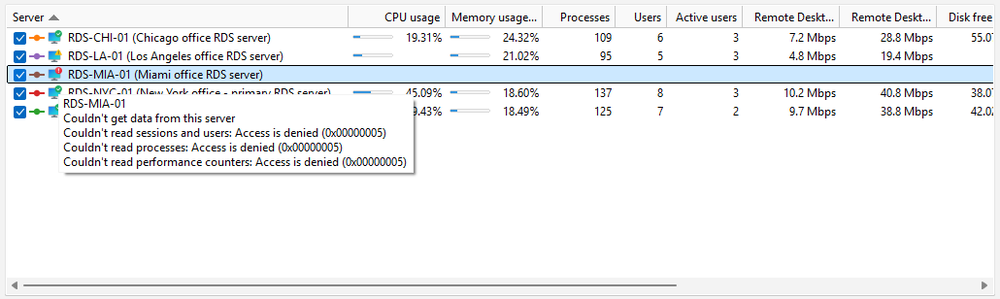
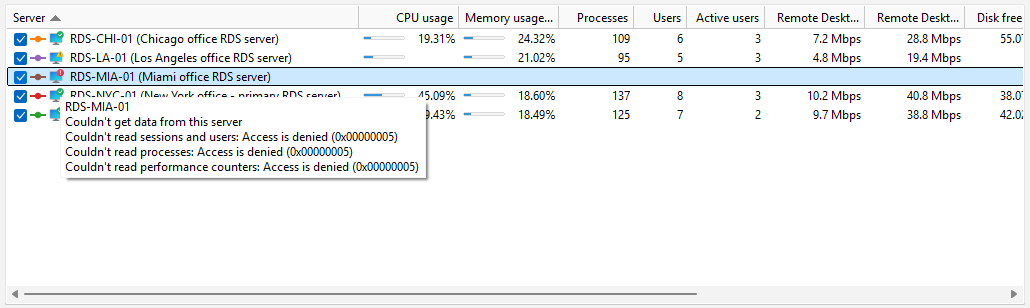
A server in the list gets a red or yellow mark when part of its data could not be read. Hover the mark to see which part failed (sessions, processes, or performance counters) and the Windows error behind it. You don't need the application log to find out why.
Empty lists say why
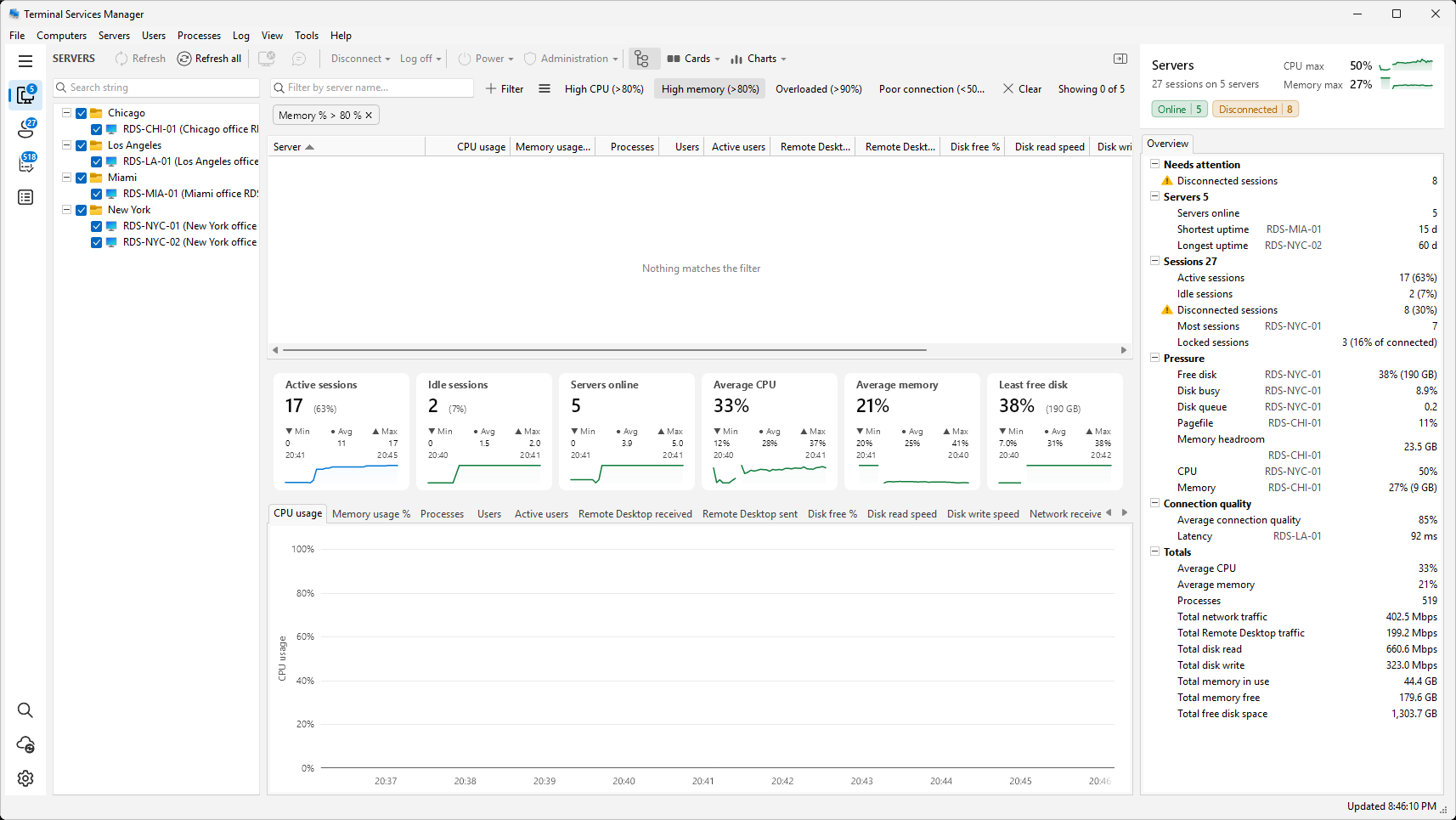
An empty list no longer looks broken. The computer list suggests adding a computer to start monitoring. The Servers, User sessions, and Processes lists say there is nothing to show. When a filter hides every row, the list says Nothing matches the filter.
Copy from the inspector
Right-click a property in the inspector and choose Copy value or Copy name and value. Ctrl+C copies the values of the selected rows. This works on the Overview and Active Directory tabs, so you can paste a user's manager or a server's role into a ticket.
Faster start on slow servers
Some servers take a long time to connect their performance counters. Until now, such a server showed empty sessions, users, and processes while it waited. In 26.11 sessions, users, and processes appear right away, and the CPU and memory figures follow when the counters are ready.
Active Directory for servers added by IP address
The Active Directory tab in the inspector now works for a server that you added by IP address only. The program finds the server's name and domain and remembers them until you exit.
Removed
The Use all my monitors option is gone from the Shadow dialog. Remote Desktop ignores it when shadowing, so the window stayed on one monitor anyway.
Also fixed
- The User field in User activity and Failed logons filters the log when you press Enter or Fetch, and accepts * and ? wildcards.
- The Shutdown/Restart tool shows whether the computer accepted the command, and the reason when it refused.
- Filter presets that match any of their conditions, such as Overloaded, show rows that meet any condition instead of only those that meet all of them.
- Manage filter presets shows the same preset names as the presets menu, in your language.
- Starting maximized no longer flashes a small window first.
- Chart tooltips no longer borrow a nearby reading for a moment that has no data.
- A server no longer turns red for a moment when a refresh is skipped because the previous one is still running.
The full list is in the release notes.
System requirements: Windows 10 x64 or later.
Download: Terminal Services Manager download page