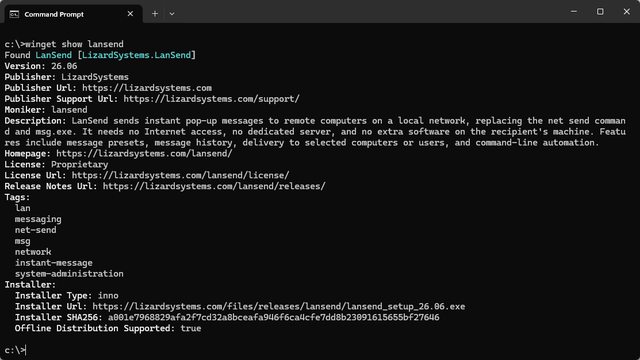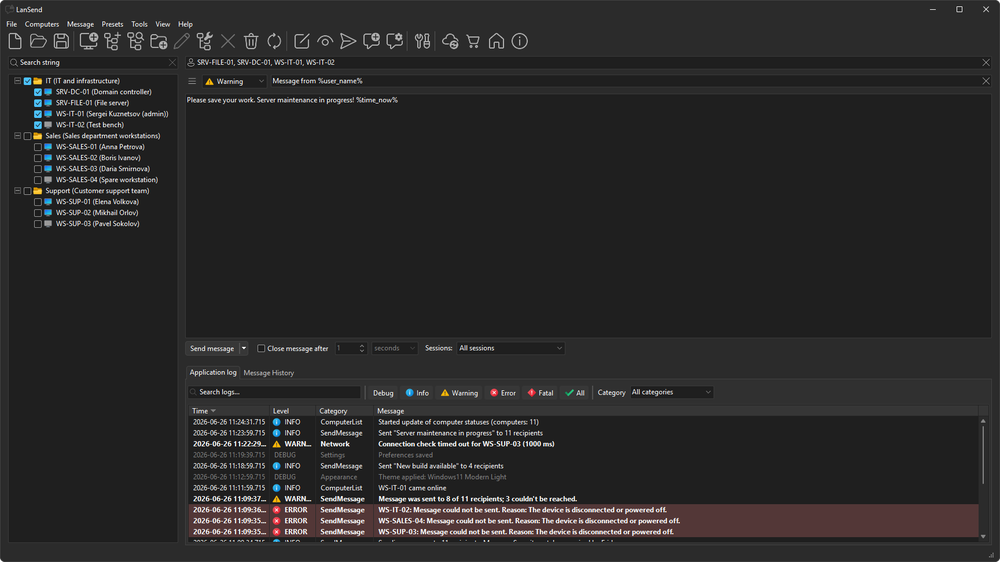
LanSend 26.06 is a native 64-bit release. It adds light and dark themes that follow your Windows setting, a quicker way to reach saved messages, and finer control over which sessions on a computer receive a message. The core that delivers messages was rebuilt, and the computer list gained tools that save steps when you manage a lot of machines.
A native 64-bit build
LanSend now ships as a native 64-bit application. It runs on Windows 11, Windows 10, and Windows Server 2022, 2019, and 2016 (64-bit editions). As always, you send messages over the built-in Windows channel, so there is still no server to set up and nothing to install on the computers that receive your messages.
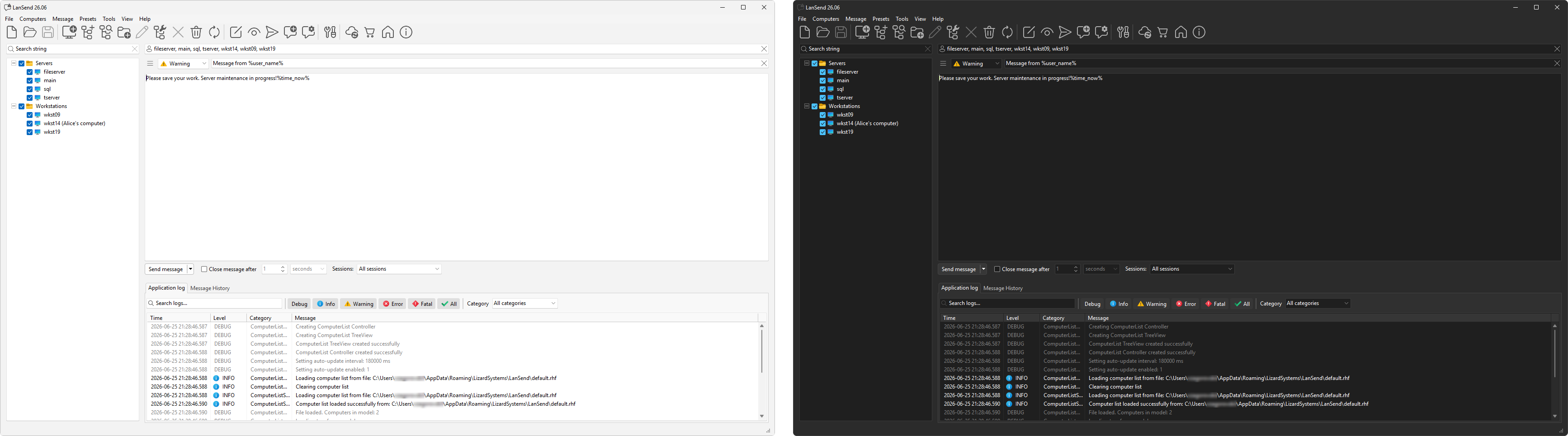
Light and dark themes that follow Windows
Open View > Appearance to pick how LanSend looks. The new modes are Automatic (follow OS setting), Always light, and Always dark, and you choose the light and dark theme separately. Toolbar and menu icons are now vector graphics, so they stay sharp on high-resolution screens and match the active theme. You can set all of this on the Appearance page in Preferences.
Send to the right sessions
A computer can have more than one session signed in at once. The new Sessions: dropdown on the send bar lets you choose who gets the message: All sessions, Active, Logged-on, or Console. Pick Active to reach whoever is actively working in a session, local or over Remote Desktop, or Console for the physical console session only.
Quicker access to saved messages
The new Presets menu puts your saved messages one click away, grouped by category. LanSend 26.06 also ships a larger default set, organized into Maintenance & Updates, Emergency & Critical, Service Notifications, and Testing & System Check. Load one, adjust the wording, and send.
Build your computer list in fewer steps
Two additions cut the busywork of keeping a list current. Computers > Add multiple computers... lets you enter a name pattern that expands into multiple names, shown in a preview, and add them to a group. Computers > Bulk operations... applies one change across the list at once: rename computers, normalize names, group them, or remove inactive, duplicate, or empty entries.
Find any message or log entry
The Message History and Application log tabs now have a search box and filters, so you can narrow a long list by text, by message type, or by level. Preferences also gains a Logging page where you set the minimum level and turn on file logging with its own path, format, and size limits.
Updates you can manage
A new Updates page in Preferences controls how LanSend checks for and installs updates: Manual, Notify, Download, or Automatic. It shows the current version, the last and next check, and a Check now button. Downloads are verified for authenticity and integrity before they install.
Other improvements
- Clearing the message history or the application log, and removing computers and groups, now ask you to confirm first.
- Ampersands in command and preset menu names display correctly instead of acting as keyboard shortcuts.
- The connection check timeout set in Preferences is saved even when computer state checking is turned off.
- A rare crash that could happen when you closed the program while messages were still being sent is fixed.
- Message presets from earlier versions carry over on upgrade, and the default presets are restored if they are missing.
- The core that delivers messages was modernized for more reliable sending to many recipients at once.
- Translations are updated and completed for every supported language.
Get the update
Open Preferences > Updates and click Check now, or set the update mode to Download or Automatic to keep LanSend current on its own. You can also get the latest build from the download page.