
Windows Task Manager has no "connect to another computer" option. It shows the processes on the machine it is running on, and nothing else. If you opened it hoping to end a hung application on a user's PC across the network, that is the wrong tool, and no amount of clicking will change it.
There are several ways to do the job. Here they are, starting with what is already on the machine.
Why Task Manager has no remote mode
Task Manager is a local process viewer. It reads the process list through APIs that only ever address the current machine. Microsoft never added a remote mode, and the tools that do work remotely (tasklist, taskkill, PowerShell, WMI) are all command line.
Every option below runs on the same plumbing. You need a network path to the target machine and an account with administrative rights on it, and the remote management service each tool talks to has to be running. Miss one of those and nothing here works, whichever tool you pick.
Option 1: tasklist and taskkill
Both ship with Windows and both take a /s parameter for a remote computer.
List everything running on a remote machine:
tasklist /s SRV01
Run it under a different account:
tasklist /s SRV01 /u DOMAIN\admin /p <password>
End a process by image name:
taskkill /s SRV01 /im notepad.exe
Two things surprise people here. The STATUS and WINDOWTITLE filters do not work when you target a remote system, so you cannot filter for "Not Responding" on another machine, which is usually the exact thing you were trying to find. And a remote process is always ended forcefully, whether or not you pass /f. There is no graceful close over the network.
Option 2: PowerShell
If you are on Windows PowerShell 5.1, Get-Process accepts a computer name directly:
Get-Process -ComputerName SRV01
Be careful with that one. The -ComputerName parameter was removed in PowerShell 6 and later, so the same line fails on any modern PowerShell 7 install. The portable version uses remoting:
Invoke-Command -ComputerName SRV01 -ScriptBlock { Get-Process }
Or query WMI, which does not need PowerShell remoting enabled on the target:
Get-CimInstance -ClassName Win32_Process -ComputerName SRV01
To end a process through WMI:
Get-CimInstance Win32_Process -ComputerName SRV01 -Filter "Name='notepad.exe'" |
    Invoke-CimMethod -MethodName Terminate
Option 3: Just use RDP
You can connect to the machine and open Task Manager inside the session. It works, and for a one-off it is fine.
It is a poor habit on a user's workstation, though. You either take over their desktop or you consume a session, and on a busy machine you are adding load to solve a load problem. It also does not scale: checking twenty computers means twenty connections.
Option 4: A remote Task Manager with a GUI
Remote Process Explorer is what Task Manager would be if it had a remote mode. You run it on your own machine and point it at any computer on the network.
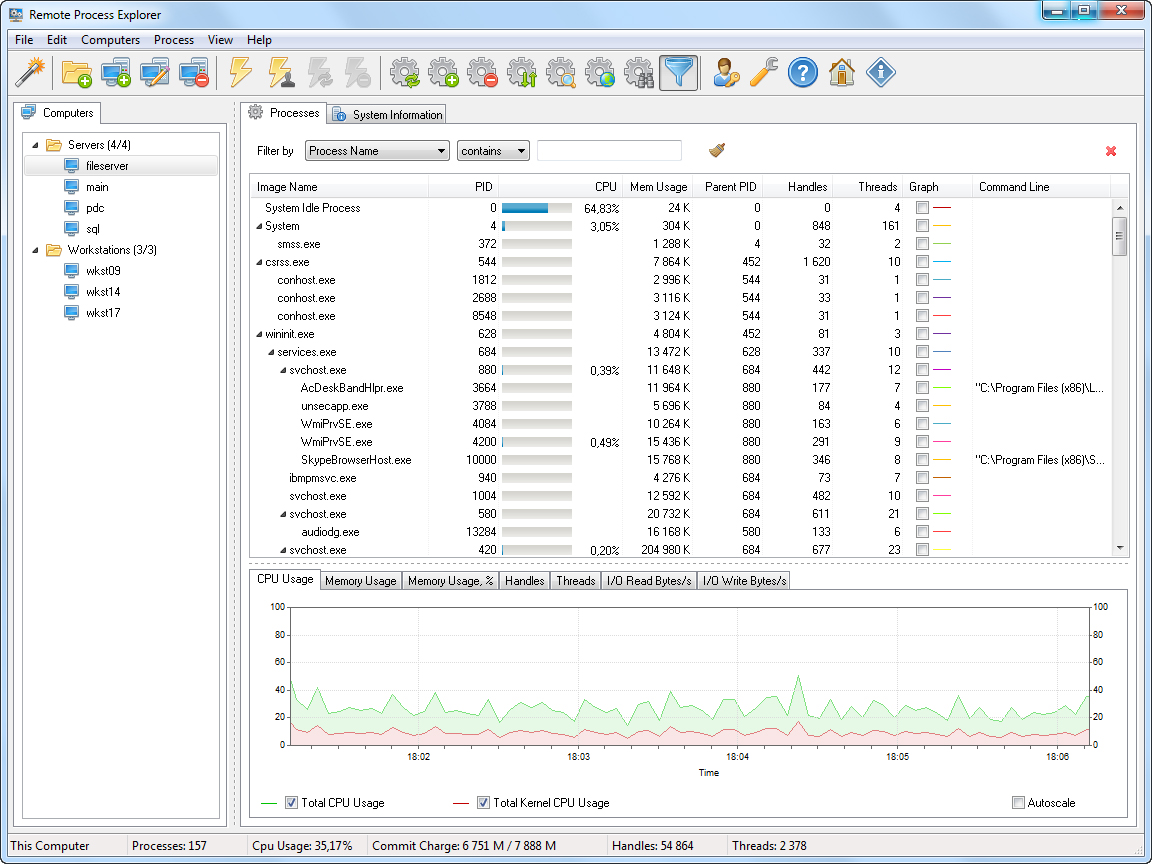
Nothing gets installed on the remote computer. The program uses the operating system's built-in functions, so there is no agent to deploy and nothing to keep updated on the far end.
From one window you can:
- watch every process on a local or remote computer in real time, with PID, parent PID, priority, handles, threads, owner, CPU time, memory use and the path to the executable
- read the process tree, so you can see what spawned what
- end a process, or every process with a given name, and change a process priority
- start a new process on the remote machine
- look up an unfamiliar process online when you are not sure whether it is malware
- shut down or restart the remote computer
It runs on Windows 10 and 11, and on Windows Server 2012 R2 through 2025.
Personal use is free and perpetual, for non-commercial use only. A Business License is US$149.95, and there is a 30-day trial if you want to test it against your own machines first.
Which one to use
| Windows Task Manager | tasklist / taskkill | Remote Process Explorer | |
|---|---|---|---|
| Works on a remote computer | No | Yes | Yes |
| Interface | GUI | Command line | GUI |
| Needs an agent on the target | n/a | No | No |
| Shows a process tree | Yes | No | Yes |
| Filter for "Not Responding" remotely | n/a | No | Yes |
| End a process gracefully | Yes | No, always forced | Yes |
| Watch several machines at once | No | No | Yes |
For a single command in a script, tasklist and taskkill are the right answer and cost nothing. For anything you do by hand, more than once a week, a GUI pays for itself the first time you do not have to remember the syntax.
If the remote computer is an RDS server
Processes on a session host belong to sessions, and that changes the question. You usually do not want "which process is misbehaving" so much as "which user's session is misbehaving". Terminal Services Manager is built for that: it shows sessions, users and their processes across several RDS servers at once.