Terminal Services Managerv26.04.3 · Apr 2026 Download View Pricing

See Terminal Services Manager in action, screen by screen

A guided tour of the Servers, User sessions, and Processes views, the real-time charts, and the admin tools you use to run Remote Desktop hosts.

Monitoring

6 screenshots

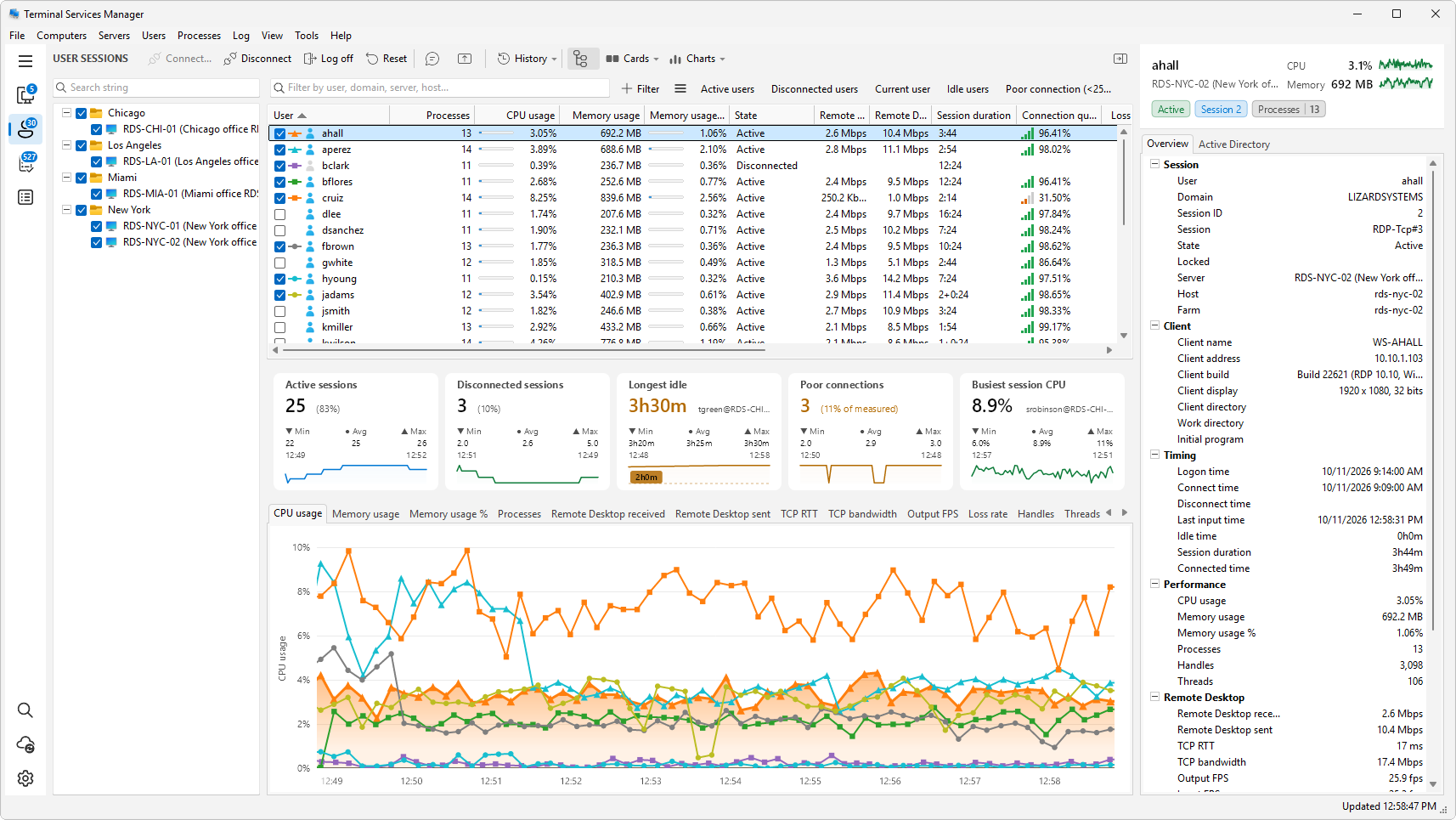
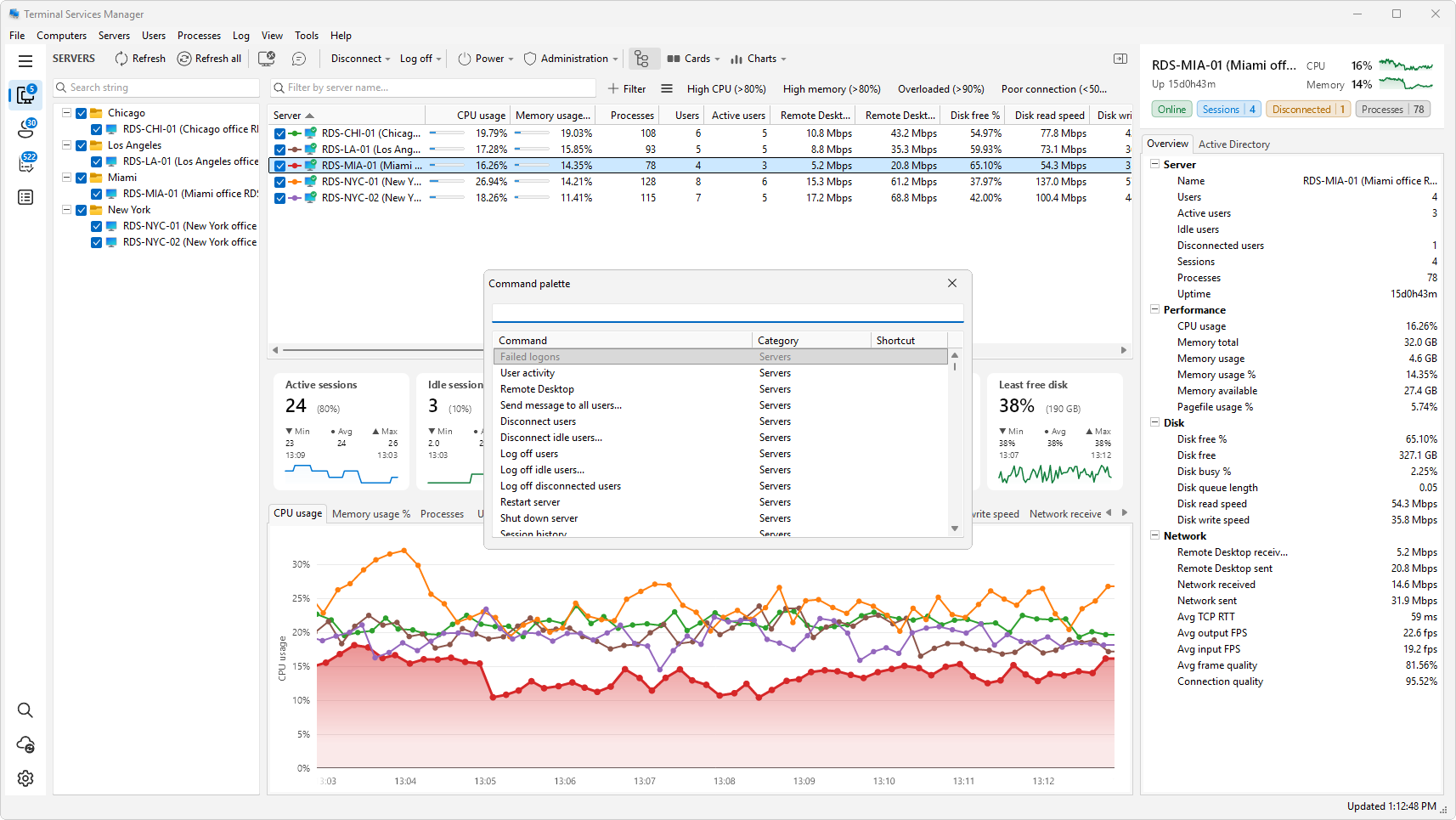
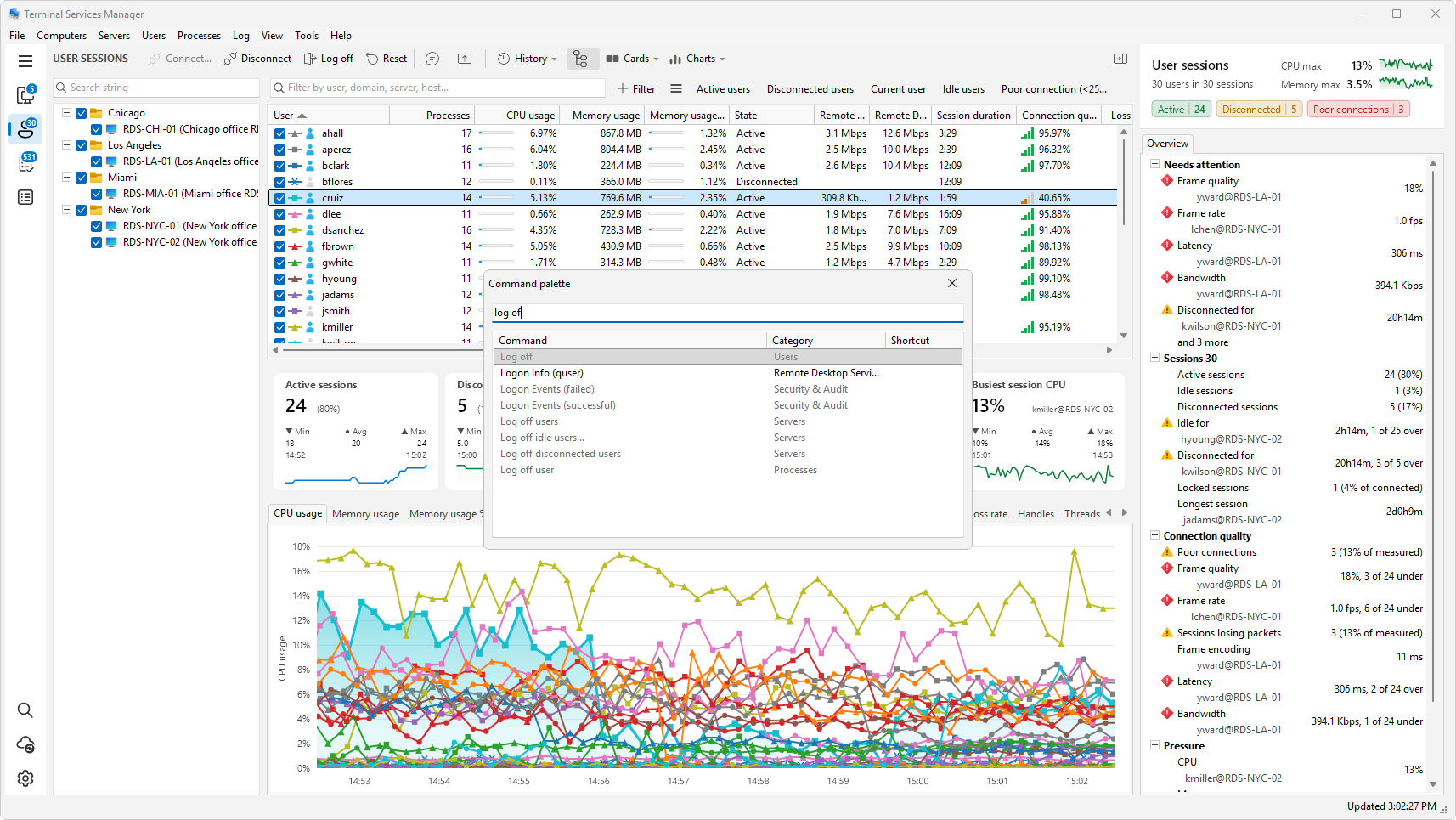
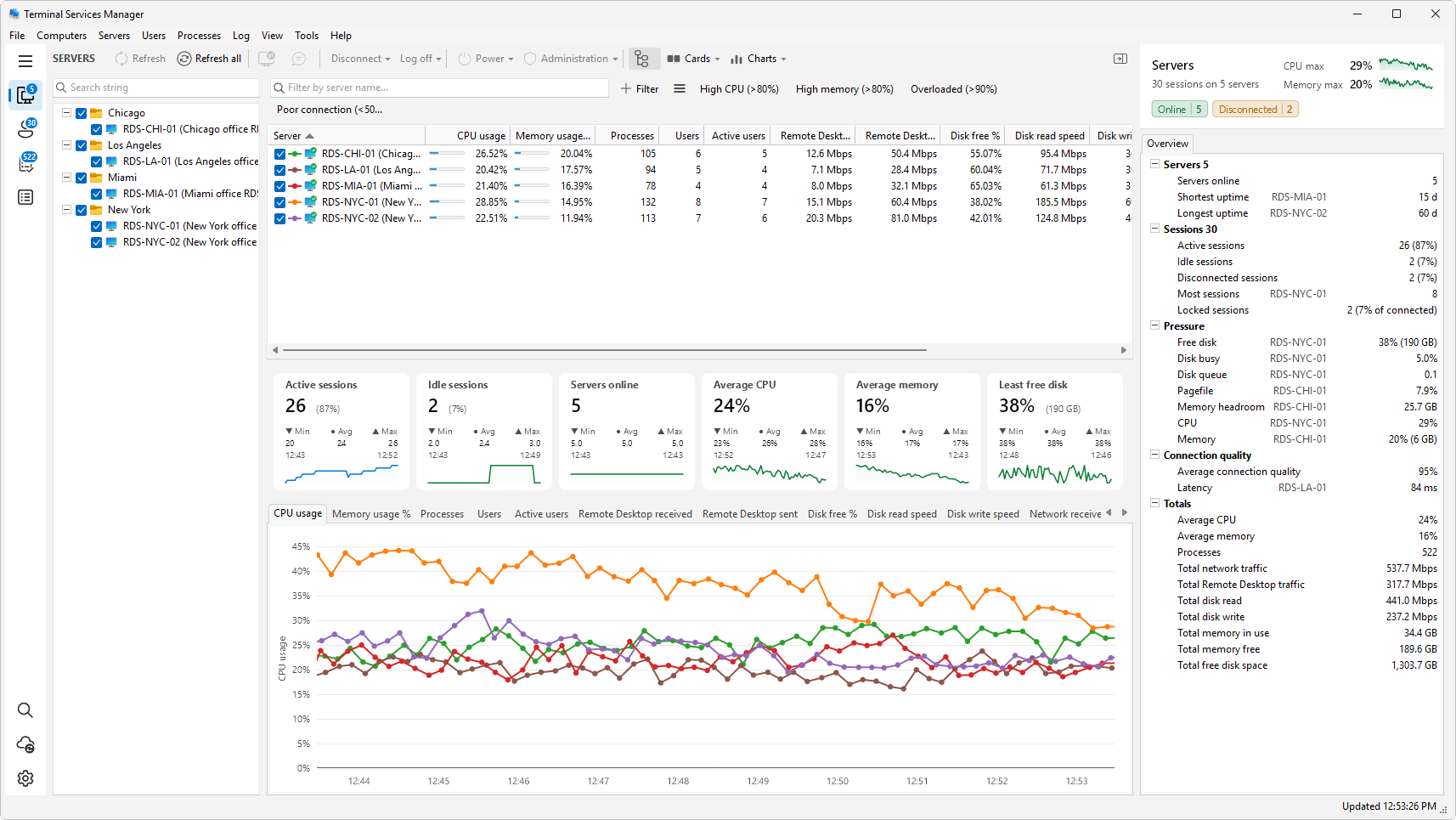
Servers, user sessions, and processes in one console. Live charts sit under every list, and one click narrows a busy grid down to the servers that are actually in trouble.
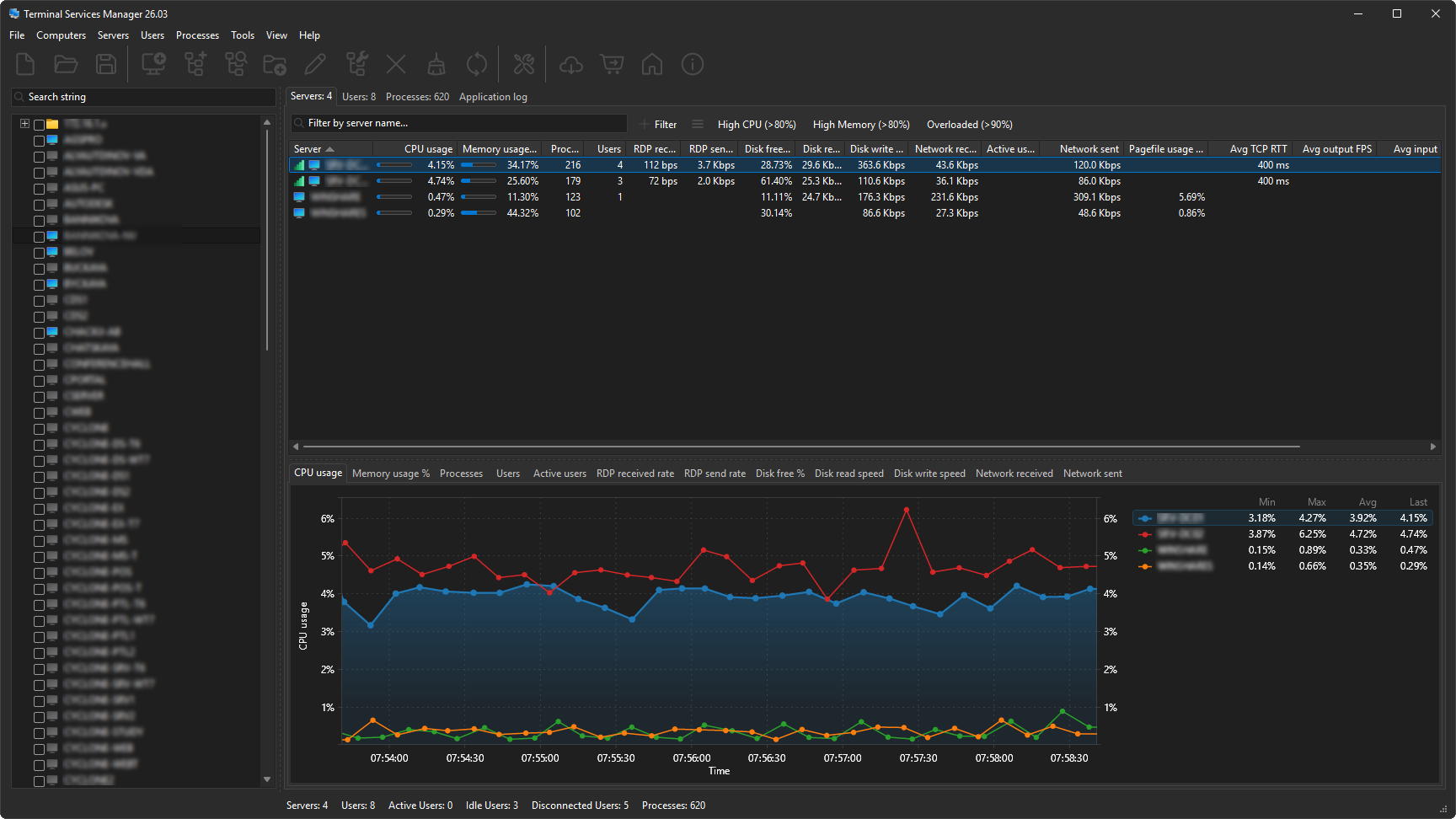
Dark Mode
Dark Mode The same server view in dark mode. The app can follow the Windows theme or stay locked to light or dark.
Users
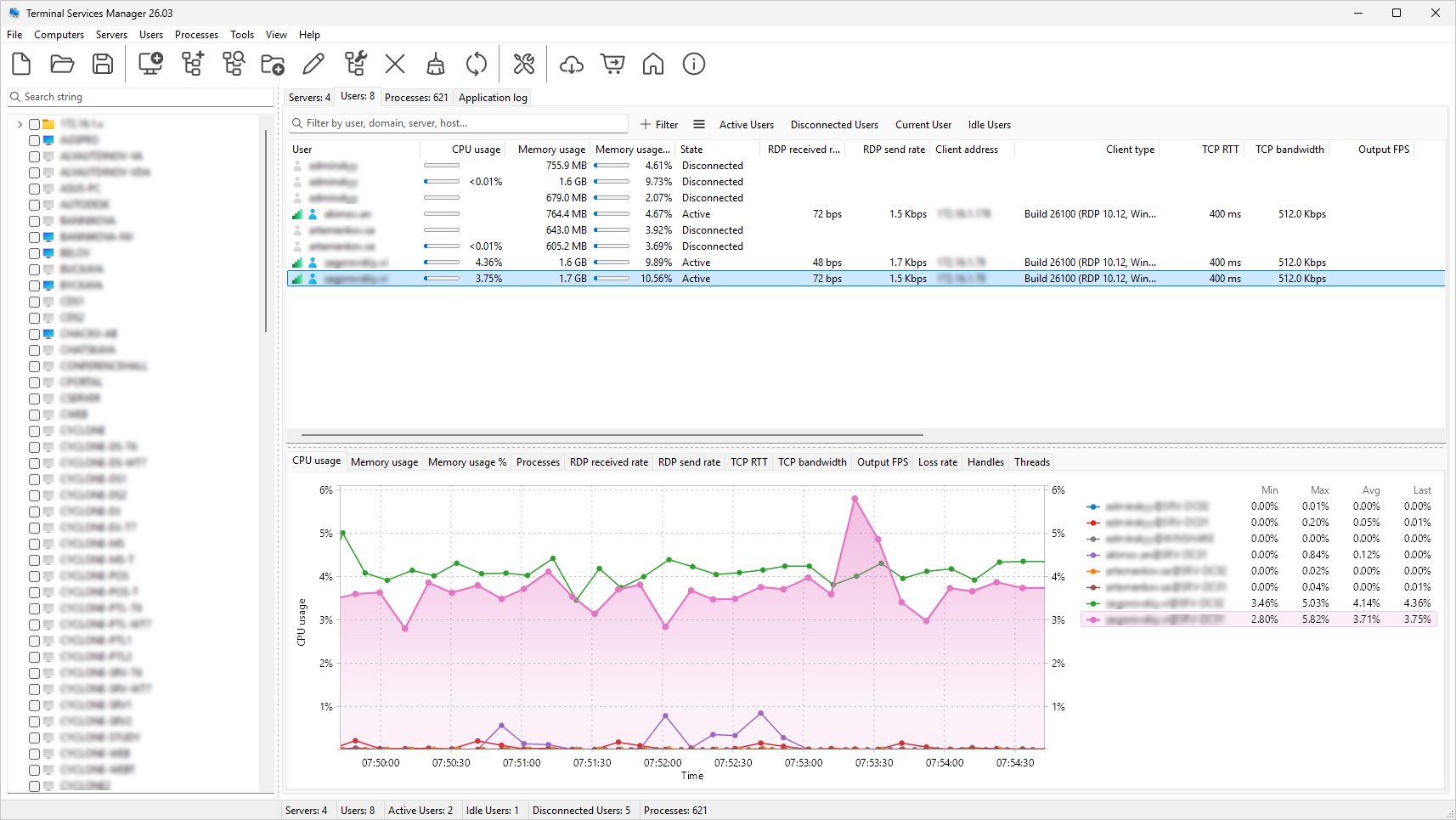
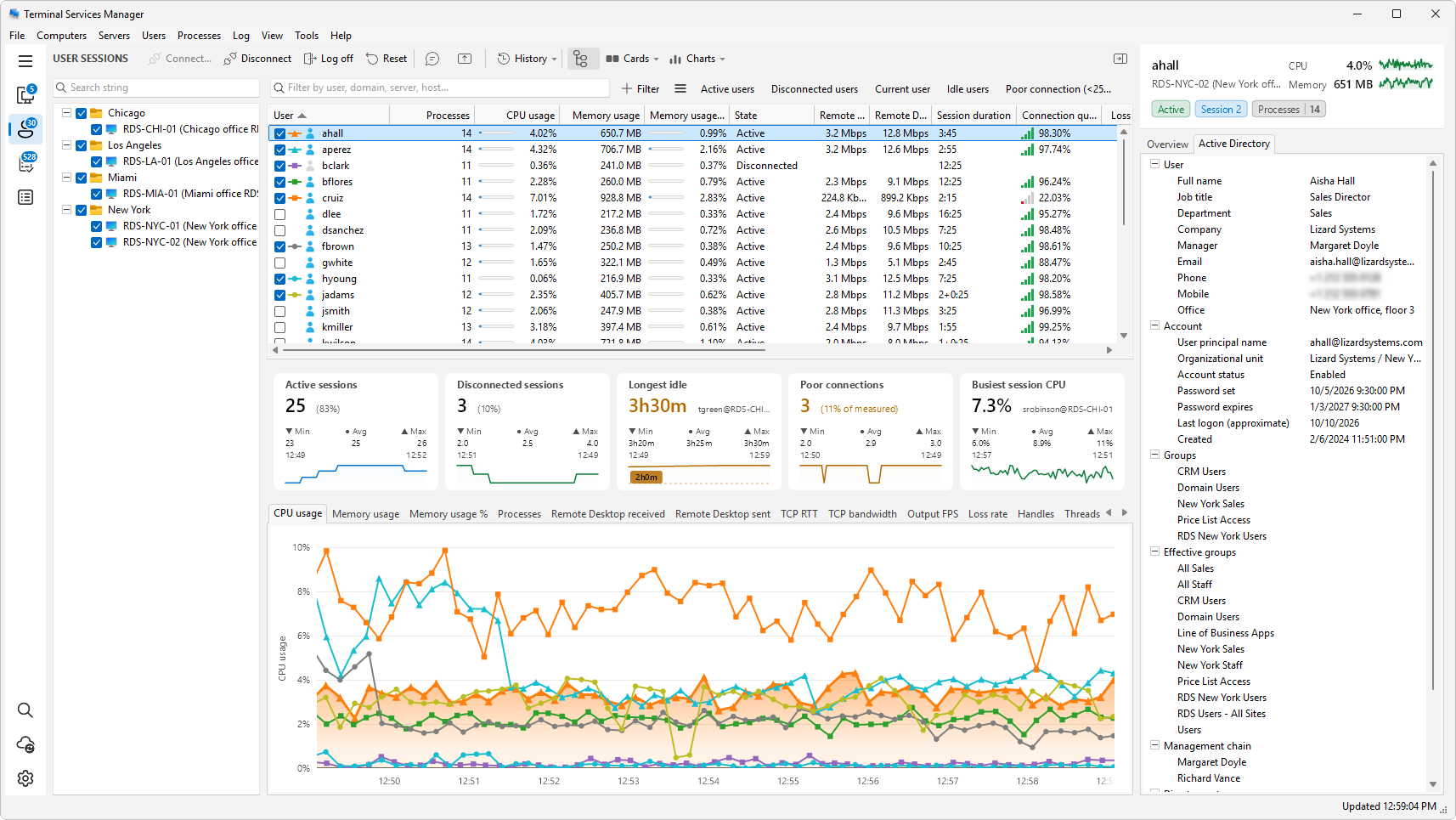
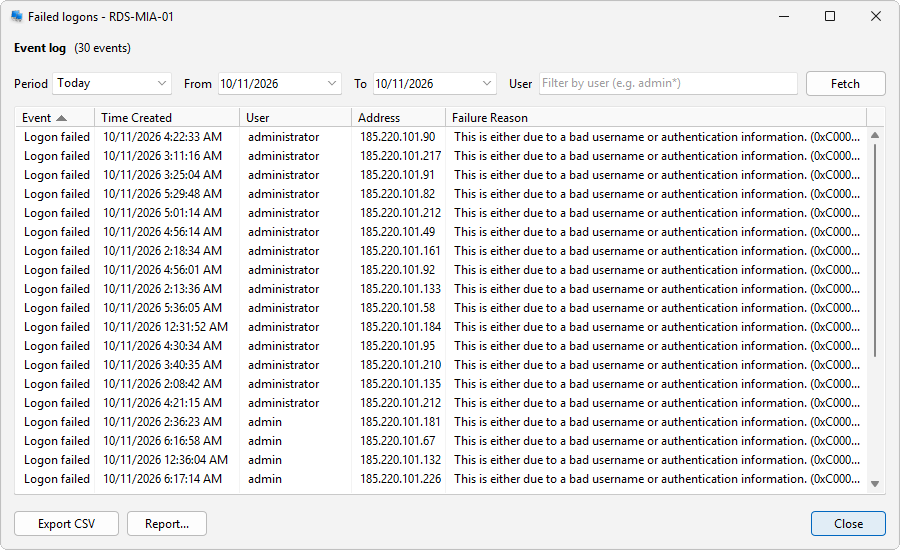
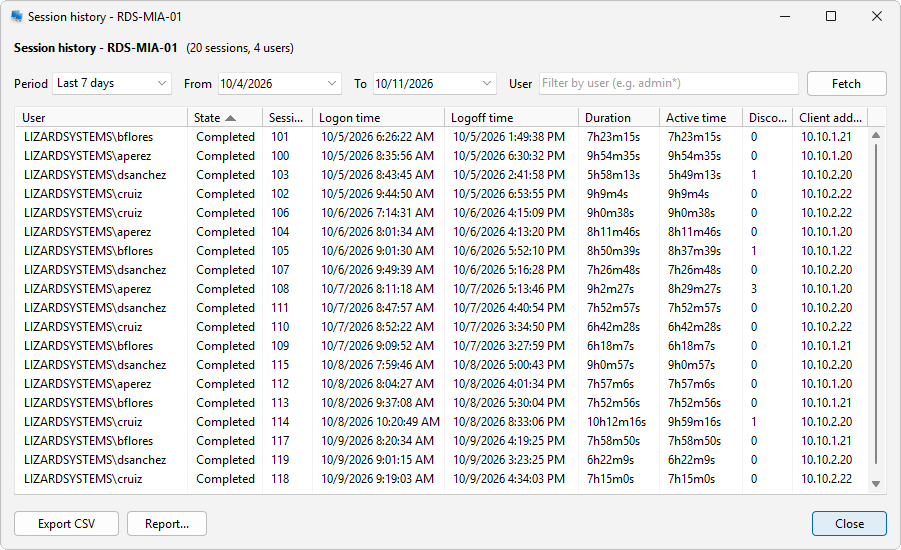
Users Every session across your servers, with its state, the CPU and memory the user is consuming, the client address, and the client type.
Processes
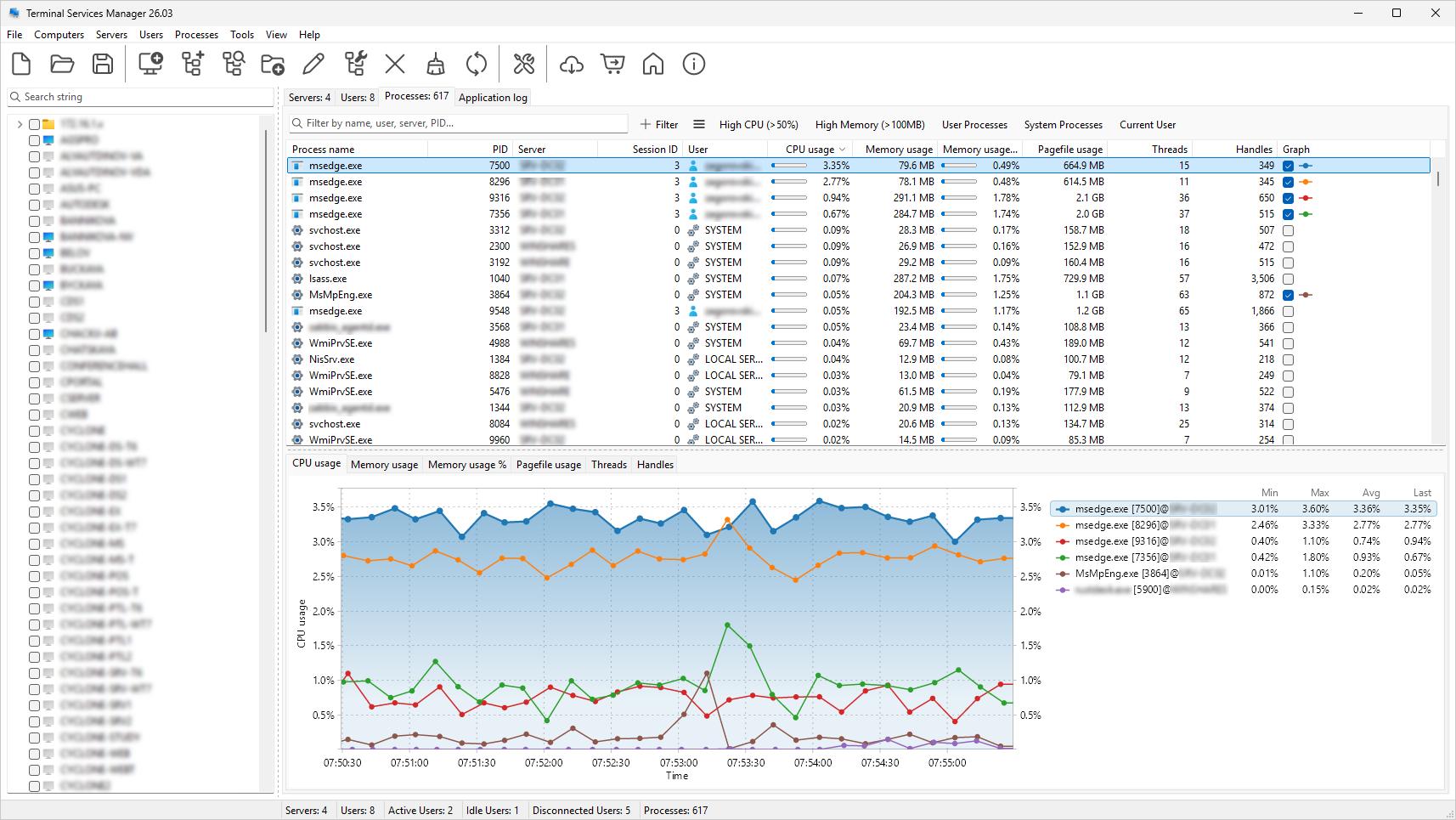
Processes Processes from all servers in one list, each mapped to the session and the user that started it. A runaway task takes seconds to find and end.
Filtering
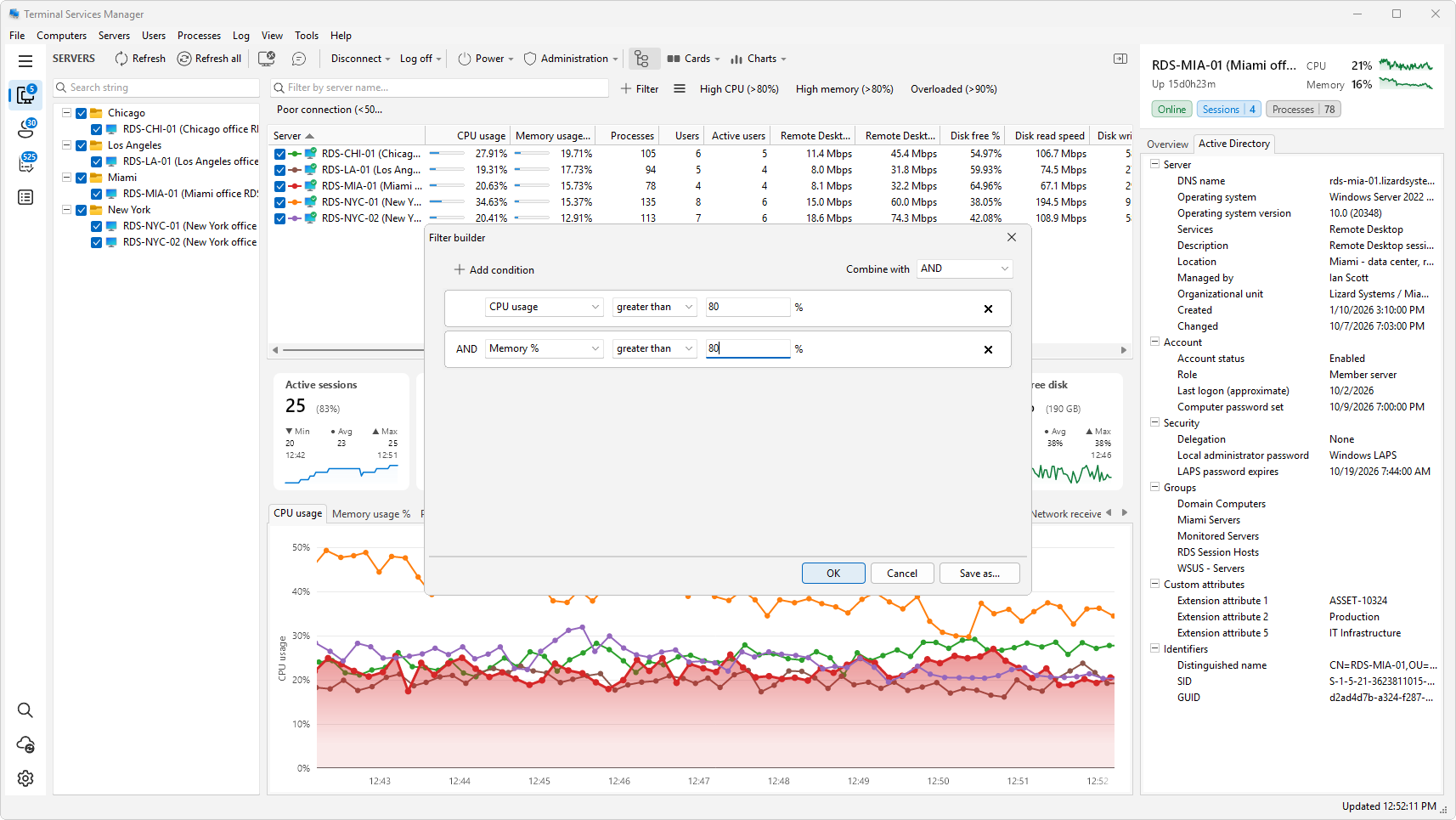
Filtering The filter builder combines column conditions, such as a working set above 100 MB on session ID 0. Quick filters cover the common cases, like high CPU or system processes.
Charts
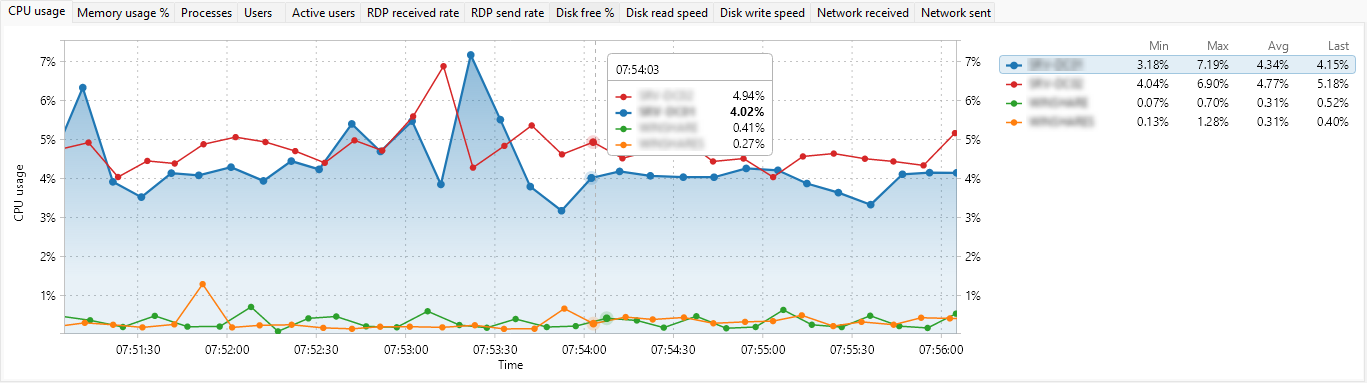
Charts Live charts for CPU, memory, processes, users, RDP throughput, disk, and network. The legend carries minimum, maximum, average, and last values for each server.

Computer list

3 screenshots

Build the server list once. Import it from Active Directory, an IP range, RDS, SCCM, Hyper-V, or WSUS, then use bulk operations to remove the dead entries and rename the rest.
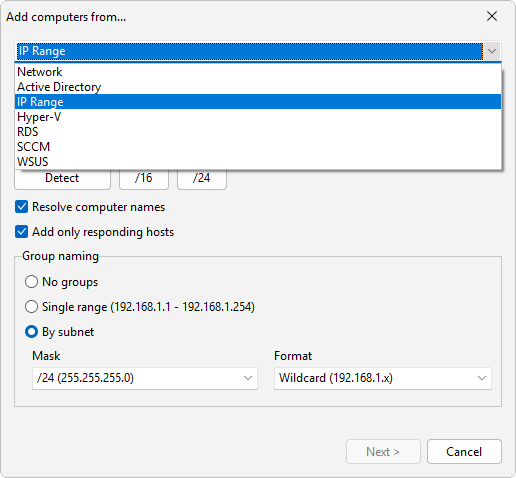
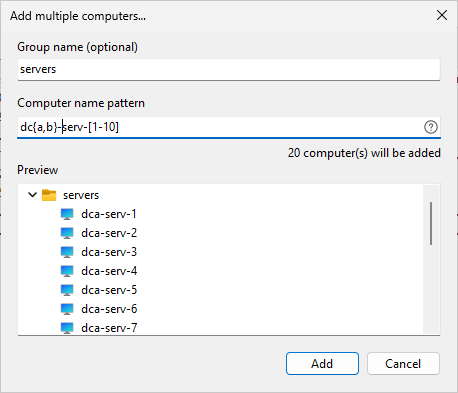
Add computers from a source
Add computers from a source Pull computers from the network, Active Directory, an IP range, Hyper-V, RDS, SCCM, or WSUS. Resolve their names, and skip the hosts that do not answer.
Add computers by pattern
Add computers by pattern Type a name pattern such as dc{a,b}-serv-[1-10], check the preview, and add all twenty computers in one go.
Bulk operations
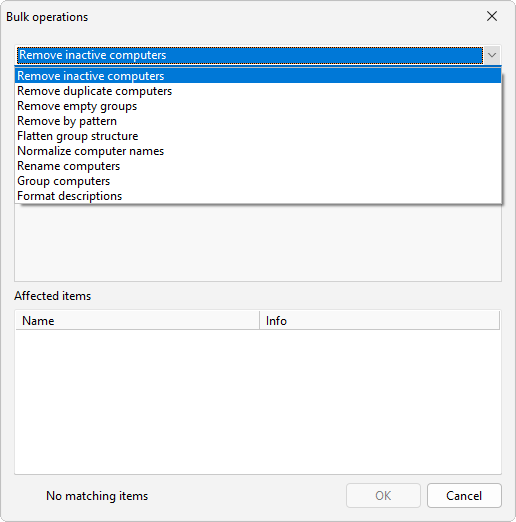
Bulk operations Clean the list in one pass. Remove inactive or duplicate computers, rename them, regroup them, or flatten the group structure.

Administration tools

2 screenshots

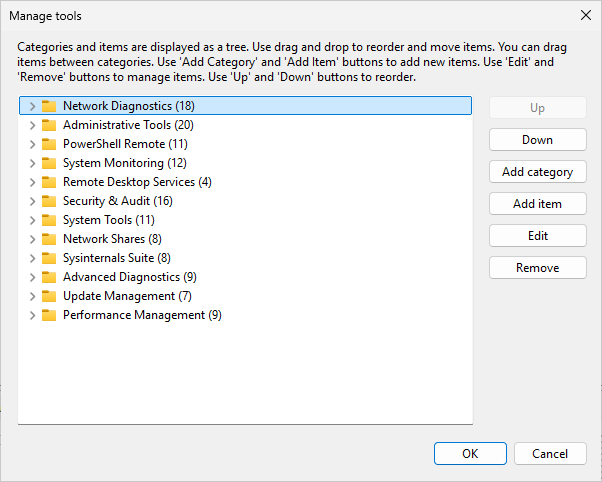
Right-click a server to disconnect or log off users, send a message, or restart it. The Tools menu holds 133 commands in twelve categories, and you can add your own.
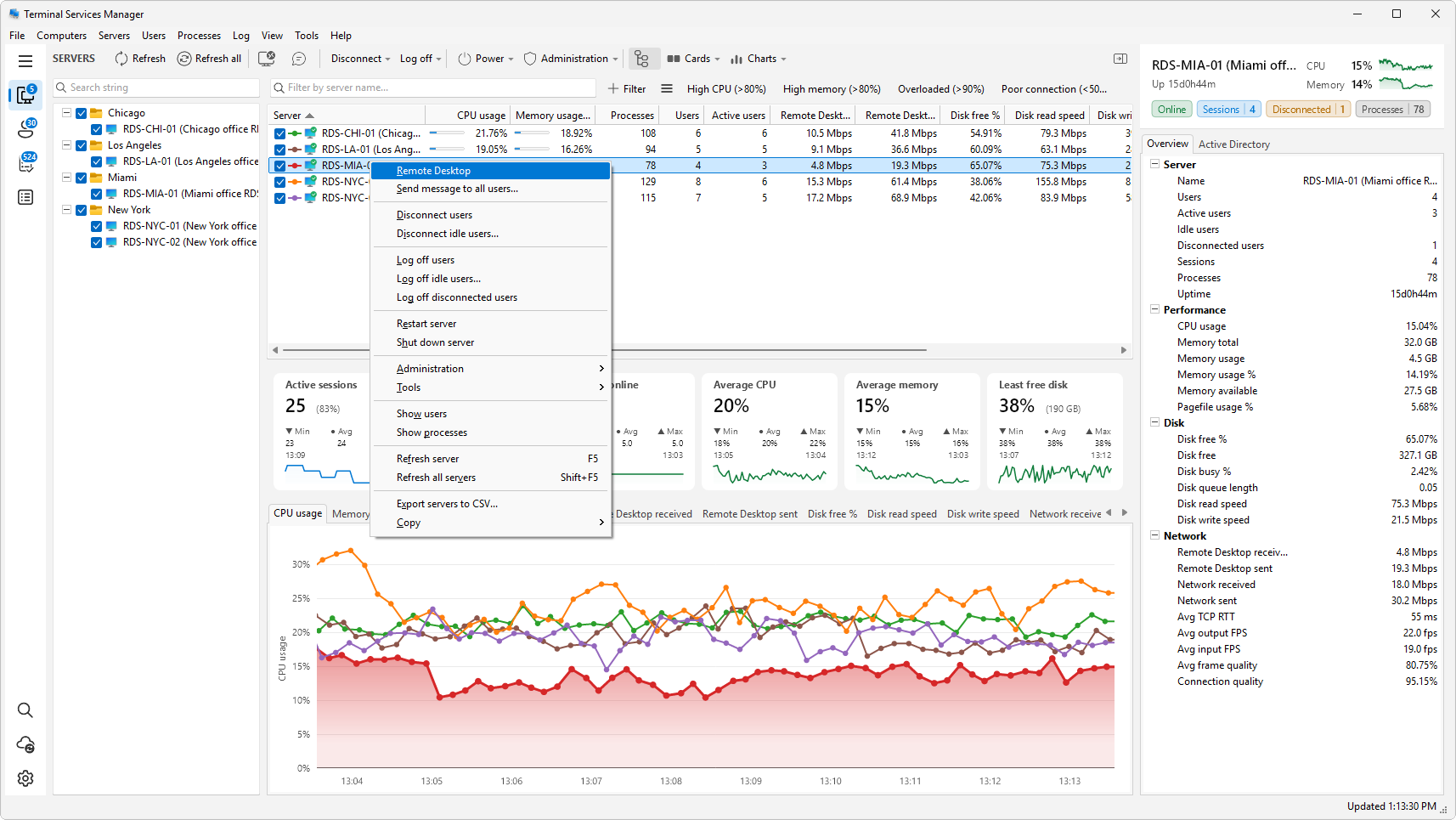
Server context menu
Server context menu Disconnect or log off users, or target only the idle and disconnected ones. Send a message, open a remote desktop, restart the server.
Manage tools and commands
Manage tools and commands 133 commands in twelve categories, including network diagnostics, security audit, and the Sysinternals suite. Drag to reorder, or add your own.

Preferences

8 screenshots

Refresh intervals, how a server is checked for availability, themes, logging, and what the graphs plot.

General
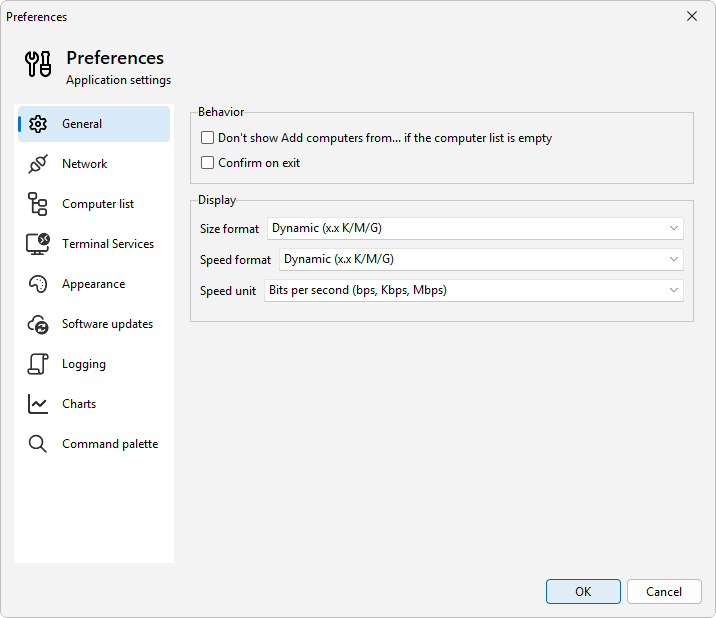
General How sizes and speeds are formatted, and whether the Add computers dialog opens when the list is empty.
Network
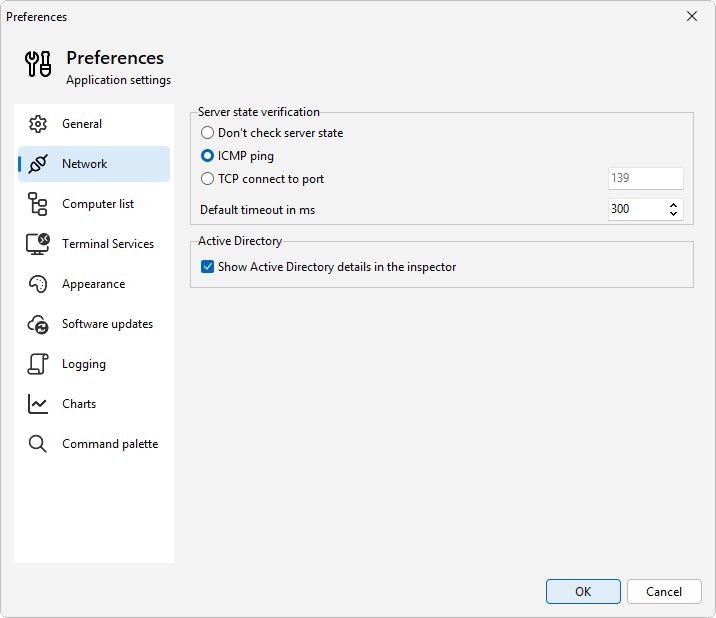
Network How a server is checked before you connect to it: no check at all, an ICMP ping, or a TCP connect to a port.
Computer list
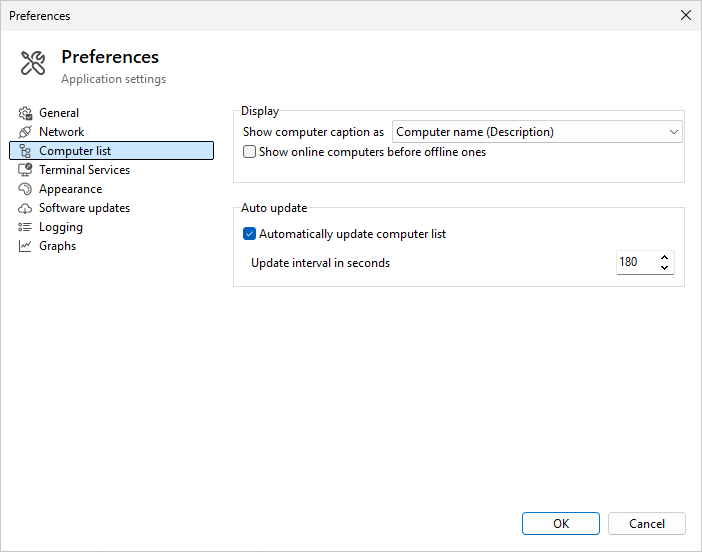
Computer list Show computers by name or description, put the online ones first, and refresh the list on a timer.
Terminal Services
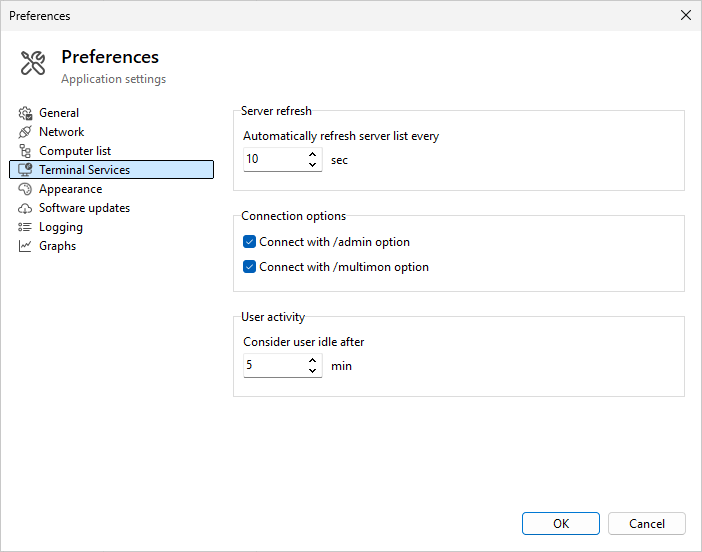
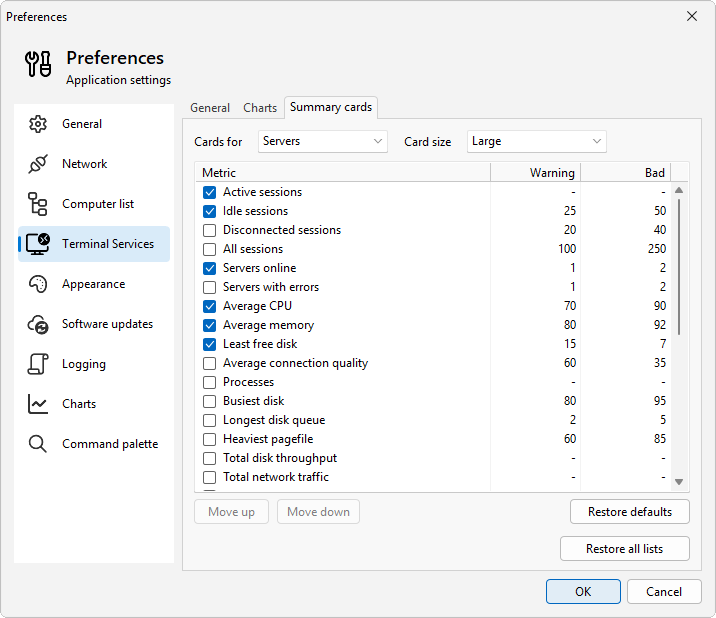
Terminal Services The server refresh interval, how long before a user counts as idle, and whether remote desktop connects with /admin and /multimon.
Appearance
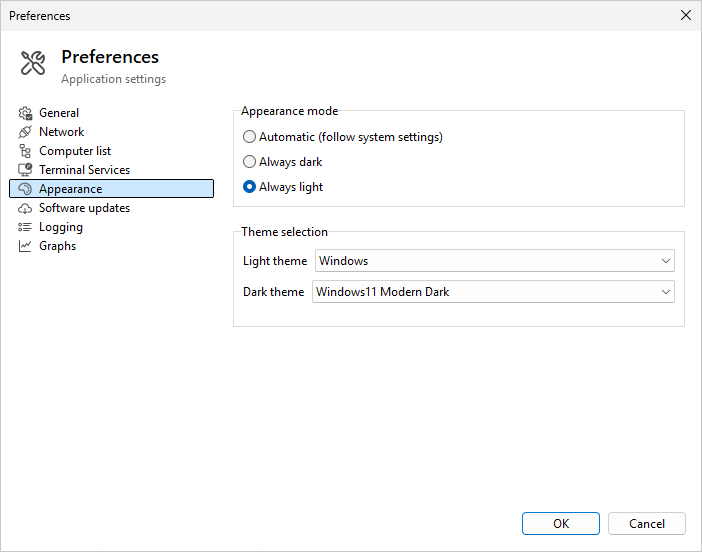
Appearance Follow the Windows theme, or lock the app to light or dark. Each mode has its own theme.
Software updates
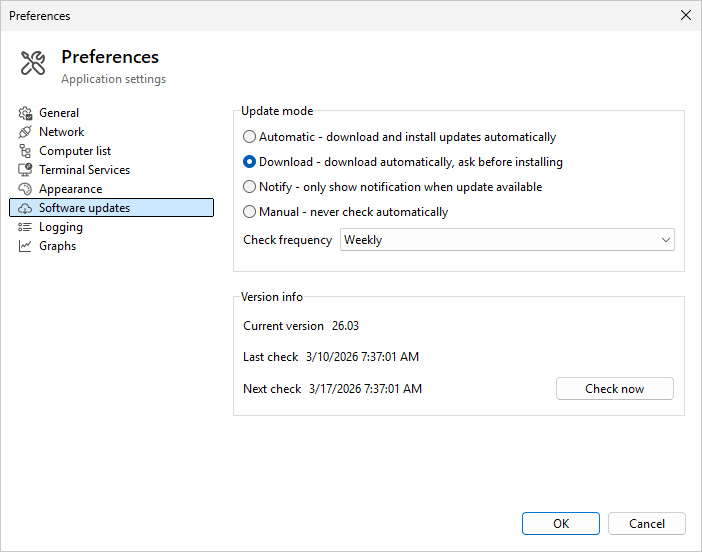
Software updates Install updates automatically, download them and ask first, only notify, or never check.
Logging
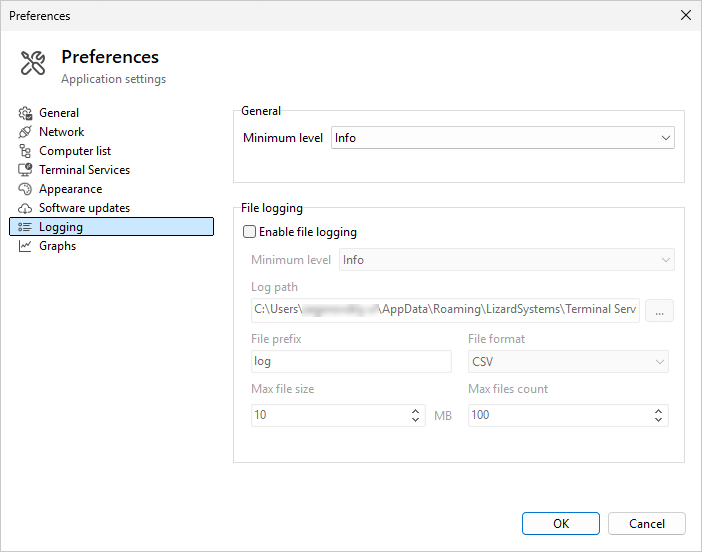
Logging The minimum log level, and optional CSV log files with limits on file size and file count.
Graphs
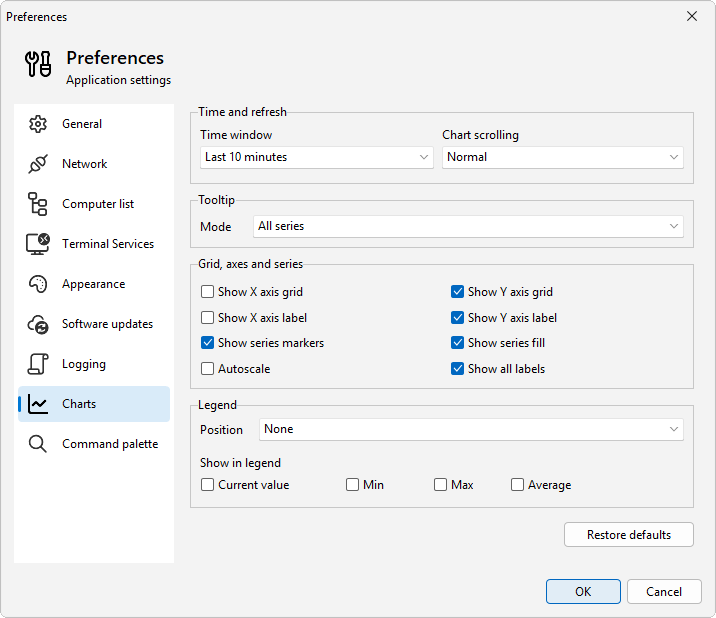
Graphs The time window, where the legend sits, and whether it shows current, minimum, maximum, and average values.