What you can do with LanSend
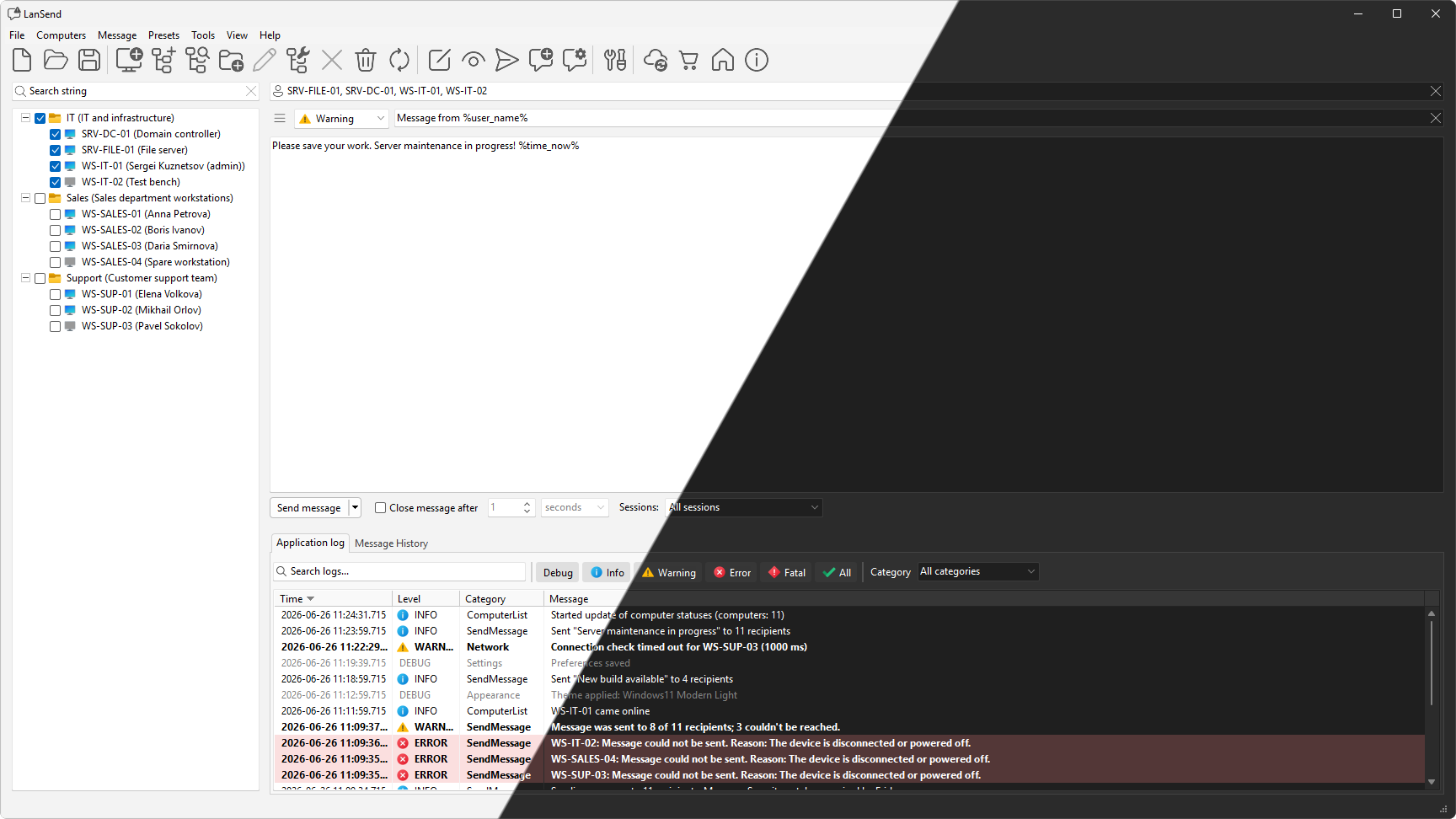
Send a pop-up to one computer or the whole network, target the right sessions, build and manage your computer list, save and reuse presets, and run it from the command line. No server, and nothing to install on the computers you message.
No server, nothing installed on the recipient
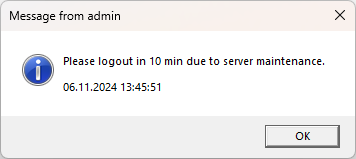
LanSend sends messages over the messaging channel built into Windows. There is no server to set up, no service to maintain, and nothing to install on the computers you message. They receive a standard Windows pop-up. You need network access to the target and administrative rights on it, the same as the built-in Windows tools.
Send to one computer or the whole network
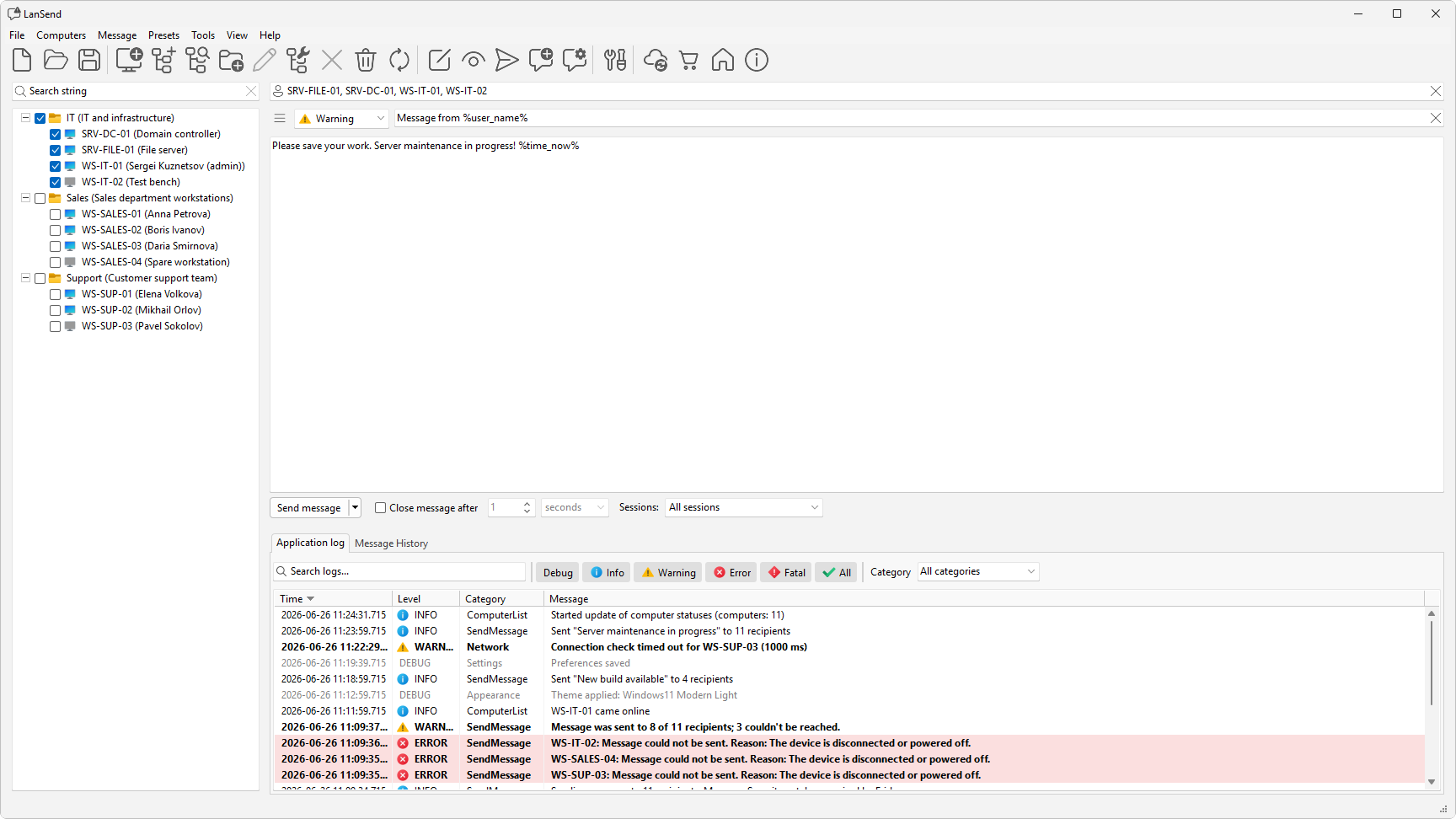
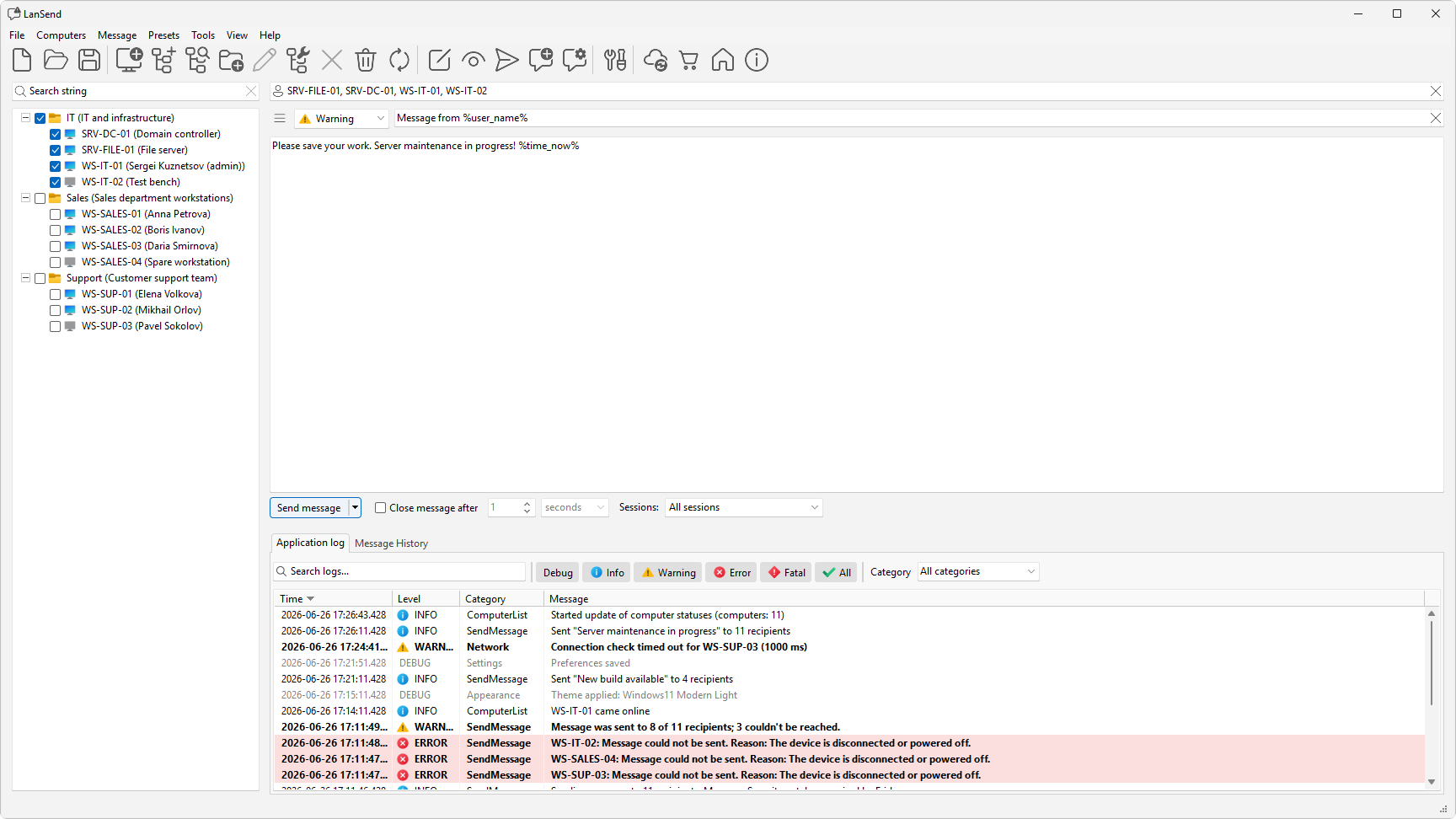
Select recipients with the checkboxes, or use Check all to reach the whole list. Send to a single machine, a group such as a floor or a lab, or every computer at once. Filter a long list by name or description to find the machines you want.
Choose which sessions receive the message
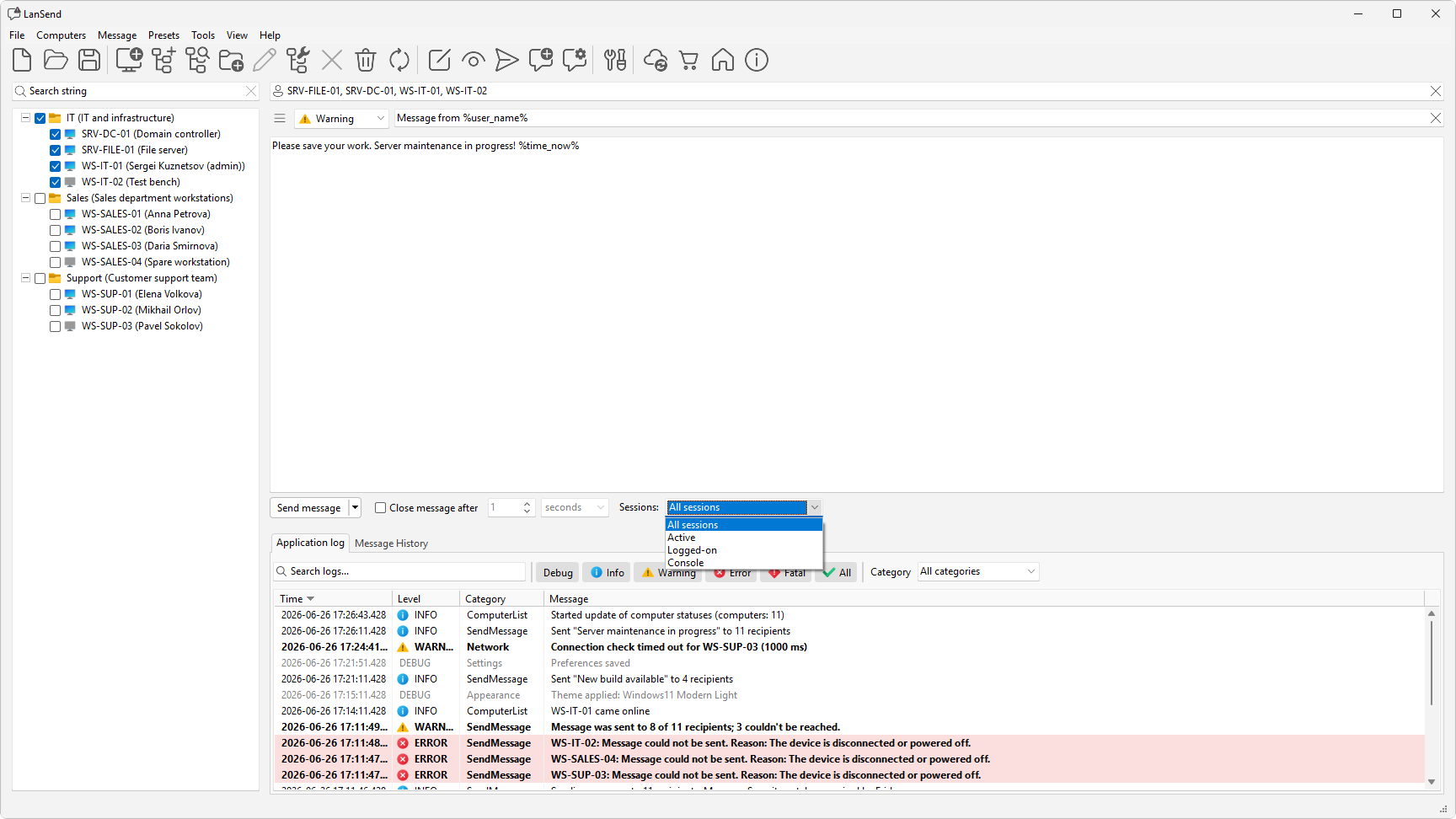
A computer can have several sessions signed in at once. The Sessions setting lets you target all sessions, the active session (local or over Remote Desktop), logged-on users, or the console session only.
Reusable message presets
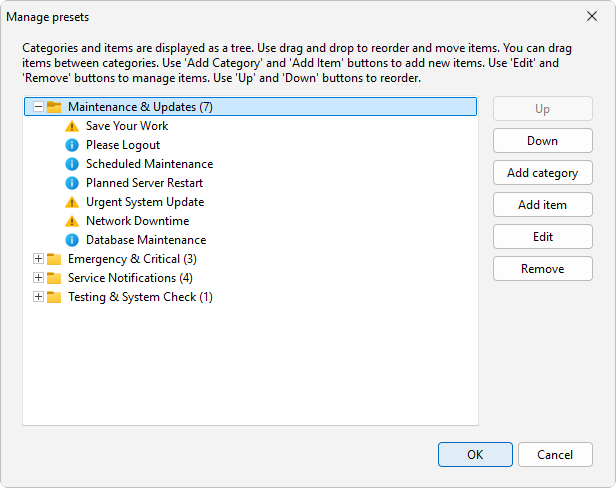
Keep your common notices, such as a maintenance window or a shutdown warning, as presets. Load one from the Presets menu, adjust the wording, and send. LanSend ships a set of ready-made presets for maintenance and updates, emergencies, service notifications, and testing, grouped into categories.
Build and manage your computer list
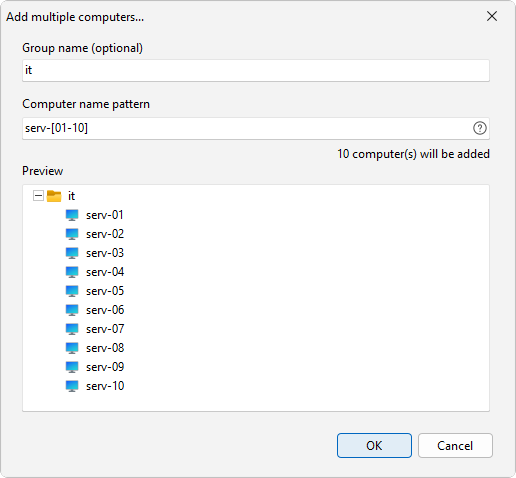
Add a single computer, enter a name pattern that expands into multiple names shown in a preview, or run the wizard to pull machines from Active Directory, an IP range, the network, Hyper-V, RDS, SCCM, or WSUS. Organize them into groups, and tidy a large list in one pass with bulk operations that remove inactive or duplicate entries, normalize names, and regroup.
Message types that match Windows
Pick a message type so recipients know how to read it at a glance. Info, Warning, and Error each carry the standard Windows icon and sound; choose None for a plain message. Add a title, and set a timeout to close the message on its own if you want.
A record of everything you send
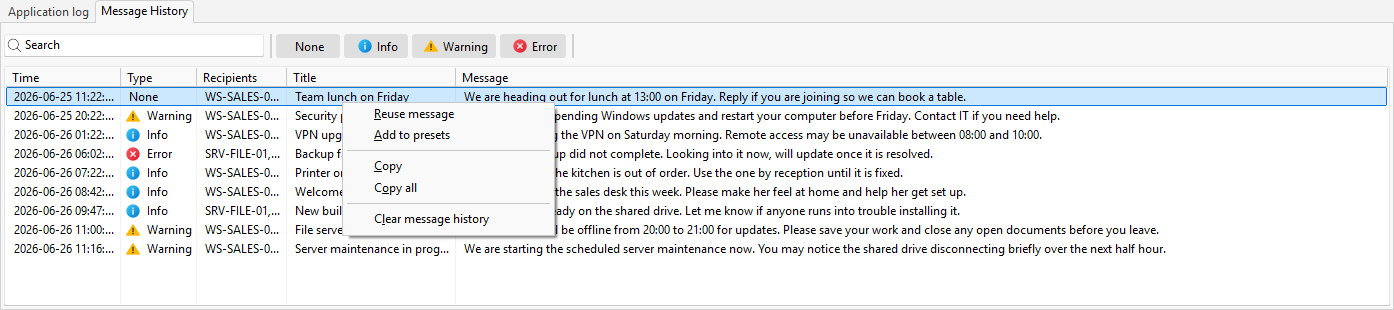
The Message History tab keeps a record of what you sent, to whom, and when, and you can reuse any past message or save it as a preset. The Application log records what the program does. Both are searchable and filterable, so you can find an entry in a long list quickly.
Send from the command line
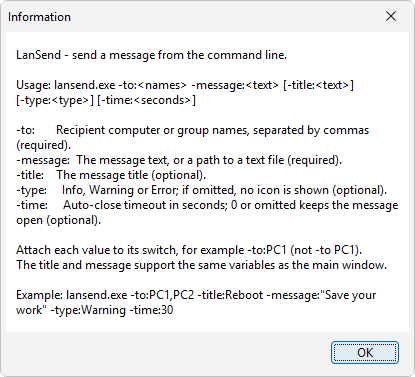
Drive LanSend from a script or a Windows scheduled task. Pass the recipients, title, body, type, and an auto-close timeout as command-line switches, or read the message from a text file. The title and body support variables such as the computer name and the current time.
A modern replacement for net send and msg.exe
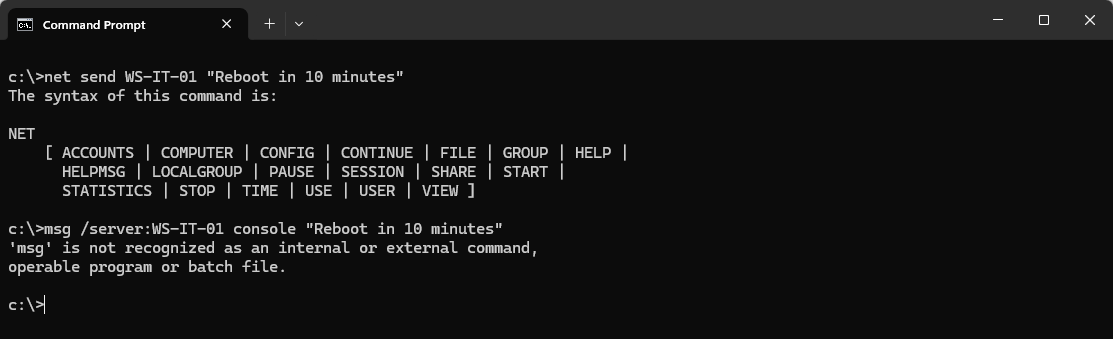
net send was removed after Windows XP, and msg.exe is command-line only, one host per call, with no saved list, presets, or history. LanSend keeps the same serverless delivery and adds a graphical window, a reusable computer list, message presets, and a record of everything you send.
Light and dark themes
Choose a light or dark theme, or let LanSend follow your Windows setting and switch with it. Toolbar and menu icons are vector graphics, so they stay crisp on high-resolution displays at any scale.