How to install and update Terminal Services Manager with winget
What is winget?
Winget is Microsoft's command-line package manager for Windows. If you've used apt-get or brew, same concept: one command to install, one command to update.
Where to get it depends on your OS:
Desktop (Windows 10/11). Winget ships as part of the App Installer component. It's usually already there. If winget isn't recognized, install "App Installer" from the Microsoft Store or register it from PowerShell:
Add-AppxPackage -RegisterByFamilyName -MainPackage Microsoft.DesktopAppInstaller_8wekyb3d8bbweWindows Server 2025. Winget is delivered through Windows Updates. It should be available after installing the latest cumulative updates.
Windows Server 2019 and 2022. Winget is not pre-installed and not in the Microsoft Store on Server editions. Install it through the Repair-WinGetPackageManager PowerShell cmdlet:
Install-PackageProvider -Name NuGet -Force
Install-Module -Name Microsoft.WinGet.Client -Force -Repository PSGallery
Repair-WinGetPackageManager -AllUsers
This pulls the WinGet PowerShell module from PSGallery and bootstraps the CLI. Open a new terminal session afterward.
Verify it works:
winget --version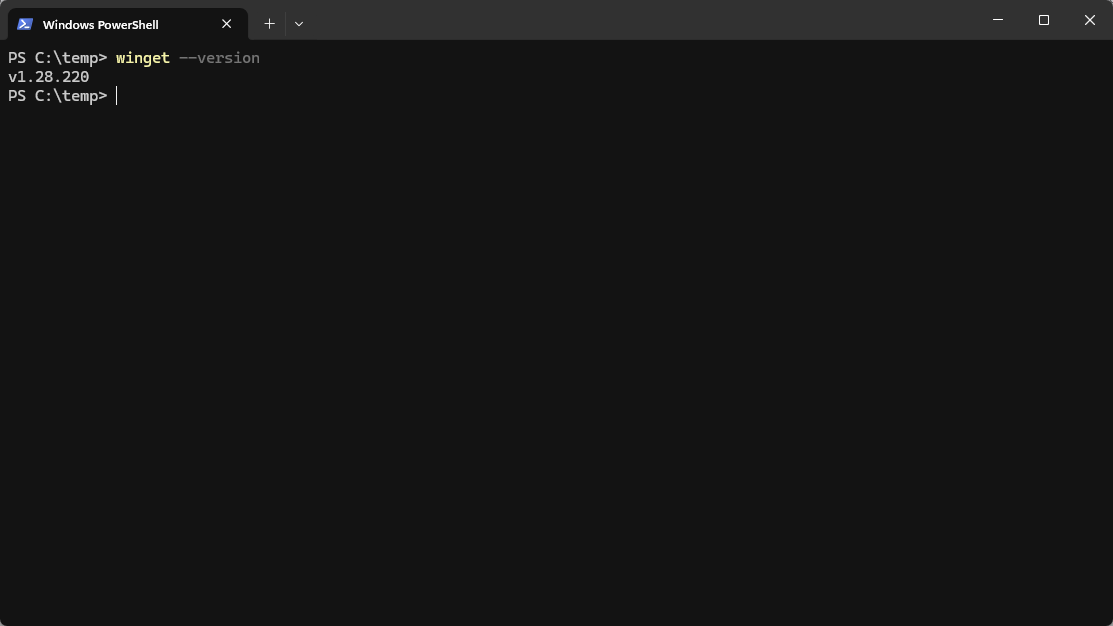
Install
winget install tsmanager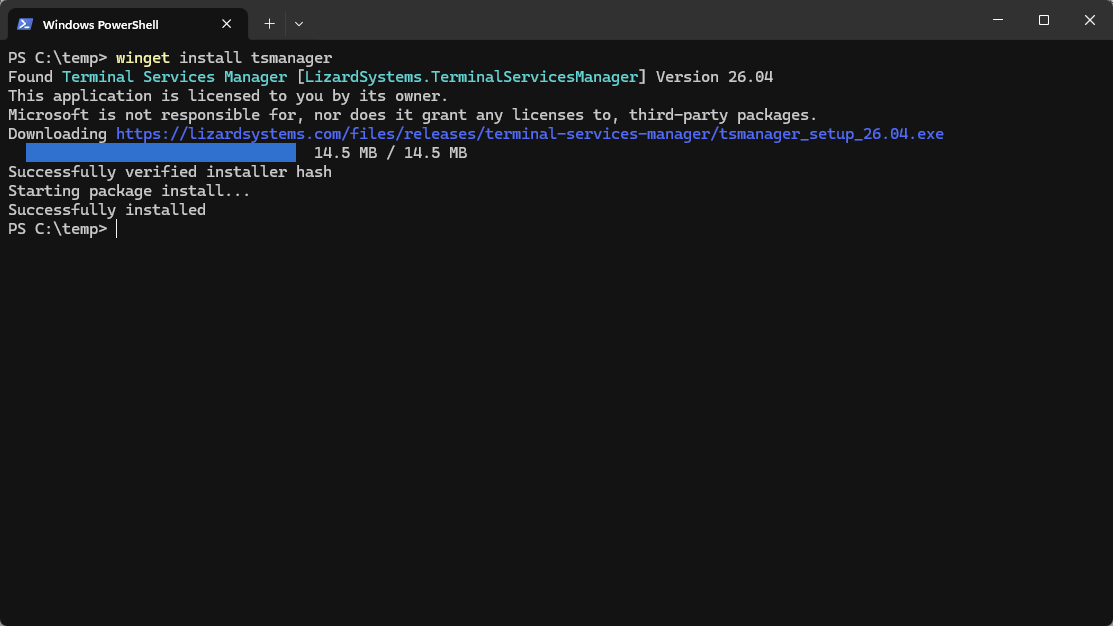
Terminal Services Manager appears in the Start menu once the installer finishes.
tsmanager is a short alias (moniker). The full package identifier also works:
winget install LizardSystems.TerminalServicesManagerUpgrade an existing installation
If you installed Terminal Services Manager from the website (not through winget), that's fine. Winget identifies installed software by the product code in the Windows registry, so it recognizes manually installed copies.
winget upgrade tsmanagerSettings, computer lists, message presets, and custom commands are all preserved. After this, winget manages the package.
Silent install for deployment
For setup scripts, Intune, SCCM, or any other automation:
winget install LizardSystems.TerminalServicesManager --silent --accept-package-agreements --accept-source-agreements--silent suppresses all installer UI. The --accept-* flags skip interactive prompts, which is necessary for unattended execution.
Here's a PowerShell example that installs Terminal Services Manager on a list of remote machines:
$computers = Get-Content ".\server-list.txt"
foreach ($computer in $computers) {
    Invoke-Command -ComputerName $computer -ScriptBlock {
        winget install LizardSystems.TerminalServicesManager --silent --accept-package-agreements --accept-source-agreements
    }
}
You can also use winget export / winget import to replicate a full toolset across machines. Export from a reference workstation:
winget export -o admin-tools.jsonThen import on each new machine:
winget import -i admin-tools.json --accept-package-agreements --accept-source-agreementsThis installs Terminal Services Manager along with every other package in the export file.
Update
Check if an update is available:
winget show LizardSystems.TerminalServicesManager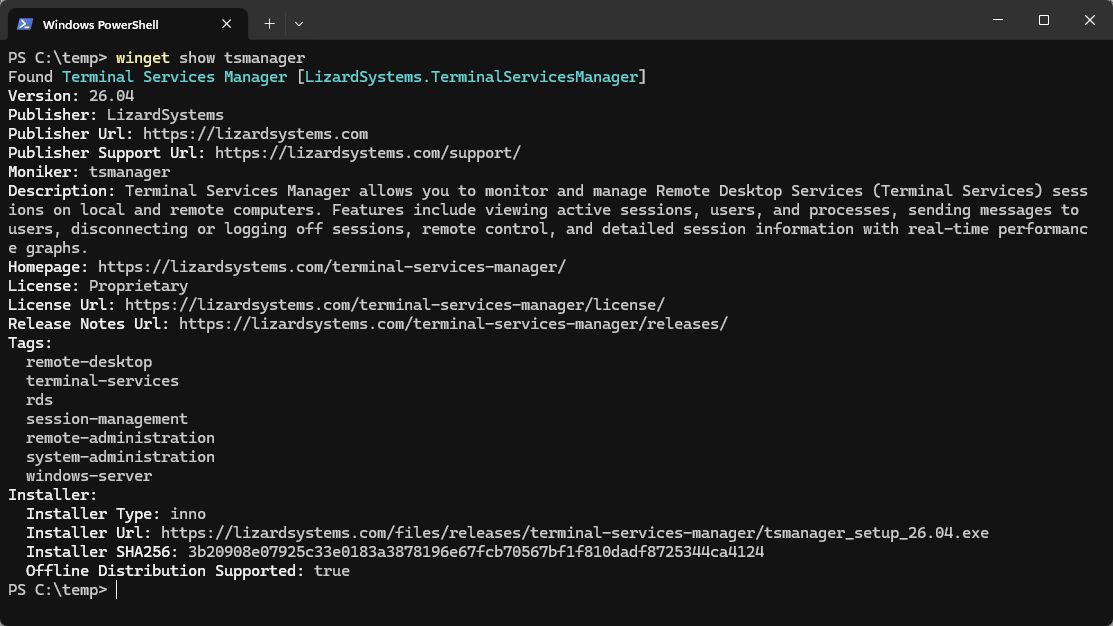
Update Terminal Services Manager specifically:
winget upgrade tsmanagerOr update all winget-managed packages at once:
winget upgrade --allTerminal Services Manager also has its own built-in update checker (configurable in Preferences). The two don't conflict.
Pin to a specific version
During a change freeze, or when you need to stay on a known-good version:
winget pin add tsmanagerThis prevents winget upgrade --all from updating Terminal Services Manager. Remove the pin when you're ready:
winget pin remove tsmanagerYou can also pin to a version range:
winget pin add tsmanager --version 26.*This allows patch updates within 26.x but blocks major version changes.
Uninstall
winget uninstall tsmanagerTroubleshooting
"winget" is not recognized. Winget requires Windows 10 version 1809 or later. On older builds, it's not available. On Server 2019/2022, use the PowerShell setup described in the "What is winget?" section above.
"No applicable installer found." Terminal Services Manager is 64-bit only. There is no 32-bit package.
Package not found. Update the winget source index:
winget source updateInstallation requires elevation. Terminal Services Manager installs to Program Files and needs admin privileges. Run the terminal as Administrator, or let the UAC prompt appear.
Upgrade doesn't detect existing installation. This can happen if Terminal Services Manager was installed under a different user account or with a non-standard product code. Uninstall manually first, then install through winget.