
Rebooting a Remote Desktop Services host with people still working on it loses unsaved work and generates angry tickets. The safe approach is the same every time: warn the users, give them time to save, clear the remaining sessions, then restart.
The manual way
A careful manual reboot looks like this:
- Stop new connections so the host can empty (drain mode):
batch change logon /drain
- Warn the users with
msg * /server:RDSH01 .... - Wait, then check who is left with
quser /server:RDSH01. - Log off stragglers with
logoff <id> /server:RDSH01. - Restart with
shutdown /r /m \\RDSH01 /t 0.
Every step is per host. Across a farm you repeat all of it server by server.
The faster way: Terminal Services Manager
Terminal Services Manager lets you run the sequence from one window, on one server or several at once.
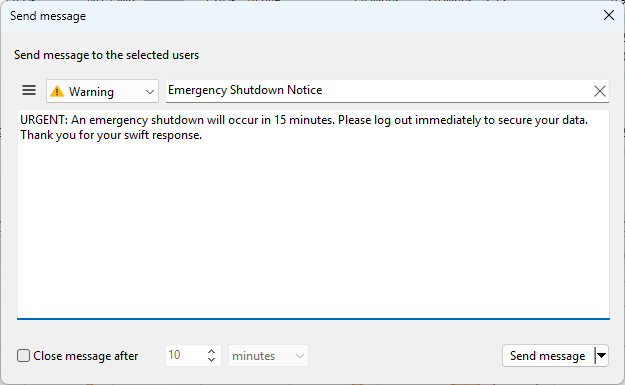
1. Warn the users. On the Servers tab, right-click the servers and choose Send message to all users. Tell them when the reboot will happen and ask them to save and sign out. A saved message preset keeps the wording consistent.
2. Give them time, then check who is left. Watch the Users and Active users counts on the Servers tab fall as people sign out. Switch to the User sessions tab to see exactly who remains.
3. Clear the stragglers. For anyone still connected past the deadline, right-click the server and use Log off users (everyone) or Log off disconnected users (only abandoned sessions). It confirms before it runs.
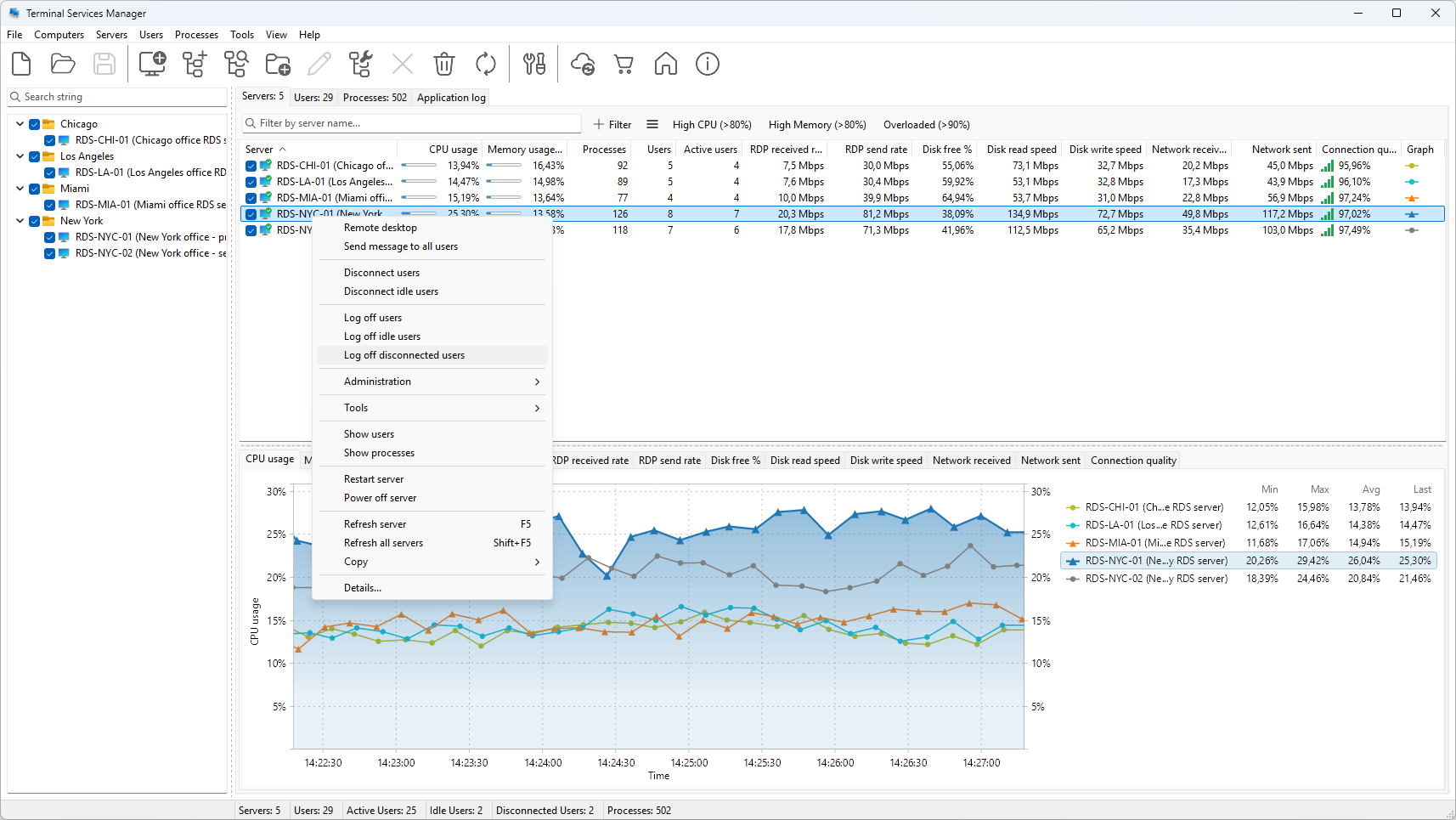
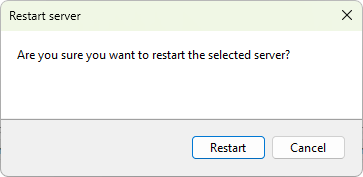
4. Reboot. Right-click the server and choose Restart server, or Power off server to shut it down. Select more than one server first to act on all of them together; the prompt tells you how many are selected.
Watch the result
The restart request is queued and carried out on each server. Watch the application log for the outcome, and the Servers tab for each host to drop offline and come back.
If the restart fails
The account running the program needs the Shut down the system privilege on the target. If it is missing, adjust the account's permissions, or run the program under an account that has them.
Related
- How to send a message to all Remote Desktop users
- How to log off idle users on a Remote Desktop server