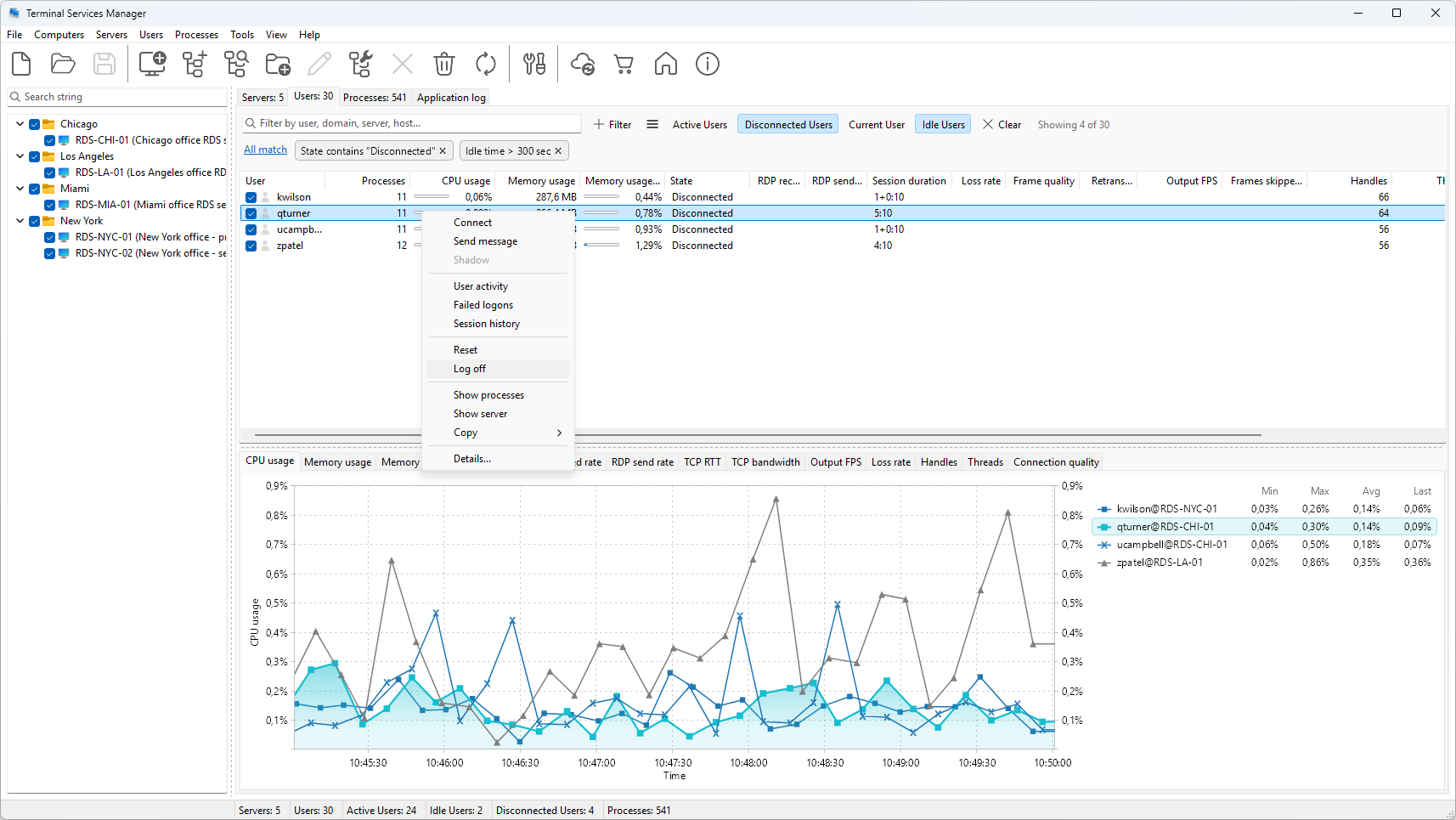
Sessions left idle or disconnected hold resources and Remote Desktop licenses that active users need. There are two ways to deal with them: enforce automatic timeouts with Group Policy, and clear them on demand when you need resources back now.
The automatic way: Group Policy time limits
For a standing policy, configure session time limits under:
Computer Configuration > Administrative Templates > Windows Components > Remote Desktop Services > Remote Desktop Session Host > Session Time Limits
- Set time limit for active but idle Remote Desktop Services sessions - disconnects a session after a period of no input.
- Set time limit for disconnected sessions - logs off a disconnected session after a period.
These apply farm-wide on the next policy refresh, which is exactly what you want for a baseline. What they are not good for is a one-off cleanup right now, or a different threshold for one maintenance window.
The on-demand way: Terminal Services Manager
Terminal Services Manager clears idle and disconnected sessions across one or many servers in a single action, using an idle threshold you set in the program.
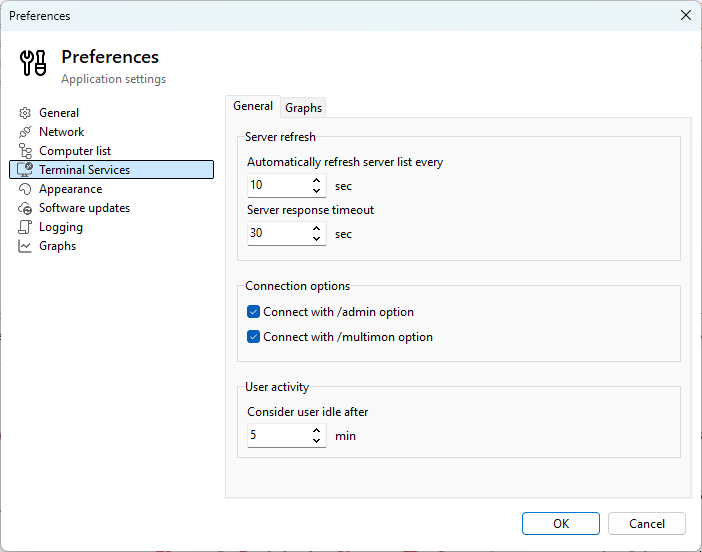
Set the threshold. Open File > Preferences > Terminal Services and set Consider user idle after to the number of minutes of no input that marks a session as idle (1 to 1440, default 5). This drives the idle count and the idle actions below.
Clear sessions. On the Servers tab, select the servers, right-click, and pick the action that fits:
- Disconnect idle users - drops the connection of sessions idle past the threshold, but keeps the session so the user can resume.
- Log off idle users - ends the sessions idle past the threshold, freeing their resources.
- Log off disconnected users - ends only the sessions already in the disconnected state.
- Disconnect users / Log off users - act on every user on the server.
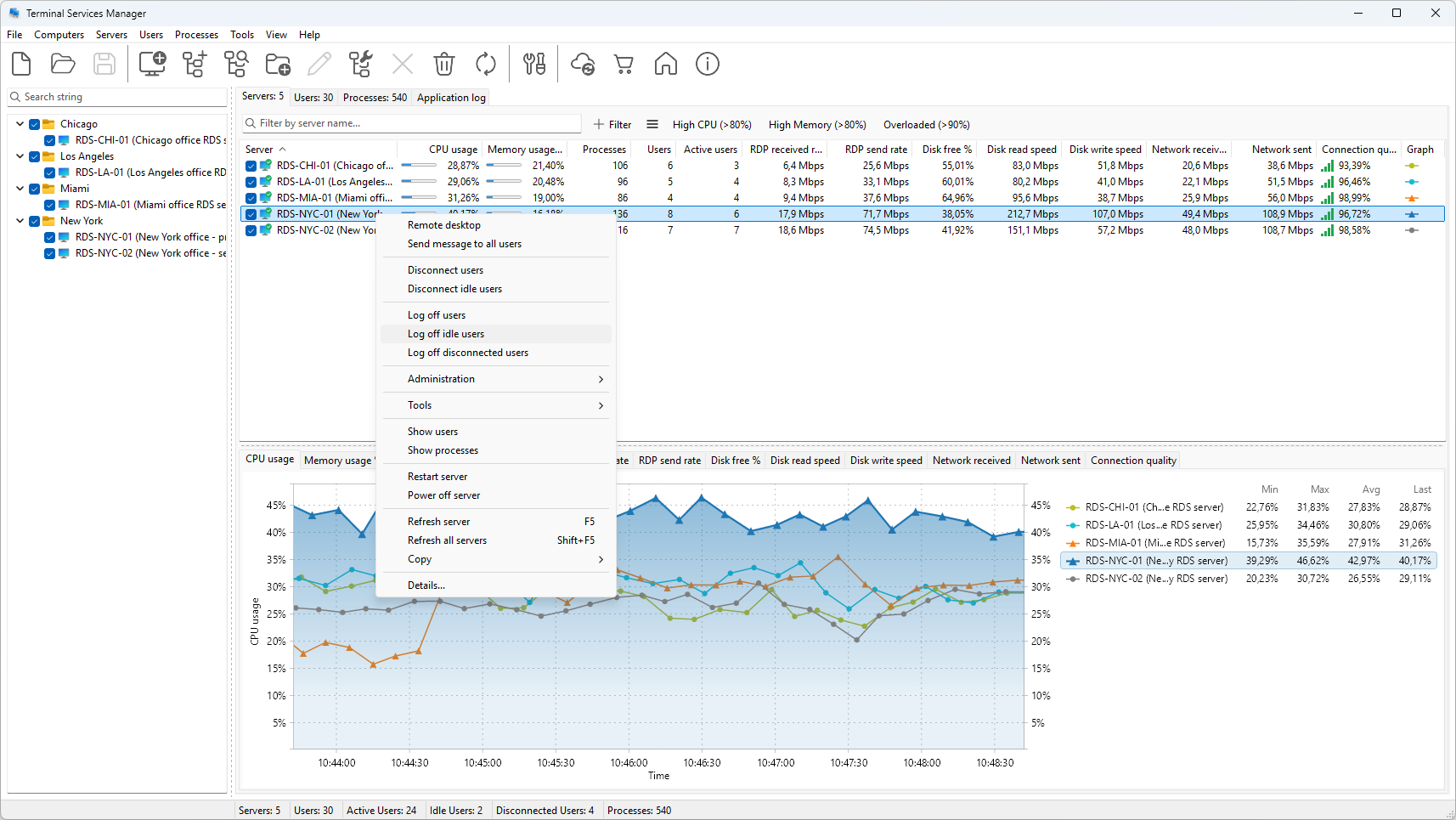
Each command confirms, then runs against every selected server.
Disconnect or log off?
Disconnect leaves the session running so the user keeps their open work; Log off ends it and returns the memory, CPU, and license. For routine cleanup of finished users, log off.
Target specific sessions instead
To pick individual sessions rather than sweep a server, filter the User sessions tab with the Idle Users or Disconnected Users preset, select the rows, and use the per-session Log off action on the context menu. See how to log off disconnected RDP sessions.