
Before you can manage anything, the servers have to be in your list. Typing dozens of host names by hand is slow and error-prone. Terminal Services Manager can discover them from the sources you already maintain, and connect to them under whichever Windows account has the rights you need.
Discover the hosts
Open the Add computers from... wizard and pick the source that matches your environment:
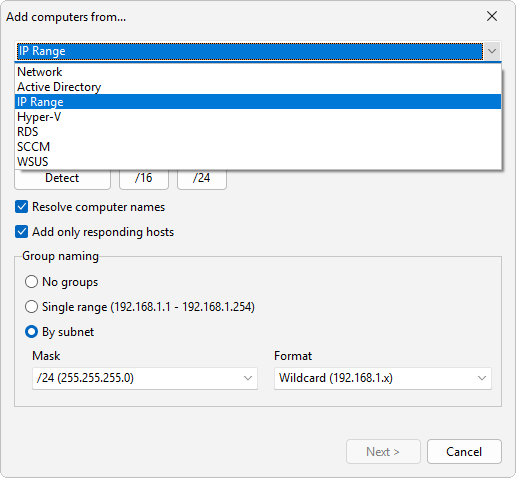
- Active Directory: query the domain for computer accounts, the usual choice for a managed network.
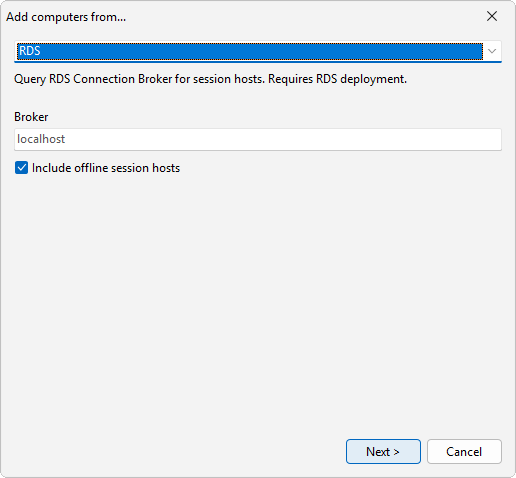
- RDS: pull the session hosts straight from a Remote Desktop Services connection broker, so you get exactly the farm members.
- IP Range: scan a subnet and add the hosts that respond, handy for workgroup or unmanaged networks.
- Network, Hyper-V, SCCM, and WSUS are there too when those are where your inventory lives.
If your hosts follow a naming pattern, you can skip discovery and add them by pattern instead. For example, RDSH[01-20] creates twenty entries at once. To add a single box, use the Add computer dialog.
Tidy the list
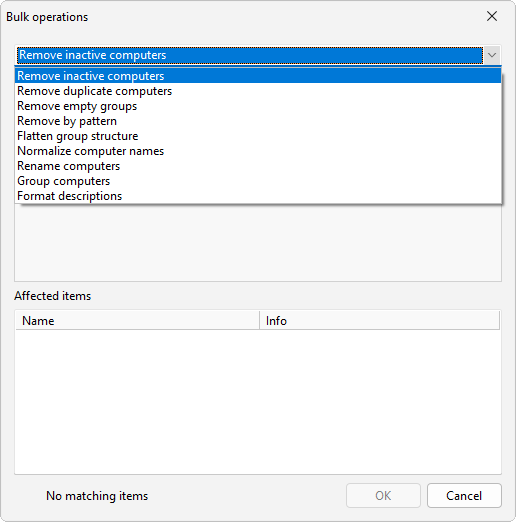
After a bulk import the list often needs cleanup. The bulk operations dialog removes duplicate and inactive computers, normalizes names, and groups entries by name prefix, subnet, or domain in one pass. Then organize them into groups by site, role, or customer so the tree stays manageable.
Connect under the right account
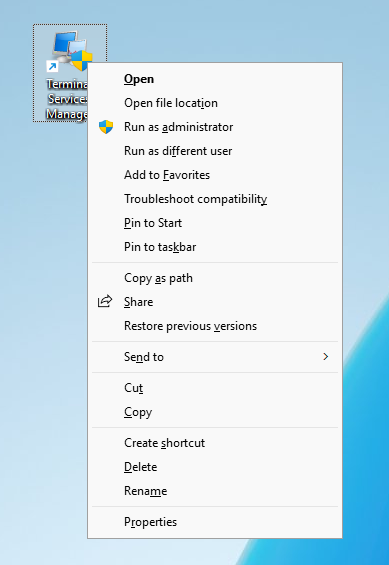
Terminal Services Manager connects to every host using the Windows account it is running as. To manage servers in another domain, or to use an account with the administrative rights the actions need, start the program with Windows Run as different user and pick that account:
runas /user:CONTOSO\rds-admin "C:\Program Files\LizardSystems\Terminal Services Manager\tsmanager.exe"
All the session, process, and power actions then run as that account against every server in the list.
Save the list
Once the list is built, export it to share with colleagues or to back it up. With the hosts in place, move on to seeing who is logged on.
Related
- How to see who is logged on to a Remote Desktop server
- How to find which user is using high CPU on an RDS host