
"Who is connected to the terminal servers right now?" is the question a Remote Desktop administrator answers most often: before a reboot, while chasing a slowdown, or just to keep an eye on the farm. This guide answers it twice: first with the built-in Windows command, then across a whole fleet at once.
The manual way: quser
Windows ships with the quser command (also written query user). Run it from an elevated prompt against one host:
quser /server:RDSH01
It lists each session on that server with the user name, session name, ID, state (Active or Disc), idle time, and logon time. It works, but it has two limits: it queries one server at a time, and it only reports, it cannot act on a session.
For a quick PowerShell roll-up across a few hosts:
"RDSH01","RDSH02","RDSH03" | ForEach-Object { quser /server:$_ 2>$null }
This still leaves you reading raw text, with no way to sort, filter, or click through to disconnect or message a user.
The faster way: Terminal Services Manager
Terminal Services Manager puts every session from every server in your list into one sortable table. Open User sessions in the sidebar and you see one row per session, with the user, the server it is on, the session state (active, idle, or disconnected), idle time, logon time, and the client name and address the user connected from.
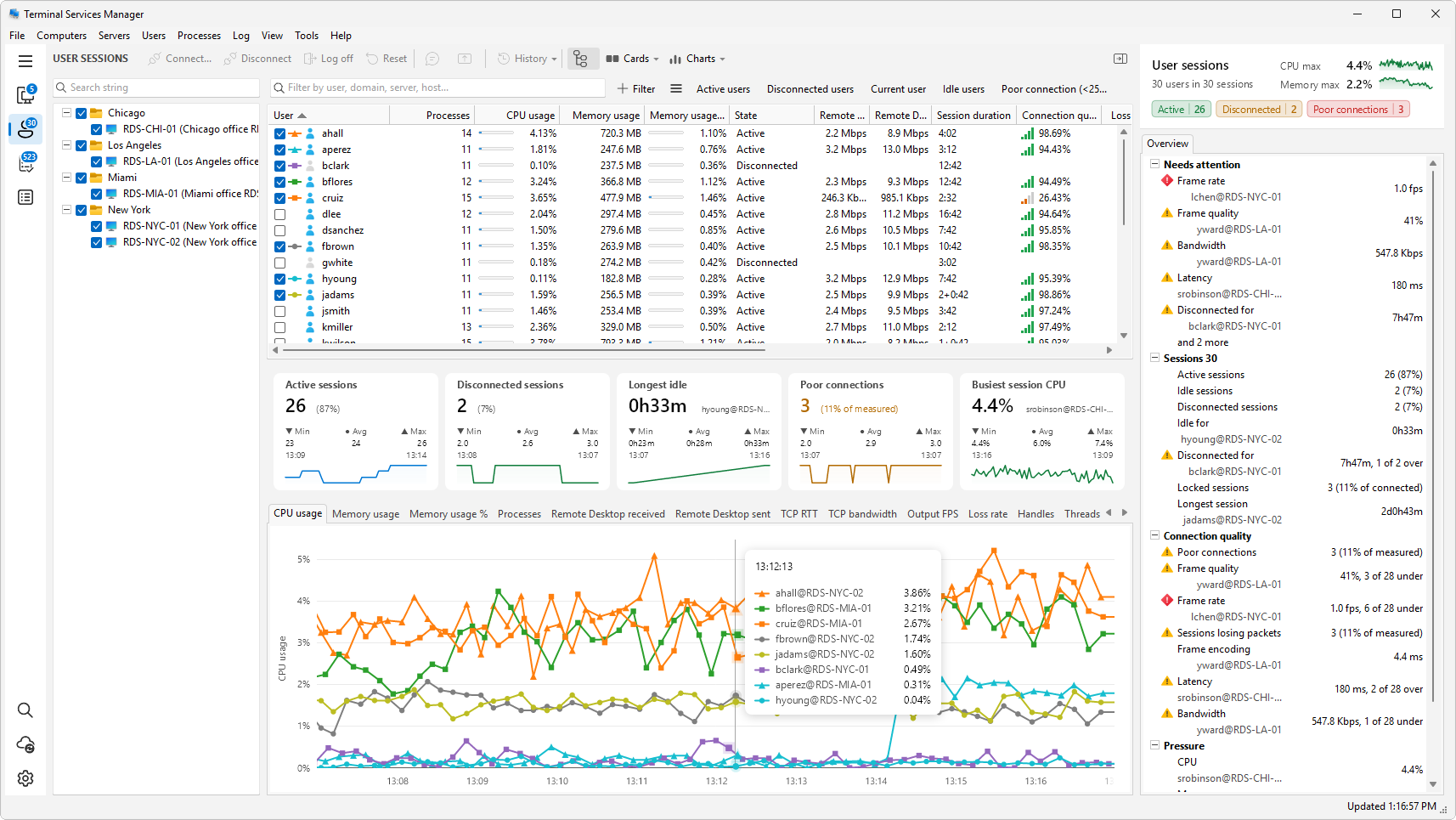
From there you can:
- Sort by idle time to find abandoned sessions, or by server to group them.
- Filter with the filter box, or click a preset button such as Active users, Idle users, or Disconnected users to split the list by state.
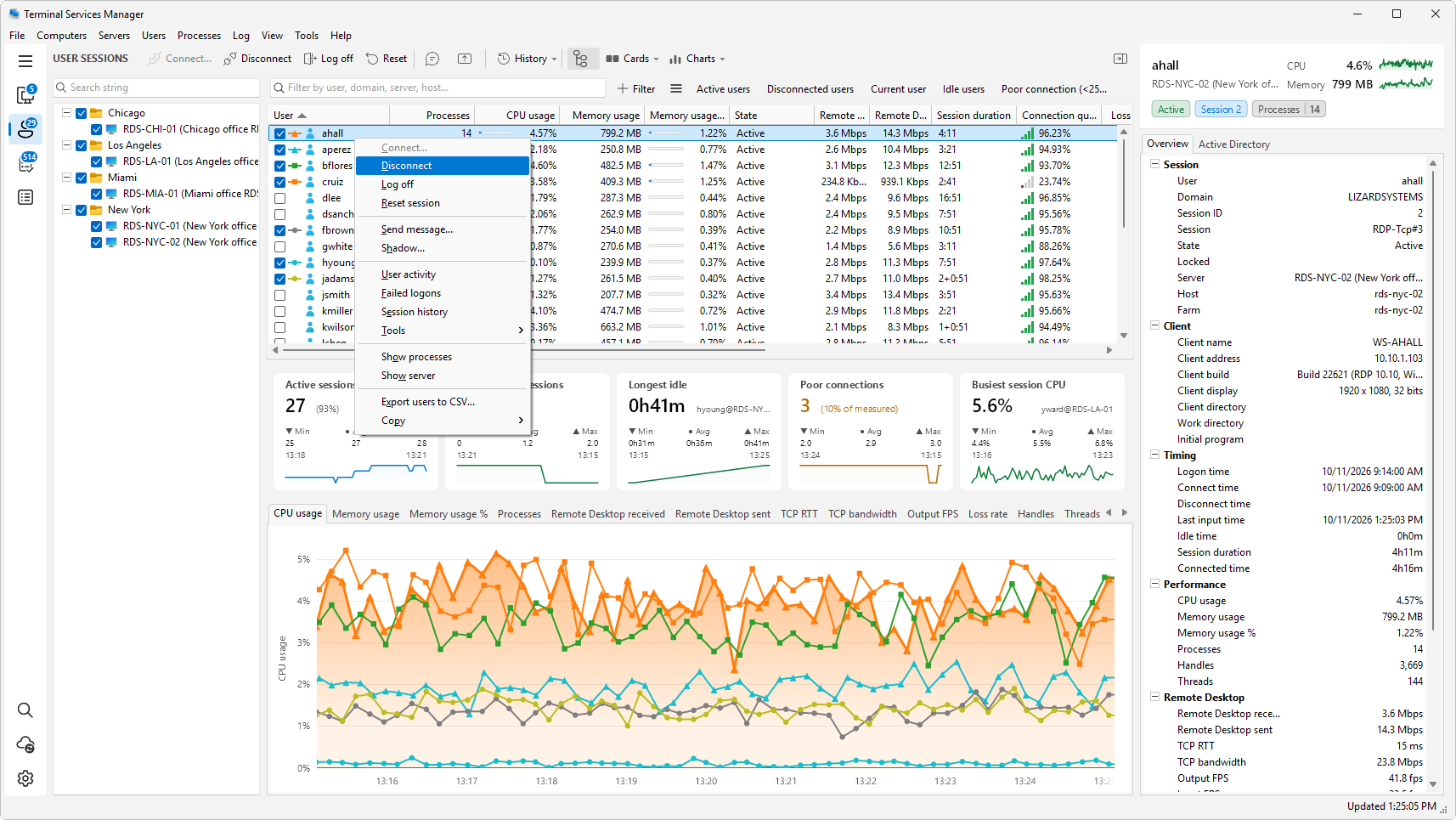
- Act on any session directly: disconnect, log off, send a message, or shadow the screen, without opening a remote desktop connection to the host.
- Export the current view to CSV, or copy selected rows to the clipboard, for a record you can share.
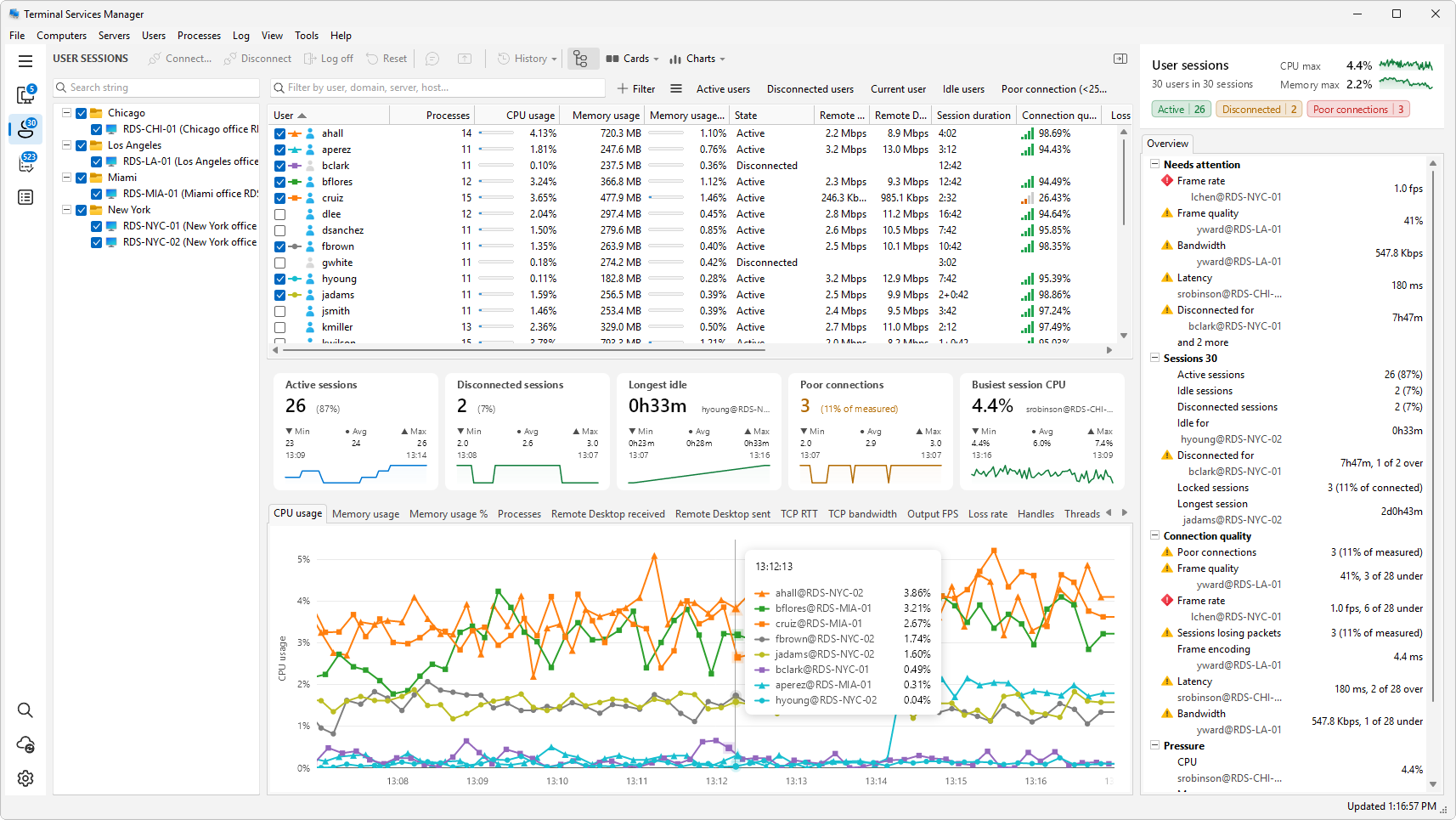
Every server reports into the same window, so you no longer run quser host by host.
Tip: see a single server's users
If you only care about one host, right-click it in the Servers section and choose Show users to filter the session list to that server.
Related
- How to log off disconnected RDP sessions
- How to find which user is using high CPU on an RDS host
- How to audit RDP logon history