
A run of failed Remote Desktop sign-ins is often the first visible sign of a brute-force attack against a server exposed to the internet. Each failure is recorded in the Windows Security log as event 4625, but reading raw event logs on each host is slow, and the failure reason and source address are buried in the event detail.
For background on why this matters, see why you need to monitor failed logon attempts. This guide shows how to find and read those events.
The manual way: Event Viewer
On the host, open Event Viewer, go to Windows Logs > Security, and filter for event ID 4625 (an account failed to log on). For RDP, the Logon Type is 10, and the attacker's IP is in the Source Network Address field. From PowerShell:
Get-WinEvent -FilterHashtable @{LogName='Security'; Id=4625} -MaxEvents 200 |
  Select-Object TimeCreated, @{n='User';e={$_.Properties[5].Value}}, @{n='Source';e={$_.Properties[19].Value}}
This works, but it is per server, and correlating dozens of events by source IP and user by hand is the slow part.
The faster way: Terminal Services Manager
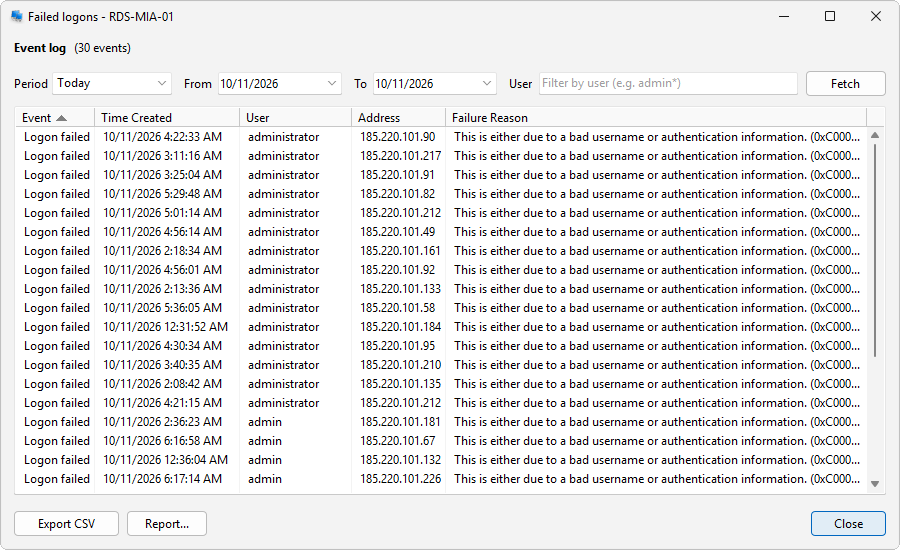
Terminal Services Manager reads those 4625 events for you and lists them in a single table, with the user, the source address, and a readable failure reason on every row.
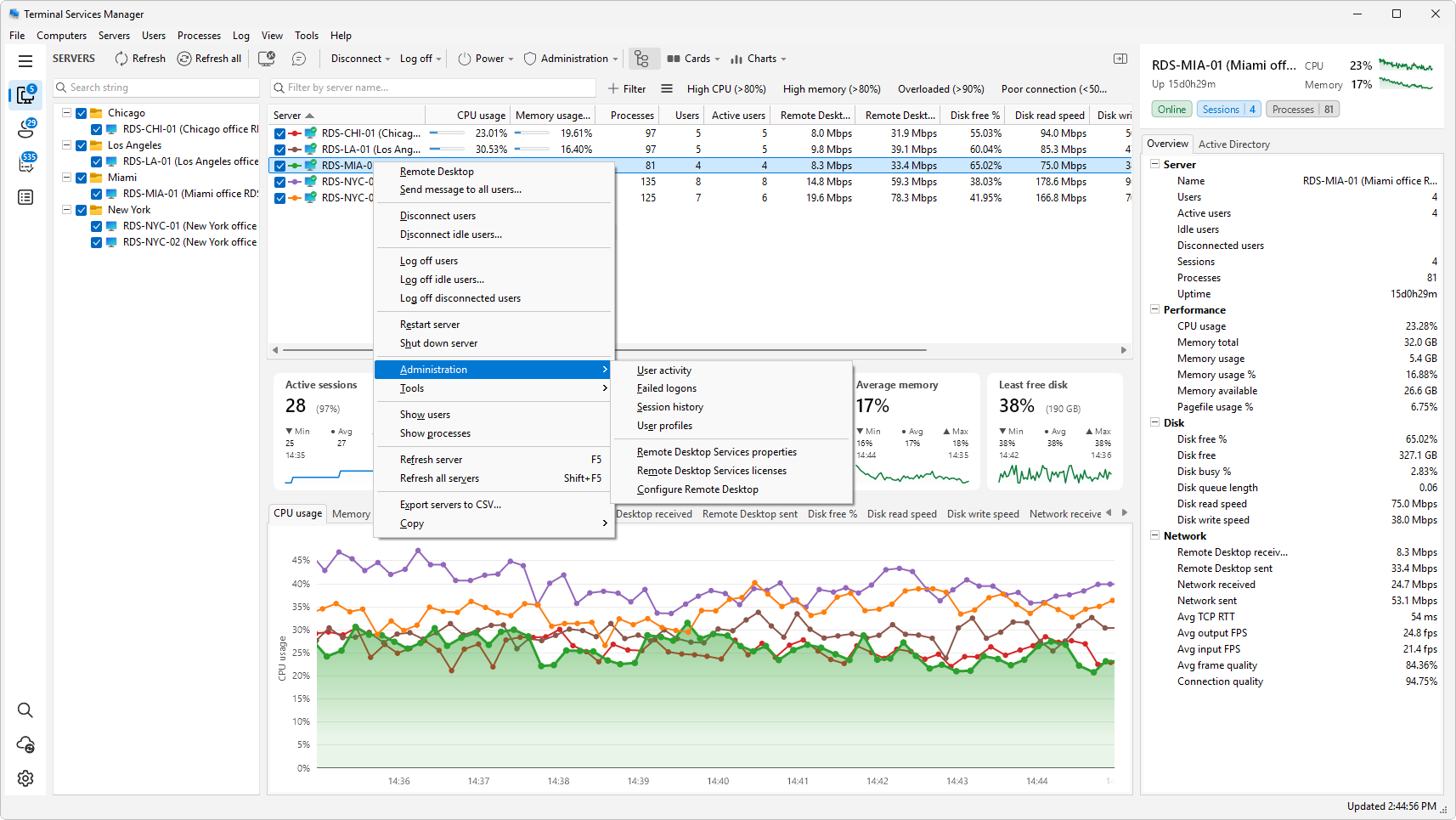
- For a whole server, right-click it in the Servers list and choose Administration > Failed logons.
- For one account, right-click the user in User sessions and choose Failed logons.
Set the time range with the Period dropdown and click Fetch.
Read the pattern
Each row shows the time, the user that failed, the source address where present, and a failure reason such as This is either due to a bad username or authentication information or User logon with account locked. A brute-force attempt usually looks like:
- a burst of failures in a short window,
- many different user names, often common ones (administrator, admin, test), and
- the same source address, or a small handful of them.
Filter by the User field (wildcards * and ? work) to focus on one account, such as a service account that should never fail.
Act on it
If you can see the attacker's address, block it at your firewall or RD Gateway. Then harden the host: restrict Remote Desktop to a VPN or gateway rather than exposing port 3389 directly, and enforce account lockout. Use Export CSV or Report to keep the evidence; the report counts failures per user, per source IP, and per reason.
One caveat: the dialog reads only the local Security log of the target server. If an attack is being stopped at an RD Gateway or network firewall, those failures are logged on that device, not here. And if failed logons are missing entirely, confirm that auditing of logon events is enabled on the host.