
You can send a pop-up message to any Windows PC on your local network without running a server and without installing anything on the receiving machine. Windows already carries a messaging channel through Terminal Services (WTS), the same one behind msg.exe. LanSend drives that channel, so a message lands on the target as a native Windows message box. You need network reachability to the target. By default, administrative rights on the target are also required; this can be configured for non-admin accounts — see Enable Message Sending for Standard Users. Nothing else gets deployed.
This guide explains why "no server" is the practical default for LAN messaging, how the built-in channel works, where the command-line tools run out of road, and how to do the whole job in LanSend.
Why "no server" matters
A central chat server or a notification platform sounds tidy until you have to run it. Someone owns the box, patches it, backs it up, and answers for it when it falls over. Agent-based tools add a second problem: a client has to be installed on every machine you want to reach, kept up to date, and trusted by whatever endpoint policy you run.
For one-way operational messages, "reboot in ten minutes," "the file server is going down," "save your work," that overhead buys you very little. The message has to reach a screen and stay there. A serverless approach removes both moving parts:
- No infrastructure to run. There is no service, database, or relay to keep alive.
- No agent to roll out. The receiving PC needs nothing from you, because the messaging channel is already part of Windows.
That is the whole appeal of LAN messaging done over the built-in channel. You point at a computer name, you send, the box appears.
How it works
Windows includes a session messaging API in Terminal Services. When you call it against a remote host, Windows opens the host, enumerates its sessions, and shows a standard message box in the sessions you target. msg.exe uses this API. LanSend uses the same API family (WTSSendMessage), so the recipient sees the familiar Windows dialog with an OK button, an optional icon, and an optional system sound.
Two requirements come with it:
- Network reachability. Your machine has to be able to reach the target over the LAN.
- Administrative rights on the target by default. This is a Windows requirement; it can be removed by configuring Terminal Services message permissions on the target — see Enable Message Sending for Standard Users.
Because the channel ships with Windows, there is no LanSend agent, service, or listener on the receiving machine. The PC that gets the message has nothing installed for it.
LanSend runs on Windows 11, Windows 10, and Windows Server 2022, 2019, and 2016 (64-bit editions). The receiving machines can be any Windows host that exposes the Terminal Services messaging channel, which covers the same modern Windows and Windows Server builds.
Method comparison
| Method | Targets per run | Needs a server or agent | Main limitation |
|---|---|---|---|
net send |
none | no | Removed after Windows XP / Server 2003; not present on modern Windows |
msg.exe |
one host | no | Command line only, one host per call, no saved list, no presets, no history |
PowerShell loop over msg.exe |
many hosts | no | You maintain the host list and the script; still no GUI, presets, or log |
| LanSend | many hosts and groups | no | Needs admin rights on each target by default; configurable via Terminal Services permissions |
The pattern is consistent across the row: none of these need a server. The difference is how much hand work each one leaves you with.
The manual approaches
net send is gone
If you remember net send, set that memory aside. It was removed after Windows XP and Windows Server 2003 and does not exist on any current Windows version. Typing it now returns an error. The built-in replacement is msg.exe.
msg.exe
msg.exe sends a message to a user's Terminal Services session on a host. To message every session on one machine:
msg * /server:WORKSTATION01 Reboot in 10 minutes, please save your work
To message a specific user instead of all sessions:
msg username /server:WORKSTATION01 Reboot in 10 minutes, please save your work
It works, and it needs no server. What it does not do is scale or remember anything. msg.exe is command line only, it targets one host per call, it needs administrative rights on the target by default, and it has no GUI, no saved computer list, no presets, and no history of what you sent. Reach a second machine and you run it again.
PowerShell loop
PowerShell has no native broadcast, so admins wrap msg.exe in a loop to reach a list of hosts:
$computers = "PC1", "PC2", "PC3"
$text = "Reboot in 10 minutes, please save your work"
foreach ($pc in $computers) {
    msg * /server:$pc $text
}
This covers a handful of machines, and it is honest work for a one-off. The cost shows up over time. You own the host list inside the script, you edit the script when the list changes, and you still have no message type icons, no reusable templates, and no record of who received what. There is no preview, so a typo goes out as written.
Doing it with LanSend
LanSend keeps the serverless model and adds the parts the command line leaves out: a computer list you can build and reuse, message types, saved presets, a preview, and a history of what you sent. The recipient still gets a plain Windows message box, and still has nothing installed.
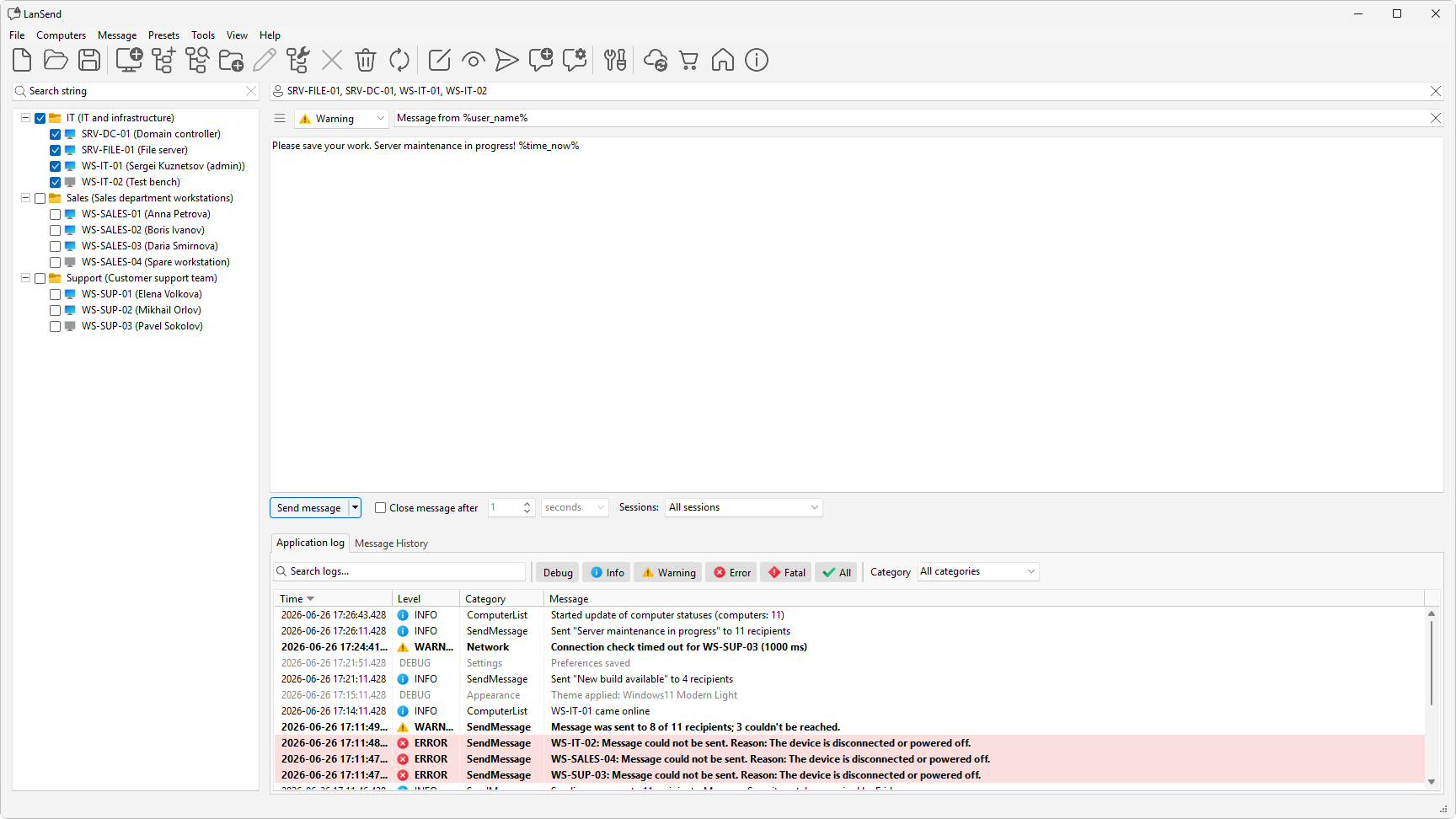
- Build your computer list. In the Computers menu, use Add computer for one machine, Add multiple computers... to enter a name pattern that expands into multiple names, shown in a preview, or Add computers from... to pull machines from a source (Network, Active Directory, IP Range, Hyper-V, RDS, SCCM, or WSUS). Group machines with Create new group.
- Pick the recipients. Tick the boxes next to the computers or groups you want. The live search box at the top of the list filters by name and description, and Check all, Uncheck all, and Inverse help with large lists.
- Write the message. In the composer on the right, set the message type in the combo (None, Info, Warning, or Error), type a title, and type the body. Info, Warning, and Error each carry the matching Windows icon and sound; None has no icon.
- Set how long the message stays. Tick Close message after and pick a value from 1 to 60 plus a unit (seconds, minutes, or hours). Leave it unticked and the message stays until the user clicks OK.
- Choose which sessions get it. The Sessions: dropdown offers All sessions, Active, Logged-on, and Console. Active reaches whoever is actively working in a session, local or over Remote Desktop; Logged-on adds disconnected sessions; and Console is the physical console session only.
- Preview if you want a safety check. Message > Preview message shows the same box on your own screen first, with the same type, title, and timeout, so you see exactly what the recipient will see.
- Send it. Click the Send message split button. LanSend opens each target over the WTS channel and shows the box in the sessions you chose.
You can drop variables into the title or body and LanSend expands them just before sending, using your own machine's values: %computer_name%, %user_name%, %time_now%, %time%, and %date%. To save a message you reuse, use Message > Add message to presets, then load it later from the Presets menu or the presets button (the menu icon next to the message body).
From a script or scheduler
LanSend also runs from the command line, which keeps the serverless model while letting a scheduled task fire the message:
lansend.exe -to:PC1,PC2 -title:Reboot -message:"Save your work, %computer_name% restarts soon" -type:Warning -time:30
-to: and -message: are required, -message: accepts a path to a text file for the body, and -time: is the auto-close timeout in seconds. The same five variables work here too.
LanSend vs chat servers and agent-based tools
Team chat apps such as Slack or Microsoft Teams solve a different problem. They need accounts, a hosted service or a server, and the client app running on each machine, and the message only registers if the user is looking at the app. For an operational alert that has to interrupt whoever is at the keyboard, that is the wrong shape.
Agent-based notification tools push a desktop alert, but they get there by installing a client on every endpoint and usually pointing it at a central server. You are back to rolling out and maintaining software on the machines you want to reach.
LanSend uses the messaging channel already in Windows. There is nothing to deploy on the receiving side, no account to provision, and the message box pops up on the desktop whether or not the user has any particular app open. For one-way LAN messaging, that is less to run and less to break.
Use cases
- Helpdesk and IT operations. Warn a set of machines before a reboot, a deployment, or a maintenance window, and confirm what went out in Message History.
- Computer labs. Tell a room of workstations that a session is ending or a system is going down, addressed by group rather than one PC at a time.
- Schools. Send class-wide or building-wide notices to lab and classroom PCs without standing up a messaging server. See LanSend in Educational Institutions for that scenario in detail.
- Shop floor and back office. Push a short alert to shared or kiosk machines that have no chat client and no signed-in user watching a window.
Troubleshooting
- "Access is denied" or the message never appears. The most common cause is insufficient rights on the target or a firewall blocking the connection. By default, the messaging API requires administrative rights on the receiving machine; if you have configured Terminal Services message permissions for the account, verify they are applied correctly. See Enable Message Sending for Standard Users.
- The host is not reachable. Confirm the target is on and resolves by name. In File > Preferences... on the General page you can set a state check (Ping or TCP connect to port) so the list shows which machines are reachable, and Computers > Update computers refreshes it.
- The message went out but nobody saw it. Check the Sessions: scope. Console sends only to the physical console session; switch to All sessions or Logged-on to reach disconnected users.
- Sending to a long list. Set the worker count under the Threads value in File > Preferences... on the General page so more machines are messaged at once.
Getting started
Build your computer list once, write the message, and send. No server to stand up, nothing to install on the other end.
Download LanSend: Download LanSend