
Sometimes you need to reach one person, not the whole office. Maybe a single workstation is holding up a backup, or a coworker needs to save their work before you touch a shared server. You want a pop-up on that one screen.
The manual way: msg.exe
net send was removed after Windows XP and Server 2003, so it is gone from every supported version of Windows. The built-in replacement is msg.exe. It sends a message to a user's terminal-services session on one host:
msg jsmith /server:PC1 Save your work, PC1 restarts in 10 minutes
You target a user (or * for every session) on a single host, and you need administrative rights on that host by default — configurable via Terminal Services permissions (see Enable Message Sending for Standard Users). It is per host and session-oriented, with no window to type in, no saved list of machines, no message types, and no record of what you sent.
The faster way: LanSend
LanSend keeps your machines in a list and messages any one of them without touching the recipient. It uses the same Windows messaging channel as msg.exe, so you still need network reach to the target and administrative rights on it by default — configurable via Terminal Services permissions (see Enable Message Sending for Standard Users).
- Find the PC. Type its name in the search box at the top of the computer list. The live filter matches both name and description, so the one machine you want is left on screen.
- Tick it. Select the checkbox next to that machine. The recipients box (marked with a person icon) at the top of the composer shows the name of the computer you checked.
- Pick the message type. In the type combo choose None, Info, Warning, or Error. Info, Warning, and Error each carry the matching Windows icon and sound; None has no icon.
- Write the title and body. Fill in the title field and the message body. You can drop in variables that expand to your own values, for example
%computer_name%,%user_name%, and%time_now%. - Choose the session scope. In the Sessions: dropdown pick All sessions, Active, Logged-on, or Console. Active is whoever is actively working in a session, local or over Remote Desktop; Console is the physical console session only.
- Send it. Click Send message. The pop-up appears on that computer.
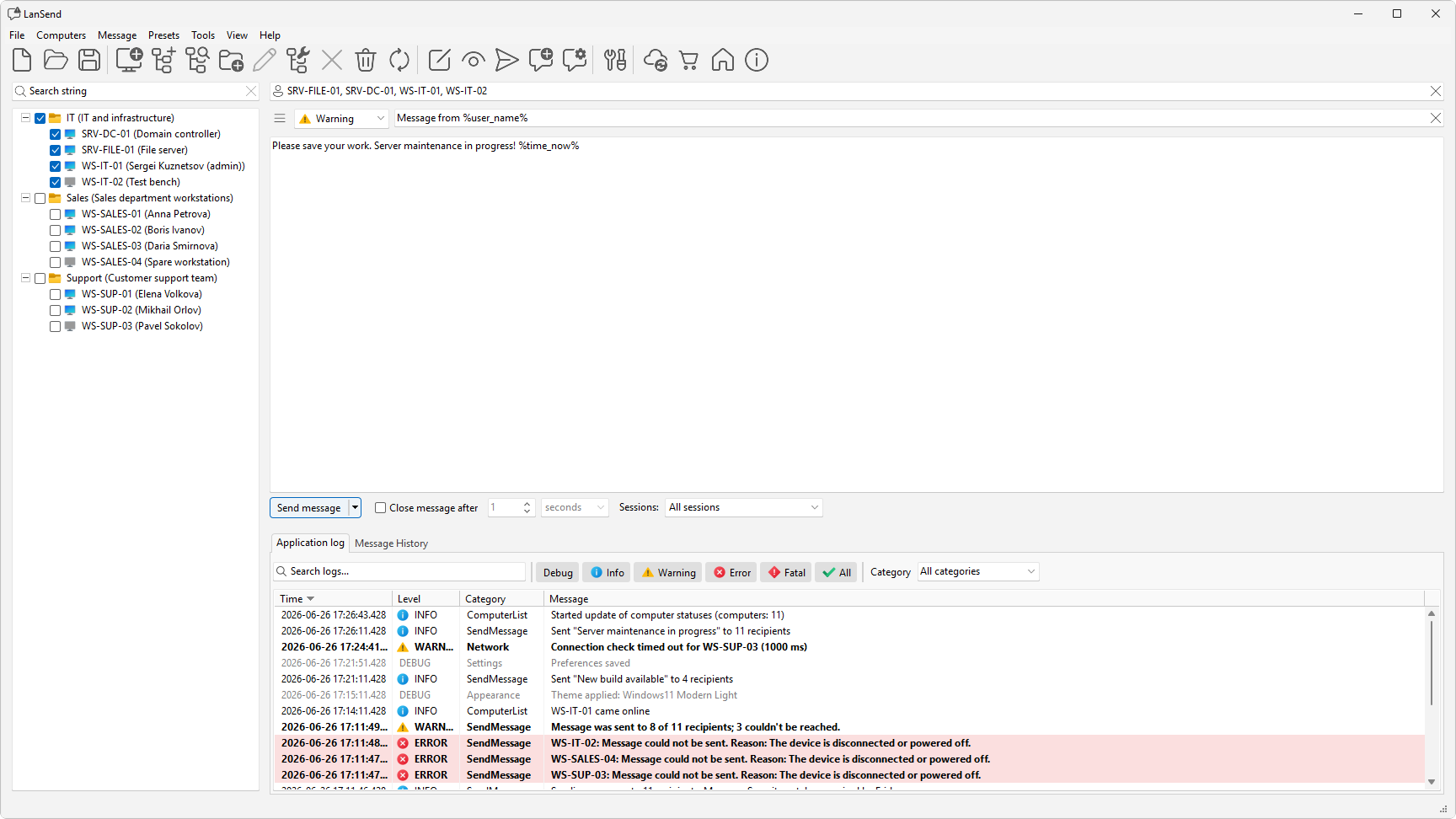
Want to check it first? Click Preview message to show the pop-up on your own screen with the same type, title, and timeout before it goes out.
Save it as a preset for next time
If you send the same note to that machine often, do not retype it. Write the message once, then choose Message > Add message to presets to save its name, title, body, and type. Next time, open it from the Presets menu or the presets button (the menu icon next to the message body) and it fills the title, body, and type for you.
What the message does, and does not do
A LanSend message notifies the person at that PC. It does not restart, lock, or log anyone off, and it cannot force an action. The recipient reads it and clicks OK.