
Sometimes a message has to go out with no one clicking anything: a notice before a nightly backup, or a line inside a deployment script. For that, run the send from the command line so a batch file or a scheduled task can fire it.
The manual way: msg.exe
net send was removed after Windows XP and Server 2003, so it is gone from every supported version of Windows. The built-in replacement is msg.exe. It sends a line to the terminal-services sessions on one host:
msg * /server:PC1 Reboot at 5pm
That works in a script, but it targets a single host per call, takes no message title or icon, and expands no variables. To reach a list you loop it over every name yourself.
The faster way: LanSend from the command line
LanSend runs the same send without opening the window. Pass the message as switches and the app sends it, then exits. The switches are append-only: write the value attached to the switch with an optional colon, like -to:PC1, never -to PC1. The delimiter can be - or /, and the switch name is not case sensitive. For the full list, see the Command line reference.
- Set the recipients with
-to:. List computer or group names separated by commas. Required. Example:-to:PC1,PC2,Sales. - Set the body with
-message:. Pass the text, or a path to a.txtfile to read the body from. Required. Example:-message:"Save your work". - Add a title with
-title:. Optional. Example:-title:Reboot. - Choose a type with
-type:.Info,Warning, orErroradds the matching Windows icon and sound. Omit it for a plain message with no icon. - Set an auto-close timeout with
-time:. A whole number of seconds.0or omitted leaves the message open until the user clicks OK. - Run it. Put the switches after
lansend.exe:
lansend.exe -to:PC1,PC2 -title:Reboot -message:"Save your work, %computer_name% restarts soon" -type:Warning -time:30
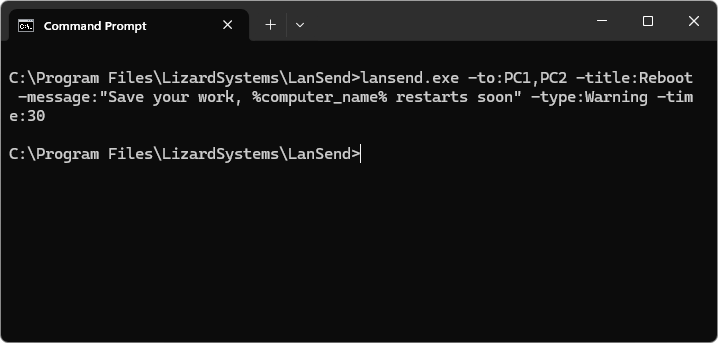
To keep a longer message out of the command line, save it as a .txt file and point -message: at the path:
lansend.exe -to:Sales -title:"Scheduled maintenance" -message:C:\messages\maintenance.txt -type:Info -time:60
The title and body accept the same five variables as the window. They expand to the sender's local values just before the message goes out: %computer_name%, %user_name%, %time_now%, %time%, and %date%. There are no -user: or -password: switches. The command runs under the account that starts it, which needs administrative rights on each target by default — configurable via Terminal Services permissions (see Enable Message Sending for Standard Users).
Run it on a schedule
Put the command in a Windows scheduled task to send on a timer or at logon.
- Open Task Scheduler and choose Create Basic Task.
- Name the task and pick a trigger, such as a daily time or at startup.
- Choose Start a program as the action.
- In Program/script, enter the full path to
lansend.exe. - In Add arguments, paste the switches, for example
-to:Sales -title:Maintenance -message:C:\messages\maintenance.txt -type:Info -time:60. - Finish. The task now runs the send at each trigger with no window and no clicks. The account the task runs as needs admin rights on the targets by default — configurable via Terminal Services permissions (see Enable Message Sending for Standard Users).
What a command-line send does, and does not do
A command-line send shows a pop-up so people can read it and act. It does not restart, lock, or sign anyone off, and it cannot force an action on the target.