
net send was removed after Windows XP and Windows Server 2003, so it does not exist on any current Windows. The built-in replacement is msg.exe, which sends a message to a user's terminal-services session, but it is command-line only, handles one host per call, and keeps no saved list, no presets, and no history. LanSend is the graphical alternative: it sends pop-up messages to one or many Windows PCs over the local network using the same Windows Terminal Services (WTS) messaging channel, with no server and nothing installed on the recipient.
If you just need the one-line answer: replace net send PC1 "text" with msg * /server:PC1 "text" for a single machine, or use LanSend when you message more than one PC, want a reusable computer list, or need a record of what you sent.
Everything here was checked against Windows 11, Windows 10, and Windows Server 2022, 2019, and 2016 (64-bit editions).
Why net send is gone
net send was part of the Messenger service in Windows NT, 2000, and XP. Microsoft turned the Messenger service off by default in Windows XP SP2 and removed it from Windows Vista and Windows Server 2008 onward because spammers abused it to push unsolicited pop-ups across networks and the open internet.
So on Windows 11, Windows 10, and Windows Server 2022, 2019, and 2016, typing net send returns an error like:
The syntax of this command is:

NET
    [ ACCOUNTS | COMPUTER | CONFIG | CONTINUE | FILE | GROUP | HELP |
      HELPMSG | LOCALGROUP | PAUSE | SESSION | SHARE | START |
      STATISTICS | STOP | TIME | USE | USER | VIEW ]
or simply reports that the name was not found. The command and the service behind it are not there anymore. Scripts and habits built around net send need a different tool, and Microsoft's own answer is msg.exe.
What msg.exe can and cannot do
msg.exe ships with current Windows and sends a message to a logged-on terminal-services session on a host. It is the closest built-in match to the old net send, and for a single machine it works fine.
Send to one user on a host
msg administrator /server:WORKSTATION-07 "Save your work, a reboot is coming"
That targets the session belonging to the named user on WORKSTATION-07. The recipient sees a small dialog with your text and an OK button.
Send to every session on a host
msg * /server:WORKSTATION-07 "The file server goes down for maintenance at 18:00"
The * sends to all sessions on that one host. You can add a timeout in seconds so the box closes itself if nobody clicks OK:
msg * /server:WORKSTATION-07 /time:30 "Reboot in 30 minutes, please save"
Where msg.exe stops
msg.exe is a single-host, command-line tool. The gaps show up the moment you go past one machine:
-
One host per call.
/server:takes one name. To reach 40 PCs you run the command 40 times or wrap it in a loop. -
Command-line only. There is no window, no recipient picker, and no preview. You type the host name correctly or the message goes nowhere.
-
No saved list. It does not remember who you message. Every run starts from a blank prompt or a script you maintain by hand.
-
No presets. Common wording (a maintenance notice, a shutdown warning) lives in your head or in a text file you copy from.
-
No history. Once the command returns, there is no record of what you sent, to whom, or when.
-
Admin rights required by default.
msg.exeneeds administrative rights on the target by default, the same as any WTS send — configurable via Terminal Services permissions (see Enable Message Sending for Standard Users). -
No native broadcast in PowerShell. PowerShell has no built-in message-send command, so admins end up looping
msg.exeover a host list anyway.
For a single quick message, msg.exe is enough. For a list of machines, a recurring notice, or any need to prove what went out, you are building tooling around it.
net send vs msg.exe vs PowerShell vs LanSend
| Method | Scope | GUI | Saved list | Presets | History | Scheduling | Needs a server |
|---|---|---|---|---|---|---|---|
net send |
n/a, removed after XP / Server 2003 | No | No | No | No | No | No |
msg.exe |
one host per call | No | No | No | No | No (use Task Scheduler) | No |
PowerShell loop over msg.exe |
many hosts, you script it | No | a script you maintain | No | No | via Task Scheduler | No |
| LanSend | one or many hosts, by group | Yes | Yes | Yes | Yes | via Task Scheduler + CLI | No |
LanSend keeps the part that makes msg.exe worth using, the serverless WTS channel, and adds the list, the wording, and the record that the command line leaves to you.
The manual approaches, with their limits
A PowerShell loop over msg.exe
Since PowerShell has no native broadcast, the common pattern is a loop. Put your host names in an array and call msg.exe once per host:
$computers = "PC-01","PC-02","PC-03","PC-04"
$text      = "The network goes down for maintenance at 18:00, please save your work"

foreach ($pc in $computers) {
    msg * /server:$pc /time:60 $text
}
To read the list from a file instead, one host per line:
$computers = Get-Content "C:\admin\hosts.txt"
$text      = "Emergency reboot in 10 minutes"

foreach ($pc in $computers) {
    try {
        msg * /server:$pc /time:30 $text
    } catch {
        Write-Warning "Could not message $pc"
    }
}
This works, and for a stable list it is reasonable. The limits are the ones you would expect from a script: you maintain hosts.txt by hand, an unreachable or offline host throws an error you have to handle, there is no preview before it fires, and nothing records what was actually delivered. The wording lives inside the script, so changing the message means editing code. None of these are dealbreakers for one admin and a short list. They get heavy across a building, a lab, or a help desk where more than one person sends notices.
Scheduling the manual way
Neither msg.exe nor PowerShell has a built-in schedule. To send a notice every Friday at 17:00 you register the script with Task Scheduler. That works, but the list, the text, and the timing are now spread across a script file and a scheduled task, with no single place to see or change them.
A faster approach with LanSend
LanSend keeps the serverless WTS send and puts a window around it, with a reusable computer list and a log of every message. The recipient still needs nothing installed; you still need network reachability plus administrative rights on the target by default — configurable via Terminal Services permissions (see Enable Message Sending for Standard Users). Here is the full workflow.
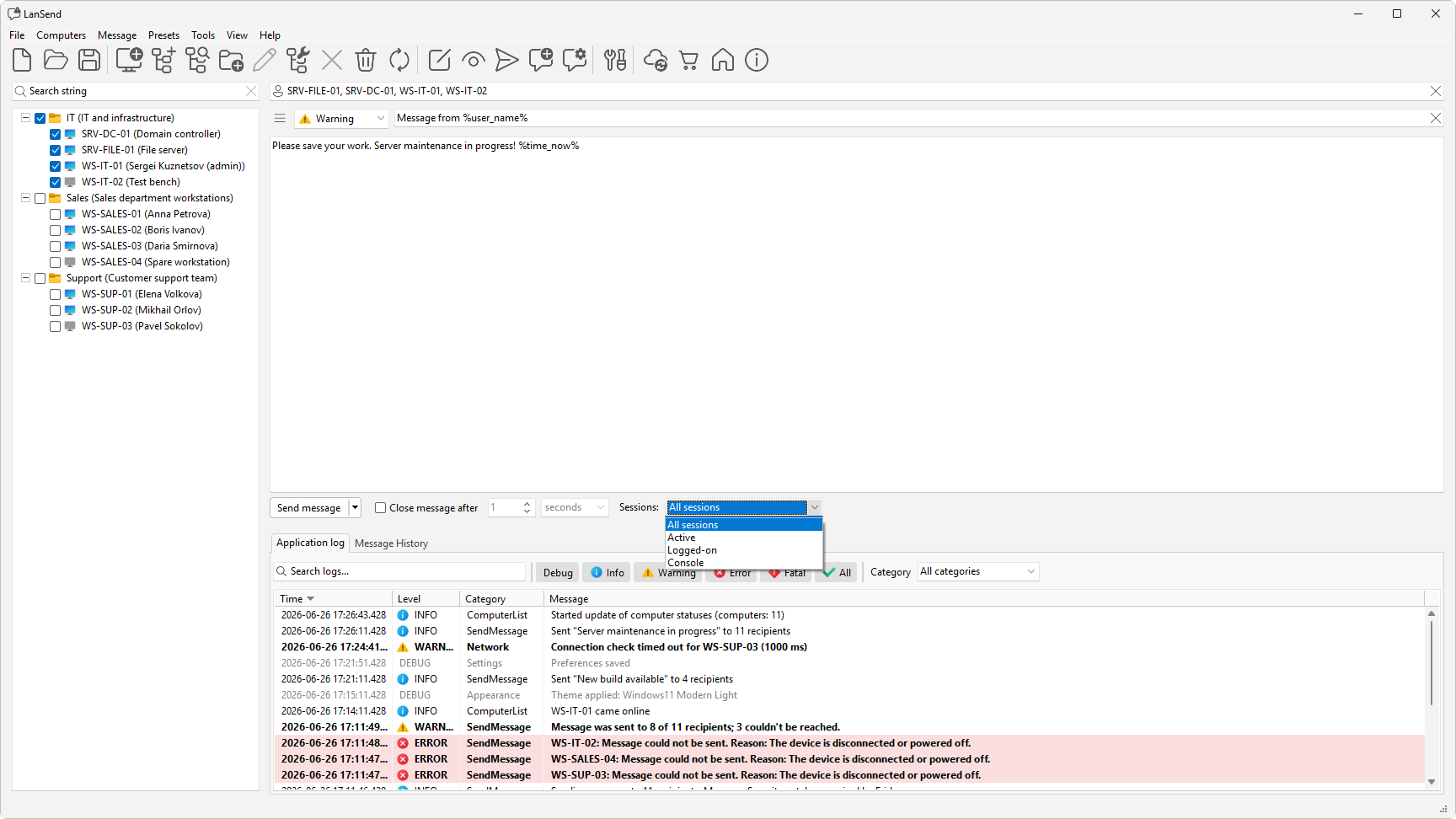
1. Build the computer list
The left panel is a computer-list tree with a live search box at the top. Add machines in whatever way fits:
-
Computers > Add computer for a single machine by name, with an optional description.
-
Computers > Add multiple computers... to enter a name pattern (for example
server[01-10]or{srv-a,srv-b}) that LanSend expands into multiple names, shown in a live preview, with an optional group name. This is new in 26.06. -
Computers > Add computers from... opens a wizard that pulls machines from a source. The sources are Network, Active Directory, IP Range (the default), Hyper-V, RDS, SCCM, and WSUS.
-
Computers > Create new group to organize machines into hierarchical groups, for example one group per floor or per lab.
Tidy a large list in one pass with Computers > Bulk operations..., which can run Remove inactive computers, Remove duplicate computers, Group computers, Normalize computer names, and more across the whole list at once.
Select recipients with the checkboxes, or use Check all, Uncheck all, and Inverse. The live search box at the top of the panel filters by name and description, so you can find a machine in a long list without scrolling.
Where msg.exe would have you retype or rescript host names every time, LanSend keeps the list and lets you reuse it. For the common cases, see how to send a message to all computers and how to send a message to a specific computer.
2. Compose the message
The composer sits at the top right. Fill in:
-
The recipients box (marked with a person icon) at the top, which shows the names of the computers you checked.
-
The message type combo: None, Info, Warning, or Error. Info, Warning, and Error each carry the matching Windows icon and sound; None has no icon. A reboot warning reads better as Warning.
-
The title field and the body memo.
You can drop in any of five variables, which expand just before sending to the sender's local values: %computer_name%, %user_name%, %time_now%, %time%, and %date%. They are case-insensitive. So a body of Save your work, %computer_name% restarts soon resolves on send.
To reuse wording, click the presets button (the menu icon next to the message body), or pick from the Presets menu. LanSend ships 15 default presets in four categories: Maintenance & Updates, Emergency & Critical, Service Notifications, and Testing & System Check, with entries like Save Your Work, Scheduled Maintenance, Planned Server Restart, and Emergency Shutdown. Selecting one fills the title, body, and type. To save your current message for next time, use Message > Add message to presets.
3. Set the session scope
This is the control msg.exe lacks. On the send bar, the Sessions: dropdown decides which sessions on each host receive the message:
-
All sessions reaches every session.
-
Active is whoever is actively working in a session, local or over Remote Desktop.
-
Logged-on is active plus disconnected sessions.
-
Console is the physical console session only.
The session scope is new in 26.06. For a "save your work" warning, Active hits the person actually working; for a notice that everyone signed in should see, Logged-on or All sessions is the right call.
Next to it, tick Close message after and set a value from 1 to 60 with a unit of seconds, minutes, or hours to auto-close the pop-up. Leave it unticked and the message stays until the user clicks OK.
4. Preview, then send
Before a wide send, use Message > Preview message to show the message box on your own screen first, with the same type, title, and timeout. That catches a wrong icon or a typo before it reaches 40 people.
When it looks right, click Send message. LanSend sends to the checked machines, applying the session scope per host. Every send is recorded under the Message History tab, with columns for Time, Type, Recipients, Title, and Message, so you have a record of what went out. From there you can Reuse message to load it back into the composer, which is handy when the same notice goes out again later.
Sending from a script or schedule
LanSend also runs from the command line, so a scheduled task can send with your saved list and the message variables. Switches are append-only, so the value attaches to the switch, for example -to:PC1, never -to PC1:
lansend.exe -to:PC1,PC2 -title:Reboot -message:"Save your work, %computer_name% restarts soon" -type:Warning -time:30
-to: takes computer or group names separated by commas and is required. -message: takes the body text or a path to a text file and is also required. -type: accepts Info, Warning, or Error; omit it for a plain message with no icon. -time: is the auto-close timeout in seconds, where 0 or omitted leaves the message open until the user closes it. The title and body support the same five variables. There are no -user or -password switches. For the full set, see how to send a network message from the command line.
Troubleshooting
Access is denied. By default, WTS messaging needs administrative rights on the target, whether you use msg.exe or LanSend. Run as an account with admin rights on the remote machine, or verify that Terminal Services message permissions have been configured for the account (see Enable Message Sending for Standard Users). Also make sure File and Printer Sharing is allowed through the firewall on that PC.
The session is not found, or msg.exe reports "does not exist or is disconnected". There is no session that matches your scope. The user may be logged off, or you asked for Active on a machine where the user is disconnected. Widen the scope: pick Logged-on or All sessions in LanSend, or send with msg * /server:host rather than a specific user name. Console only ever reaches the physical console session, so it skips remote desktop users.
The message did not appear. Check that the target is reachable on the network and that you targeted the right host name. If you used Console but the recipient is on a remote desktop session, switch the Sessions: scope. If a host was offline, msg.exe and a PowerShell loop will error per host, while LanSend records the result so you can see which machines it reached under Message History.
Getting started
If your notices go to one machine now and then, msg.exe covers it. Once you message a list, reuse the same wording, or need a record of what you sent, LanSend does the same serverless send with a window around it. LanSend is a paid product, with a Business license per machine and a Corporate license for a whole organization.
You can also install it from the command line: winget install lansend. See how to install and update LanSend with winget.
Download LanSend: Download LanSend