
LanSend is now in the winget repository. Open a terminal and run:
winget install lansend
The rest of this guide covers getting winget on your operating system, upgrading an existing install, deploying LanSend silently, and what to do when the package will not install.
What is winget?
Winget is Microsoft's command-line package manager for Windows. One command installs an application, another updates it. Where you get winget depends on the operating system.
Windows 10 and Windows 11. Winget ships as part of the App Installer component, so it is usually already there. It needs Windows 10 version 1809 (build 17763) or later. If winget is not recognized, install App Installer from the Microsoft Store, or register it from PowerShell:
Add-AppxPackage -RegisterByFamilyName -MainPackage Microsoft.DesktopAppInstaller_8wekyb3d8bbwe
Windows Server 2025. Winget is installed by default and updated through Windows Update.
Windows Server 2019 and 2022. Winget is not pre-installed, and the Microsoft Store is not available on Server editions. You can bootstrap the client from PowerShell Gallery:
Install-PackageProvider -Name NuGet -Force
Install-Module -Name Microsoft.WinGet.Client -Force -Repository PSGallery
Repair-WinGetPackageManager -AllUsers
Open a new terminal session afterward. Microsoft documents winget support on Server 2025 only, so treat this route as unofficial. If it fails, install LanSend from the download page instead.
Windows Server 2016. Winget does not run here at all: the client needs build 17763 or later, and Server 2016 is build 14393. Use the download page.
Check that winget works:
winget --version
Find and check the package
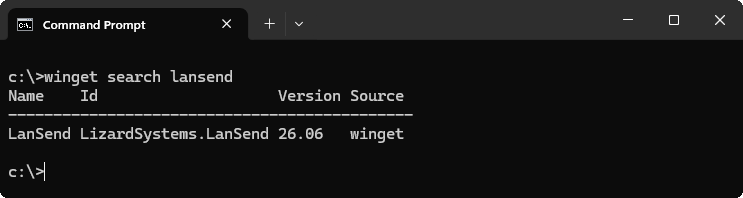
Search the repository to confirm the package is there and see which version it offers:
winget search lansend
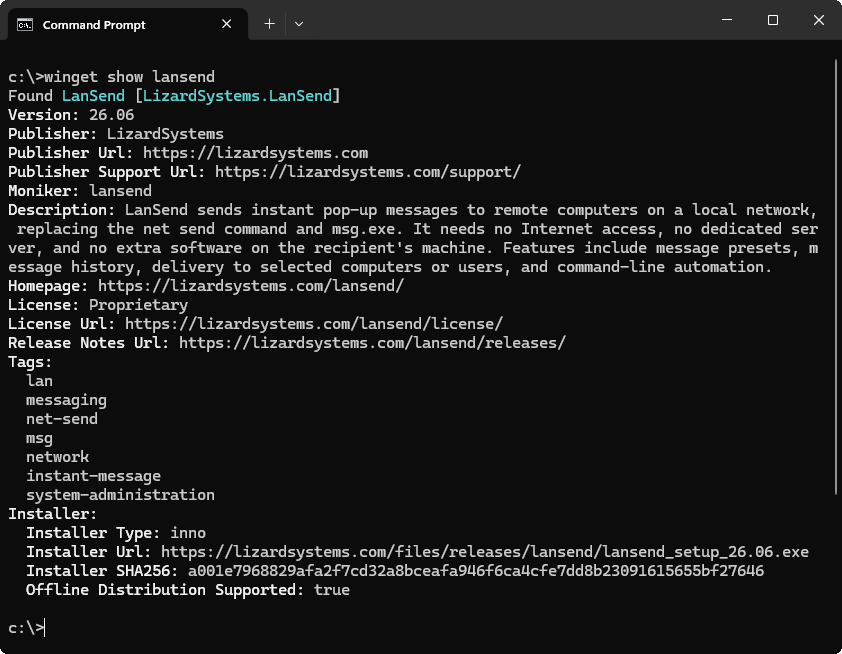
winget show prints the publisher, the version, the installer URL, and the SHA256 hash that winget verifies after download.
winget show lansend
Install
winget install lansend
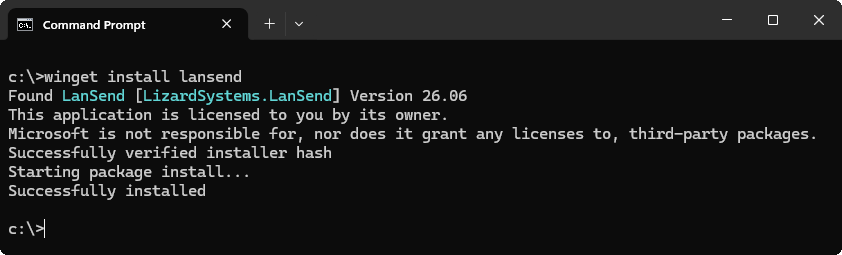
Winget checks the installer against the SHA256 hash in the manifest before it runs, which is the Successfully verified installer hash line.
lansend is a short alias, called a moniker. The full package identifier also works, and -e matches it exactly:
winget install --id LizardSystems.LanSend -e
LanSend installs to C:\Program Files\LizardSystems\LanSend for all users, so winget raises a UAC prompt. Run the terminal as Administrator to skip it. When the installer finishes, LanSend appears in the Start menu.
You only install LanSend on the computers that send messages. The computers that receive them need no agent and no server, because the message travels over a channel that is already part of Windows.
Install a specific version
Every released installer stays available, so you can pin a build during a change freeze or reproduce a known-good machine:
winget install lansend --version 26.06
To see which versions the repository offers:
winget show lansend --versions
Upgrade an existing installation
An installation from the website is fine. Winget identifies installed software by its product code in the Windows registry, so it recognizes a copy that it did not install:
winget upgrade lansend
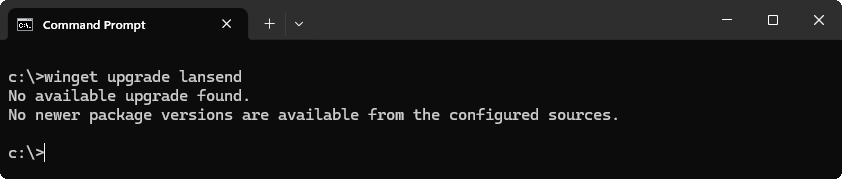
When the installed build is already current, winget says so and does nothing. Otherwise the upgrade runs the new installer over the old one. Your settings, computer list, message presets, and message history stay where they are. From then on, winget manages the package.
To see everything with a pending update, and then update it all at once:
winget upgrade
winget upgrade --all
LanSend also has its own update checker, on the Updates page in Preferences, where the mode can be Manual, Notify, Download, or Automatic. The two do not conflict. If winget is how you keep the rest of the machine current, set LanSend's own mode to Manual and let winget upgrade do the work.
Silent install for deployment
For setup scripts, Intune, Configuration Manager, or any other unattended run:
winget install lansend --silent --accept-package-agreements --accept-source-agreements
--silent suppresses the installer UI. The two --accept-* flags answer the prompts that would otherwise wait for a keypress: one for the package's license terms, one for the winget source agreement. Both are needed for a run with nobody at the keyboard. The process still has to be elevated. Leave --silent off and you get the default experience, which shows installer progress without dialogs.
To roll LanSend out to a set of admin workstations:
$computers = Get-Content ".\workstations.txt"
foreach ($computer in $computers) {
    Invoke-Command -ComputerName $computer -ScriptBlock {
        winget install --id LizardSystems.LanSend -e --silent --accept-package-agreements --accept-source-agreements
    }
}
You can also carry a whole toolset across machines. Export from a reference workstation, then import on each new one:
winget export -o admin-tools.json
winget import -i admin-tools.json --accept-package-agreements --accept-source-agreements
Install on a machine with no internet access
LanSend supports offline distribution, so you can fetch the installer on a connected machine. Winget checks the SHA256 hash as it downloads:
winget download lansend --download-directory C:\offline
Copy the installer to the target machine and run it there. To install it unattended, pass the Inno Setup switches that winget itself uses:
lansend_setup_26.06.exe /VERYSILENT /SUPPRESSMSGBOXES /NORESTART /SP-
Pin a version
A pin keeps winget upgrade --all from moving LanSend:
winget pin add lansend
Pin to a version range to allow patch updates but block a major version change:
winget pin add lansend --version 26.*
Remove the pin when the freeze ends:
winget pin remove lansend
Uninstall
winget uninstall lansend
Troubleshooting
"winget" is not recognized. The client needs Windows 10 version 1809 or later. On Server 2019 and 2022, bootstrap it from PowerShell as described above. On Server 2016 it is not available.
"No applicable installer found." LanSend is 64-bit only. There is no 32-bit package.
Package not found. Refresh the source index, then search again:
winget source update
winget search lansend
Installation requires elevation. LanSend installs to Program Files for all users. Run the terminal as Administrator, or accept the UAC prompt.
Installer hash does not match. Winget compares the downloaded file against the SHA256 in the manifest and stops if they differ. A proxy that rewrites downloads is the usual cause. Do not pass --ignore-security-hash; get the file from the download page instead.
Upgrade does not detect the existing installation. This happens when an older copy was installed under a different account or with a non-standard product code. Uninstall it from Apps & features, then install through winget.
After the install
Sending a message needs administrative rights on each target computer by default. An administrator can lift that requirement through Terminal Services permissions, see enable message sending for standard users. Once LanSend is installed, you can drive it from a script or a scheduled task the same way, see send a network message from the command line.
