
Before you can message anyone, LanSend needs to know which machines to reach. For a handful of PCs you can type the names. For a department or a whole site, typing is the slow part. Here is how to fill the list fast and keep it clean.
The manual way: msg.exe
The built-in msg.exe has no list of its own. It messages one host per call, so the closest thing to a "list" is a text file of hostnames you loop over yourself:
for /f %h in (hosts.txt) do msg * /server:%h Reboot at 5pm
That hosts.txt is just a file you maintain by hand. It has no groups, no online or offline status, no way to spot duplicates, and nothing to pull names from Active Directory or a subnet. Every change is a manual edit.
The faster way: LanSend
LanSend keeps the list for you and gives you several ways to fill it. Open the Computers menu and pick the one that fits.
- Add one machine. Choose Computers > Add computer and enter a computer name with an optional description. LanSend does not store any password for the machine, so there is no credentials step.
- Add many by pattern. Choose Computers > Add multiple computers... and fill in the Computer name pattern field. LanSend expands the pattern into multiple names, shown in a live preview, and drops them into an optional group. Patterns support numeric ranges like server[01-10] or [1-10:2], brace lists like {srv-a,srv-b}, and letter ranges like [A-Z], including combinations like [A-C][1-3].
- Pull from a source. Choose Computers > Add computers from... to run the wizard. Pick a source: Network, Active Directory, IP Range (the default), Hyper-V, RDS, SCCM, or WSUS. This is the quickest way to fill a list for a real network.
- Organize into groups. Choose Computers > Create new group to sort machines by floor, department, or role. Groups are hierarchical, and Expand all groups / Collapse all groups keep a large tree readable.
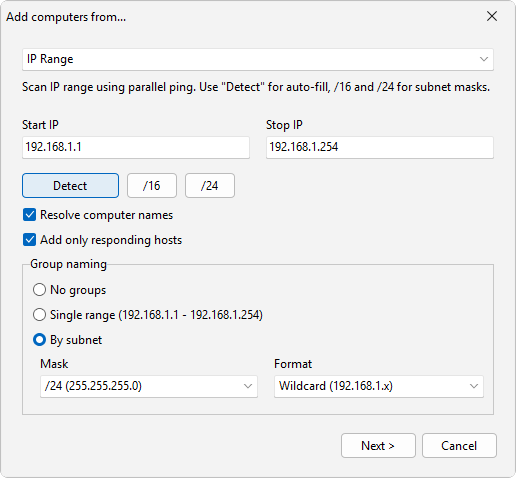
Tidy the list
A list pulled from the network is rarely perfect on the first pass. Choose Computers > Bulk operations... to apply one change across the whole list at once. The dialog (titled Bulk operations) offers Remove inactive computers, Remove duplicate computers, Remove empty groups, Normalize computer names, Group computers, and more. Normalize can force names to UPPERCASE, lowercase, or Title Case, and Group computers can sort by name prefix, subnet, or domain.
Find a machine fast
The search box at the top of the computer-list panel filters as you type and matches both the name and the description, so you do not have to scroll a long tree to find one PC.
Reuse the list you built
You only need to build a list once. Save it with File > Save or File > Save as... (the list file is JSON or XML), and reopen it any time with File > Open. To move a list to another machine or hand it to a colleague, use Computers > Export and Computers > Import, which also handle Text (.txt) files.
What adding a machine records
Adding a computer records a name, an optional description, and notes, but no password or credentials. LanSend does not contact the machine until you send a message, unless you turn on a status check (Ping or TCP connect to port) on the General preferences page.