
The Remote Desktop client has many switches: /admin, /multimon, /f, /w, /h, /prompt, and more. If you connect to servers all day, you do not want to type them each time, and you want shadowing to have its own set.
The manual way: a shortcut or a command line
You run mstsc with the switches you need:
mstsc /v:RDSH01 /admin /multimon
mstsc /shadow:3 /v:RDSH01 /control /noConsentPrompt
For shadowing you also have to look up the session ID first. Shortcuts help for one server, but not for a list of fifty.
The faster way: Connection options in Terminal Services Manager
Terminal Services Manager builds the mstsc command line for you, and adds your own switches to it.
- Open Preferences > Terminal Services and stay on the General tab.
- In Connection options, tick Connect with /admin option to connect to the administrative session of a server, and Connect with /multimon option to use all your monitors.
- Type any other switch into Additional mstsc parameters when connecting, for example
/promptto enter other credentials each time. - Type the switches for shadow sessions into Additional mstsc parameters when shadowing, in the second field.
- Click OK.
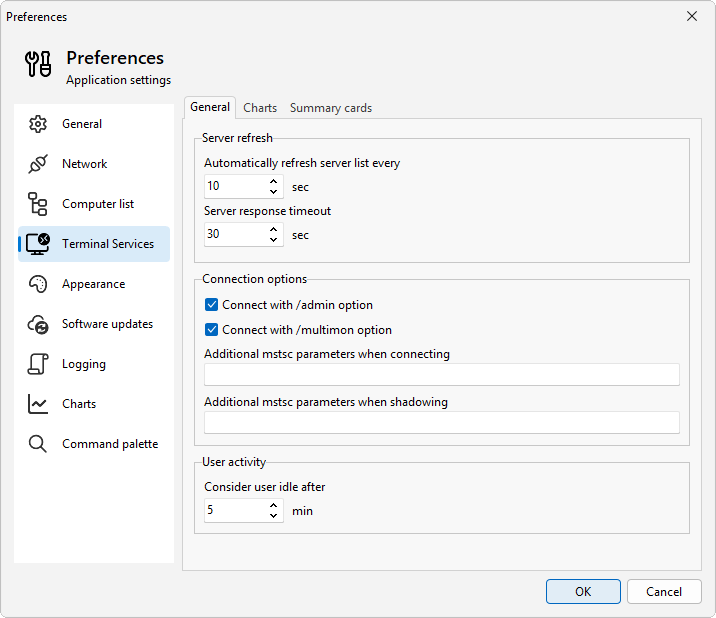
From now on, Remote Desktop on a server uses /v:<server> plus your options, and a shadow session uses /shadow:<id> /v:<server> plus /control or view mode, /noConsentPrompt if you cleared Prompt for user consent, /multimon if you ticked Use all my monitors, and the parameters from the shadowing field.
Shadow across all monitors
Whether a shadow session opens across all of your monitors is asked in the shadow window, next to View and Control, and the program remembers your answer.
One thing to know
mstsc does not connect if it gets a switch it does not know. It shows its help window instead. So the program passes on only the switches mstsc lists in its help: /admin, /multimon, /f, /w:, /h:, /public, /prompt, /restrictedAdmin, /remoteGuard, /g:, and, for shadowing, /control and /noConsentPrompt. It skips the rest, including /v: and /shadow:, which it adds itself, and writes the skipped switches to the log. If a switch has no effect, look for it in the log and check its spelling in the mstsc help (mstsc /?).
Related
- How to shadow a Remote Desktop user's session
- How to use multiple monitors to connect to Remote Desktop