
When a user needs help with something on a Remote Desktop session, the fastest way to see the problem is to look at their screen. Shadowing connects you to their live session so you can watch, or take over the keyboard and mouse, without asking them to read settings back to you over the phone.
The manual way: mstsc /shadow
The Windows client supports shadowing directly. First find the session ID with quser /server:RDSH01, then:
mstsc /shadow:<SessionID> /v:RDSH01 /control
/control shares input; drop it to watch only. Add /noConsentPrompt to skip the user's accept prompt (allowed only when group policy and permissions permit it). This works, but you have to look up the session ID first, and you are typing a command per session.
The faster way: Terminal Services Manager
Terminal Services Manager finds the session for you across all your servers and launches the standard mstsc.exe client in shadow mode, so there is nothing extra to install on either machine.
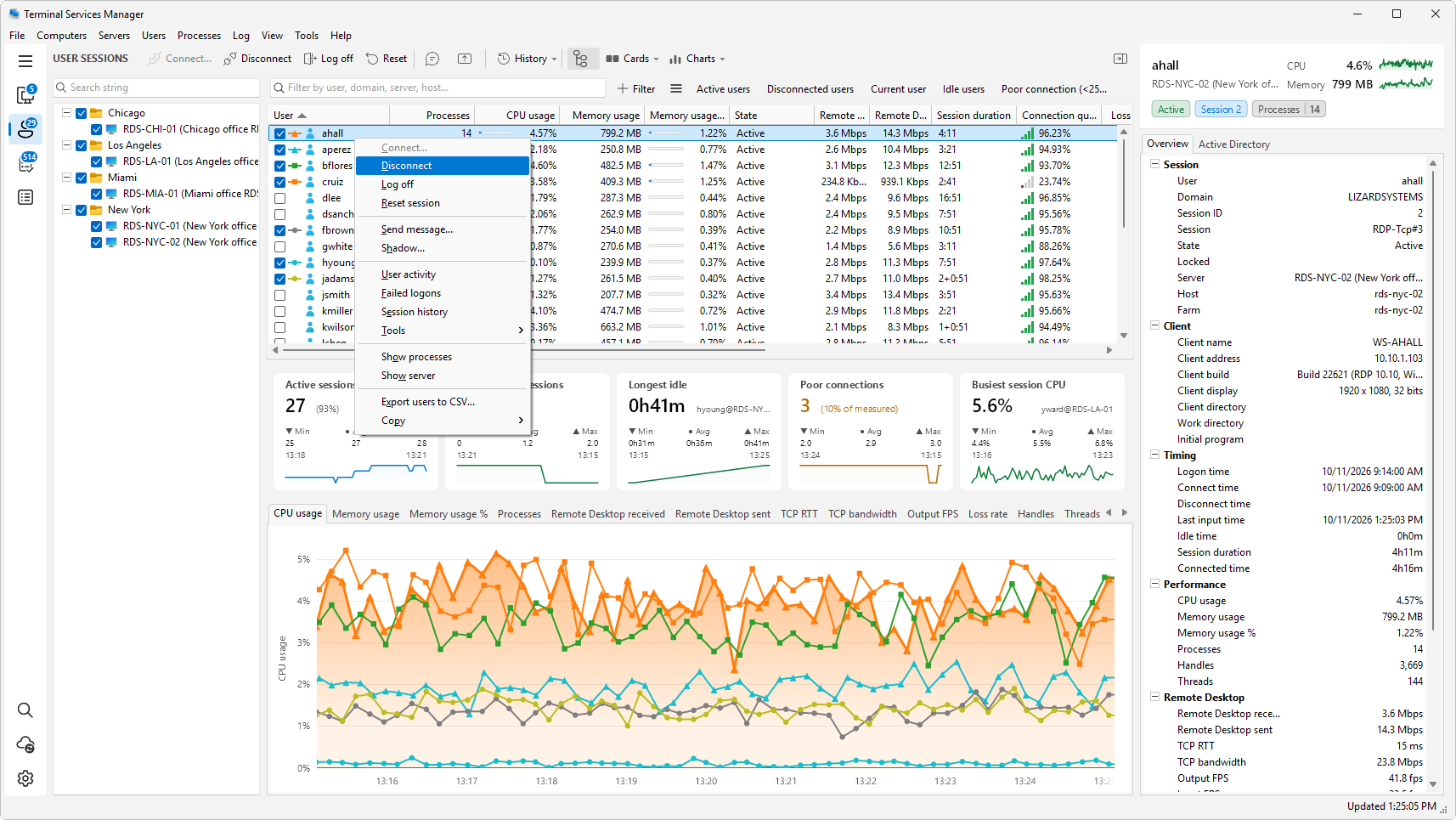
Open User sessions in the sidebar and find the user (quick search by name if the list is long), right-click, and choose Shadow.
In the dialog, pick how to connect:
- View watches the session without sending input.
- Control shares the keyboard and mouse with the user.
- Prompt for user consent shows the user a prompt and waits for them to accept before the shadow starts.
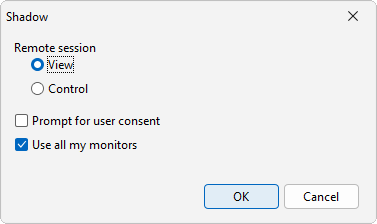
Click OK and the shadow window opens. Close it to stop shadowing.
Let the help desk shadow without making them admins
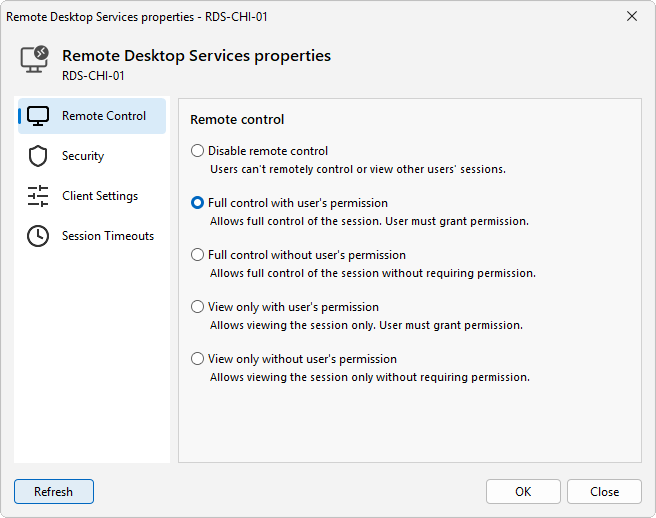
By default, shadowing requires the connecting account to be an administrator on the target server. To let support staff shadow sessions without that, grant the Remote control permission on the Remote Desktop Services session host and configure whether a consent prompt is required, through the local Set rules for remote control of Remote Desktop Services user sessions group policy. In Terminal Services Manager, right-click the server and choose Administration > Remote Desktop Services properties to review these settings.
When shadow does not work
- Access denied: the connecting account lacks permission. Add it under Remote control on the session host, or to the local Administrators group.
- The session is not connectable: you cannot shadow a session that is disconnected, logging off, or still initializing. Shadowing needs a live, connected session.
- Black screen or nothing happens: confirm the server is Windows Server 2012 R2 or later and that the firewall allows the shadow traffic (it uses RPC and SMB, not just port 3389).
Related
- How to see who is logged on to a Remote Desktop server
- How to send a message to all Remote Desktop users