
Installing LanSend
LanSend installs in a few minutes with a standard Windows setup. You install it only on the machine you send from, not on the computers that receive your messages.
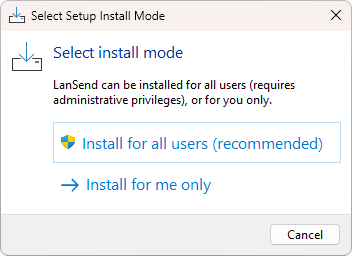
How to install
- Open the Download LanSend page and save the installer.
- Run the downloaded file. In Select Setup Install Mode, choose Install for all users (recommended), which needs administrative rights, or Install for me only.
- Follow the prompts to confirm the install location and shortcuts. Installing for all users places LanSend under Program Files; installing for yourself keeps it in your own profile.
- On the Completing the LanSend Setup Wizard page, leave Launch LanSend ticked to start it right away, then click Finish.
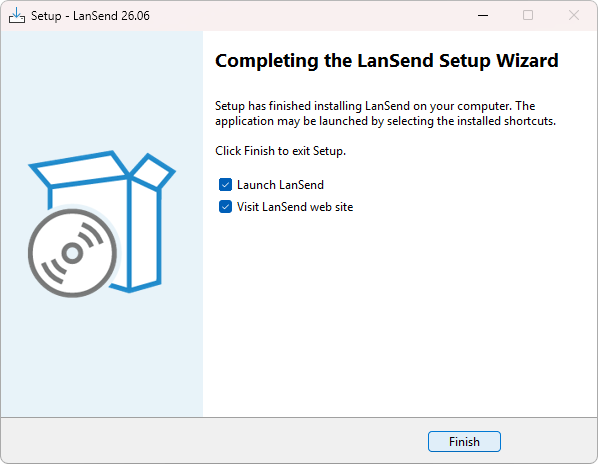
The setup runs on Windows 11, Windows 10, and Windows Server 2022, 2019, and 2016 (64-bit editions). For the full hardware and operating system list, see System requirements.
Nothing on the receiving computers
LanSend uses the messaging channel built into Windows, so the computers you message need no agent, client, or any other software from you. You install LanSend once, on your own PC, and message the rest of the network from there. Each target needs network reachability and administrative rights on it.
See also
Was this page helpful?
Thanks for your feedback.