
The main window
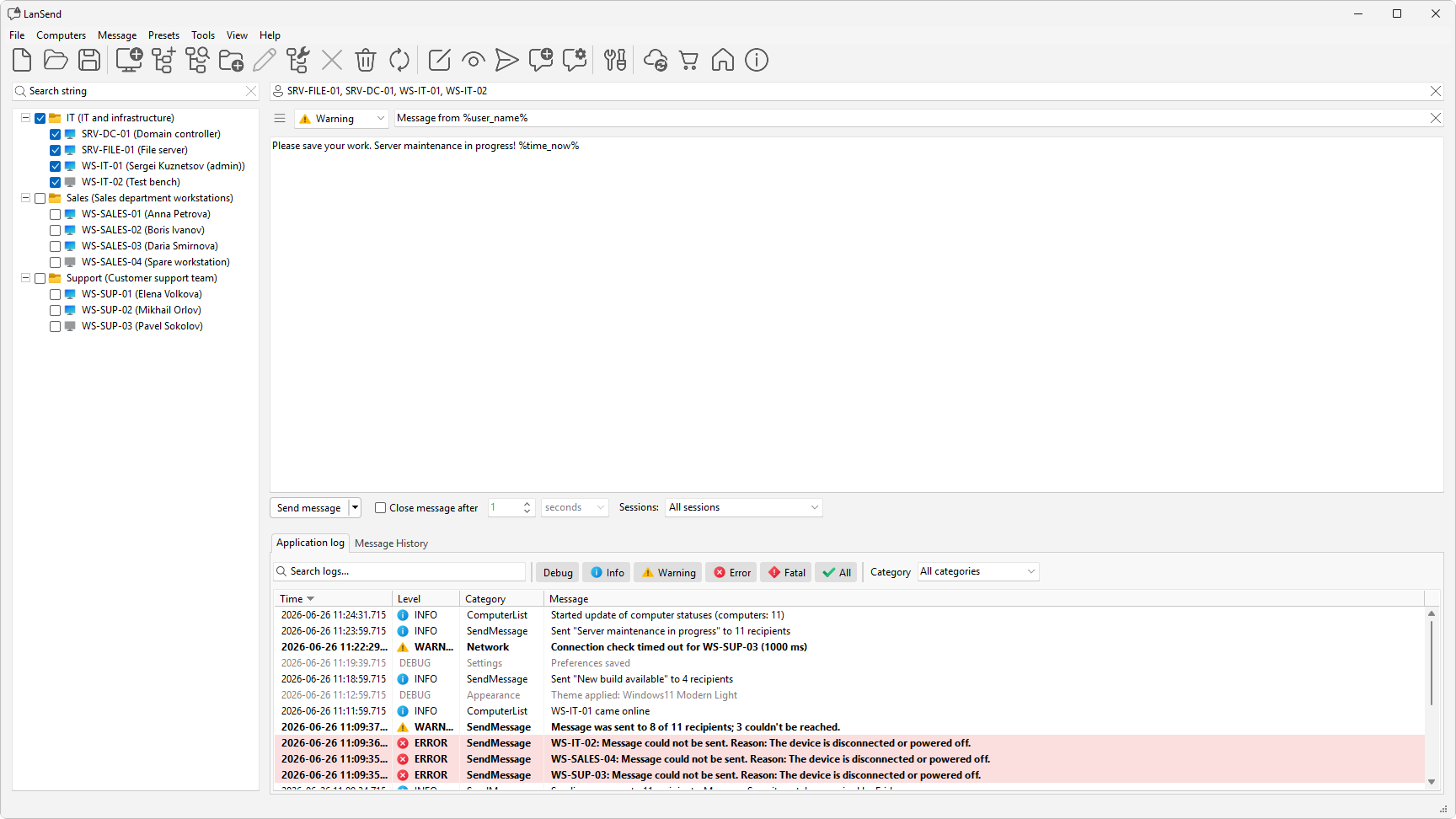
The LanSend main window keeps everything in one place: your computers on the left, the message you are writing on the right, and the send controls along the bottom. This tour walks through each area.
The menu bar
The menu bar runs across the top with seven menus: File, Computers, Message, Presets, Tools, View, and Help. Between them they reach every feature, grouped by the job you are doing.
The computer list
The left panel is your computer list, shown as a tree of groups and machines. A live search box sits at the top; type part of a name or description and the list filters as you type. For how to add and organize machines, see Building your computer list.
The composer
The upper-right area is where you write a message. At the top, the recipients box (marked with a person icon) is read-only and shows the names of the computers you checked. A message type combo sets the icon and sound (None, Info, Warning, or Error), with a title field beside it and a body memo below. The presets button (the menu icon at the far left of that row, just before the message type combo) fills the title, body, and type from a saved message.
The send bar
The send bar sits between the message body and the log and history tabs. The Send message split button sends to the checked computers. A Close message after checkbox, with a value and a unit, makes the pop-up close on its own; leave it unticked and the message stays until the user clicks OK. A Sessions: dropdown picks which sessions on each machine receive the message.
The log and history tabs
The lower-right area has two tabs. Application log records what the app did, with columns for Time, Level, Category, and Message. Message History keeps the messages you have sent, with columns for Time, Type, Recipients, Title, and Message. Each tab has its own filters.