
Tools
The Tools menu runs an external command against the computer you have selected in the list, filling in details like its name or IP address for you. It puts the utilities you reach for often, a ping, a PowerShell session, a remote desktop connection, one click away from inside LanSend.
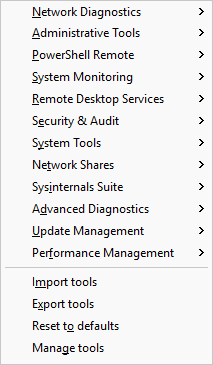
Run a tool
Select a computer in the list, open the Tools menu, and pick a tool from its category. LanSend launches the command for that machine, substituting the computer's details where the tool calls for them. The same variables as the rest of LanSend apply, including %computer_name% and %computer_ip%, so one tool works against whatever machine you have selected.
LanSend ships with a large default set, sorted into twelve categories: Network Diagnostics, Administrative Tools, PowerShell Remote, System Monitoring, Remote Desktop Services, Security & Audit, System Tools, Network Shares, Sysinternals Suite, Advanced Diagnostics, Update Management, and Performance Management.
Some tools need their groundwork in place on the target: PowerShell Remote needs WinRM enabled, the Sysinternals Suite tools need the Sysinternals utilities on your PATH, and any tool that reaches a remote machine needs network access and the right permissions.
Manage your tools
Below the categories, the Tools menu has four commands:
- Import tools adds tools from a file.
- Export tools writes your tools to a file to share or back up.
- Reset to defaults restores the default categories and tools.
- Manage tools opens the tree where you build and arrange them.
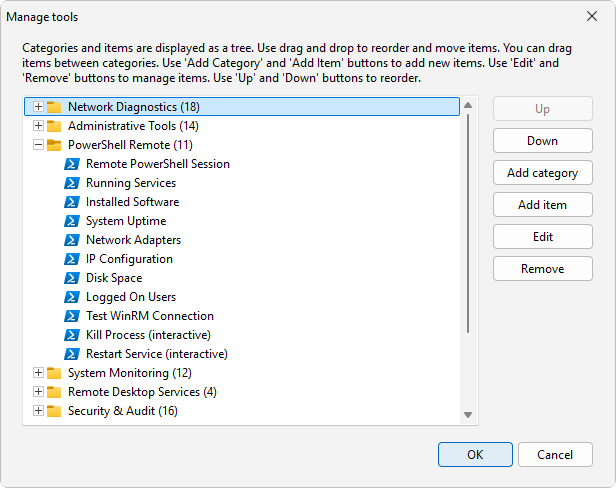
In Manage tools, the buttons to the right of the tree are Add category, Add item, Edit, Remove, and Up / Down to reorder. Editing a tool opens the Edit tool dialog (it reads Add tool for a new one), with these fields:
- Tool name is the label shown in the menu.
- Command type is Standard command, Shut down command, or Send message command.
- Program name is the executable or command to run.
- Shell operation is how it launches: Open, Run as Administrator, Print, Explore, or Edit.
- Parameters (optional) is the argument template, where you put variables such as
%computer_name%and%computer_ip%. - Working directory (optional) sets the folder the command runs in.
- Icon picks the menu icon.