
Groups
Groups let you organize the computers in your list into a folder-style tree, so a department, a floor, or a site stays together. Once a group exists, you can message everyone in it in one action instead of picking machines one by one.
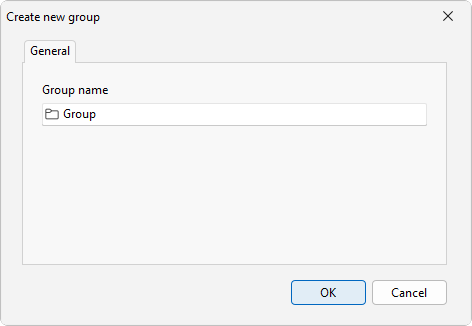
Create a group
Choose Computers > Create new group and type a name. Groups are hierarchical, so you can nest one group inside another to mirror how your network is laid out, for example a site group with a group per floor underneath it.
Reorganize the list
Drag entries to move them. Pull a computer into a group, or drop a group inside another group, by dragging it where you want it. The tree updates as you go, so you can shape the list without retyping any names.
Expand and collapse
When the tree gets deep, Computers > Expand all groups opens every group at once and Computers > Collapse all groups closes them back down. Use collapse to get a tidy top-level view, expand when you need to see every machine.
Send to a whole group
To message a group, check its box in the list, and the message goes to every computer inside it. The group name then appears in the recipients box at the top of the composer. See Choosing recipients for the ways to pick who receives a message.