
Search and filter
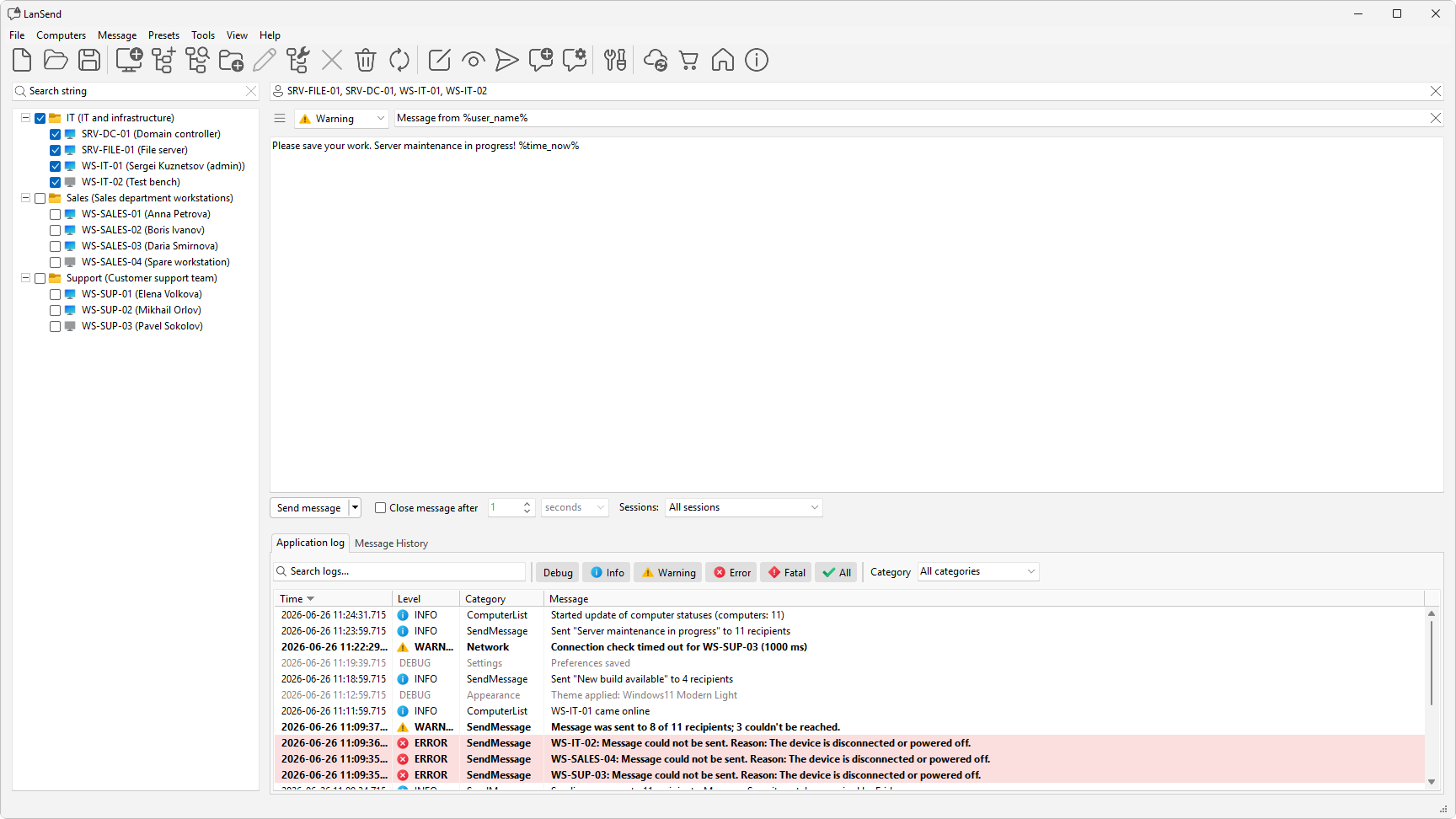
The search box above the computer list filters the tree as you type. It matches both the name and the description. Pair it with the selection commands to pick a subset of machines before you send.
Search the list
Type into the search box at the top of the left panel. The list narrows to the computers whose name or description matches what you typed, and updates with each keystroke. Clear the box to show the full list again.
Select a subset
Once the list shows the machines you want, set their checkboxes. Three commands on the Computers menu speed this up:
- Check all ticks every computer in the list, including any currently hidden by the search filter.
- Uncheck all clears every checkbox.
- Inverse flips the current selection, so checked becomes unchecked and the rest become checked.
Note: Check all, Uncheck all, and Inverse act on the whole list, not just the computers the search is currently showing, and a computer stays checked even after the search hides it. To send to only the machines that match a search, tick those rows yourself rather than using Check all - otherwise you will send to every computer in the list.