
Choosing recipients
Before you send, you decide which machines get the message. You pick recipients in the computer list on the left, and the recipients box (marked with a person icon) at the top of the composer shows your current selection.
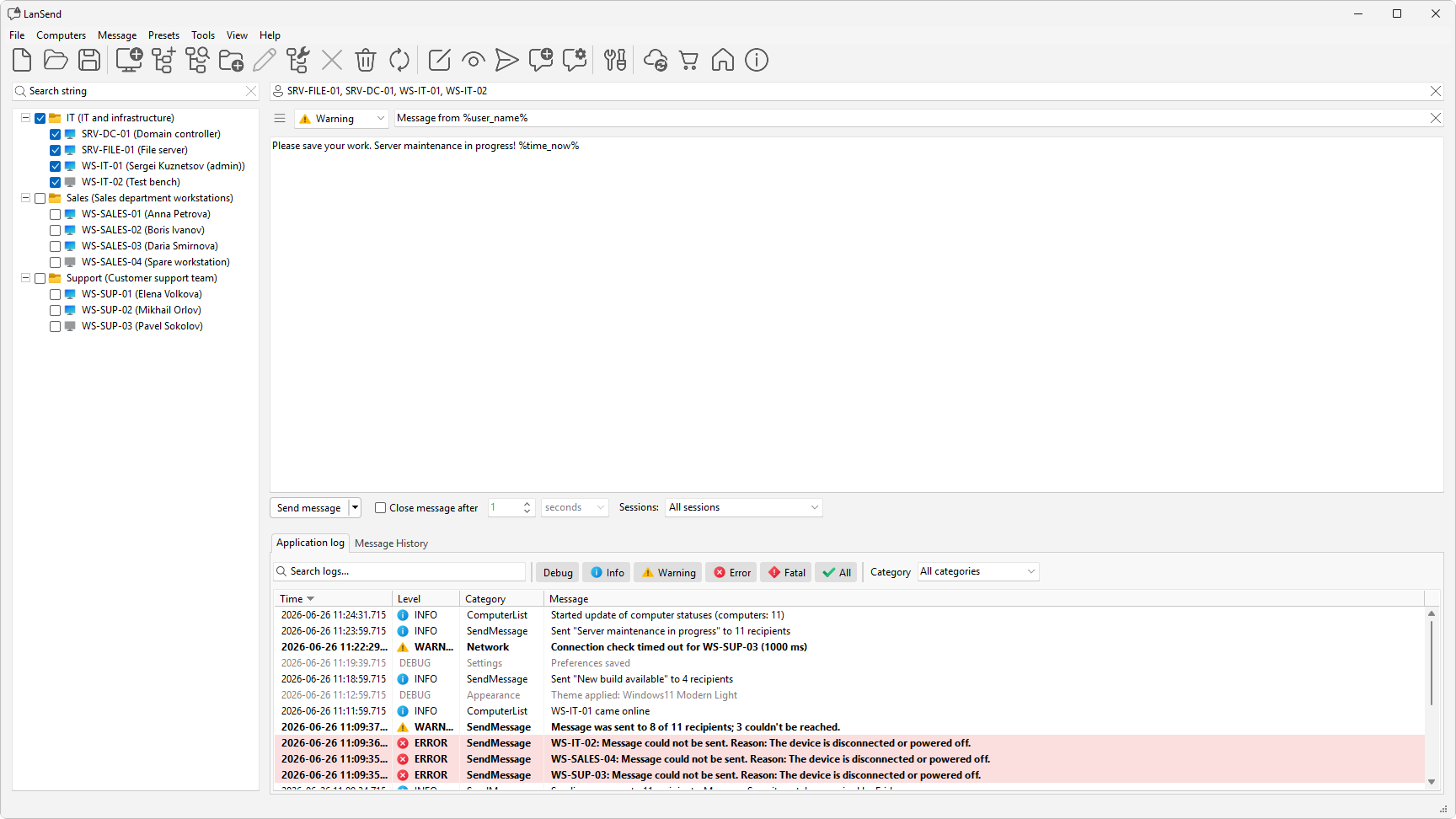
Tick the computers or groups
Each item in the list has a checkbox. Tick a computer to add it, or tick a group to include every computer in it. As you check and uncheck items, the recipients box at the top of the composer updates to reflect the selection.
To change the whole list at once, use the Computers menu:
- Check all selects every computer in the list.
- Uncheck all clears the selection.
- Inverse flips it, so checked items become unchecked and the rest become checked.
Narrow the list first
When the list is long, type in the search box at the top of the computer panel. It filters the list as you type and matches both the name and the description, so you can find a machine or trim the view down to the ones you want before you tick them. For more on organizing and adding machines, see Building your computer list.
Set the session scope
The Sessions: dropdown on the send bar controls which sessions on each recipient receive the message: All sessions, Active, Logged-on, or Console. Set this when more than one user may be signed in to a machine. See Session scope for what each option means.