
Compose a message
You build a message in the upper-right panel of the main window: choose who gets it, set its type, give it a title, type the body, and send. The message goes out over the built-in Windows Terminal Services channel, so nothing is installed on the recipient.
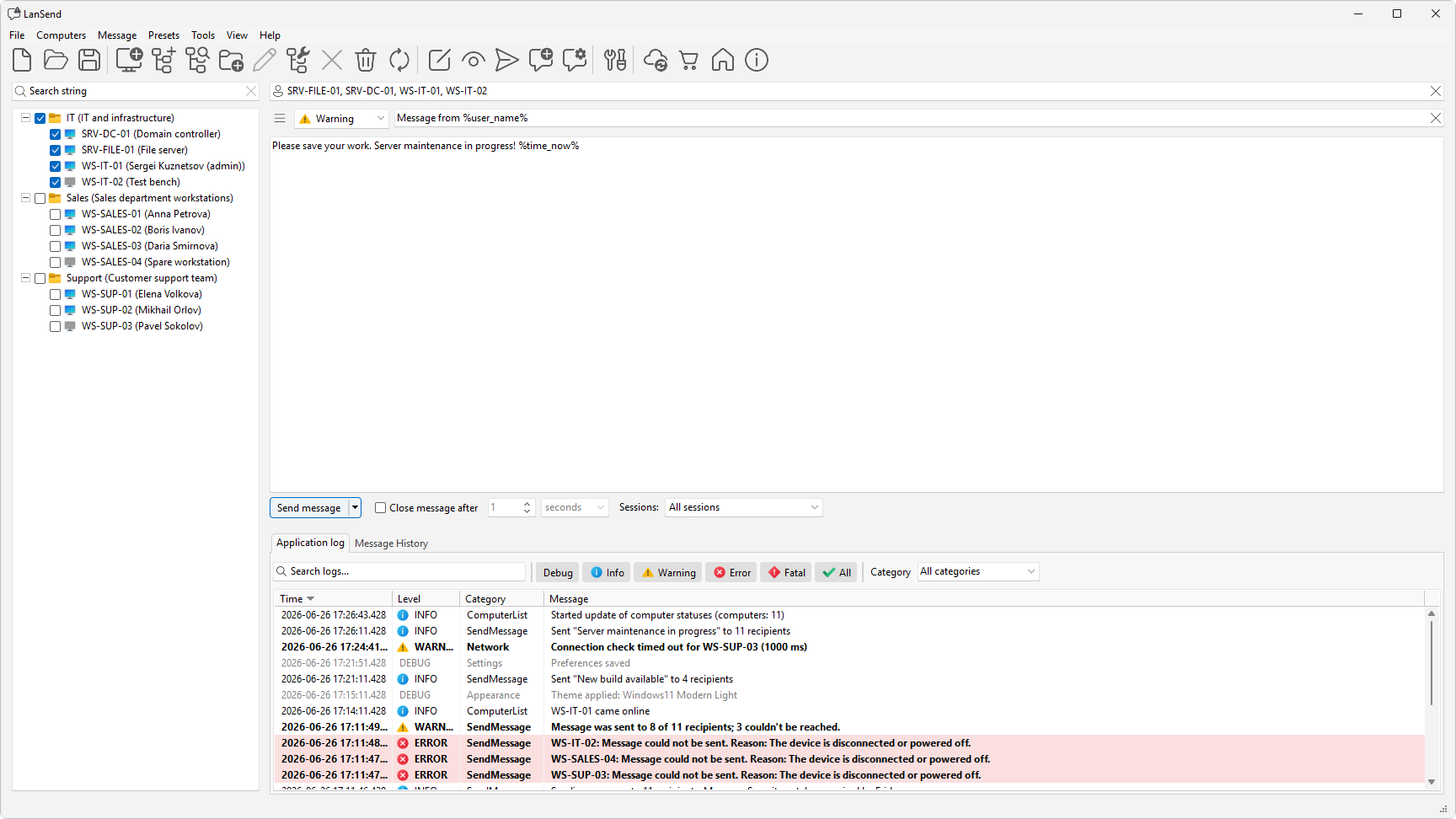
Write and send
- In the computer list on the left, check the boxes for the machines or groups you want to reach. The recipients box at the top of the composer (marked with a person icon) shows who is selected.
- Pick a message type and title: open the type combo and choose None, Info, Warning, or Error, then type a title.
- Type the body in the message memo.
- Click Send message.
The body and title can include variables, and you can start from a saved preset instead of typing from scratch.
The composer fields
- The recipients box (marked with a person icon) lists the recipients you checked in the computer list.
- The message type combo sets the icon and sound: None has no icon, while Info, Warning, and Error each carry the matching Windows icon and sound.
- The title field holds a short headline for the pop-up.
- The body memo holds the message text.
- The presets button (the menu icon next to the message body) fills the title, body, and type from a saved message.
Use variables in the text
The title and body accept five variables, written between percent signs. They are case-insensitive and expand just before the message is sent, resolving to the values on your own machine:
%computer_name%%user_name%%time_now%(date and time)%time%%date%
For example, Save your work, %computer_name% restarts soon sends with the sender's computer name in place.
See also
Was this page helpful?
Thanks for your feedback.