
Preview a message
Message > Preview message shows the message box on your own screen first, with the same type, title, and timeout you have set. Use it to check how a message reads before it goes out to anyone.
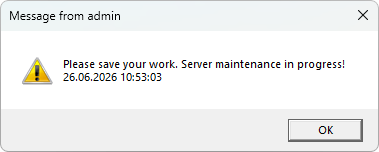
How to preview
- Write the message in the composer: pick a Message type, set the title, and type the body.
- Open Message > Preview message, or use the preview action in the composer.
- The pop-up appears on your own screen, exactly as a recipient would see it.
- Click OK to close the preview, then adjust the message or send it.
The preview is available once the body has text. With no body, there is nothing to show.
What the preview matches
The preview uses the same settings as the real message:
- Message type sets the icon and sound. None has no icon; Info, Warning, and Error each carry the matching Windows icon and sound.
- The title and body show as typed.
- The Close message after timeout applies. If the checkbox is ticked, the preview closes on its own after the set time; if not, it stays until you click OK.
One thing to note: variables such as %computer_name% and %user_name% resolve to your own local values in the preview, since they always expand to the sender's values just before sending.
See also
Was this page helpful?
Thanks for your feedback.