
By default the Remote Desktop protocol lets a client use up to 16 monitors and up to 4096 by 2048 pixels per monitor. On a session host serving many users, that is often more than you want: extra monitors and high resolutions raise the bandwidth and memory each session uses. You can cap both with Group Policy, and clients can set their own preference in the .rdp file.
Quick answer
Limit monitors and resolution on the server with two policies under Remote Desktop Session Host:
- Limit number of monitors sets how many monitors a session may use, from 1 to 16.
- Limit maximum display resolution sets the largest width and height a session may request.
Both live here:
Computer Configuration > Administrative Templates > Windows Components > Remote Desktop Services > Remote Desktop Session Host > Remote Session Environment
Limit the number of monitors
Open the Group Policy editor (gpedit.msc for local, or the domain GPO), go to the path above, and enable Limit number of monitors. Set the count you want. A value of 1 forces every session to a single monitor; 2 allows a dual-monitor layout and no more.
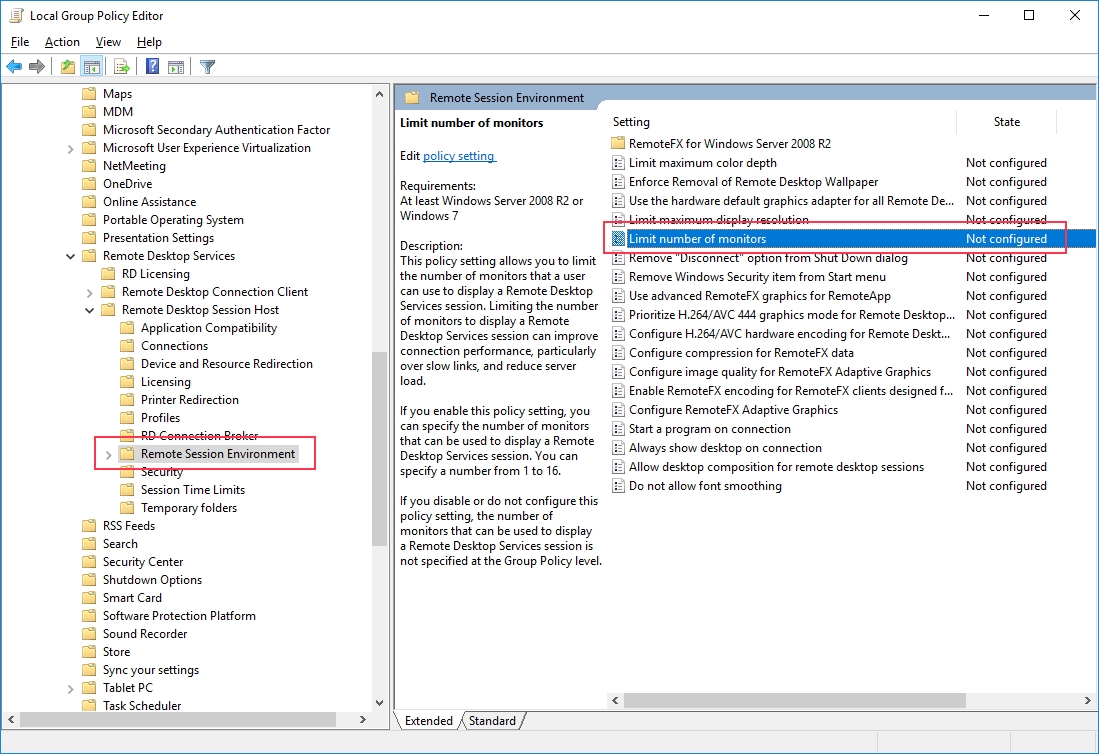
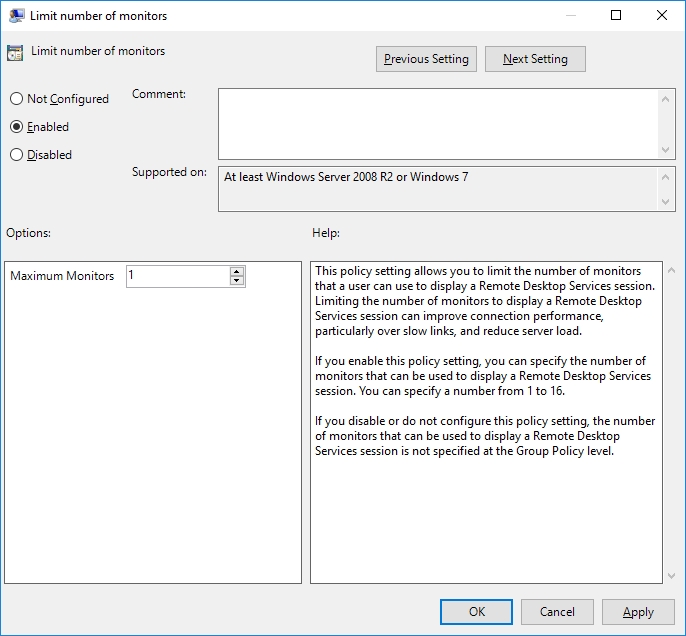
On Windows Server 2008 R2 and earlier, the same limit lives in the Remote Desktop Session Host Configuration tool (tsconfig.msc) as Limit maximum number of monitors per session.
The policy is enforced on the host, so it applies no matter what the client requests. A user who connects with more monitors simply gets the capped number.
Limit the maximum resolution
In the same Remote Session Environment folder, enable Limit maximum display resolution and set the maximum width and height. Sessions that ask for more are clamped down to your limit. This is the setting to use when you want to stop 4K clients from spinning up oversized sessions that eat memory and bandwidth on the host.
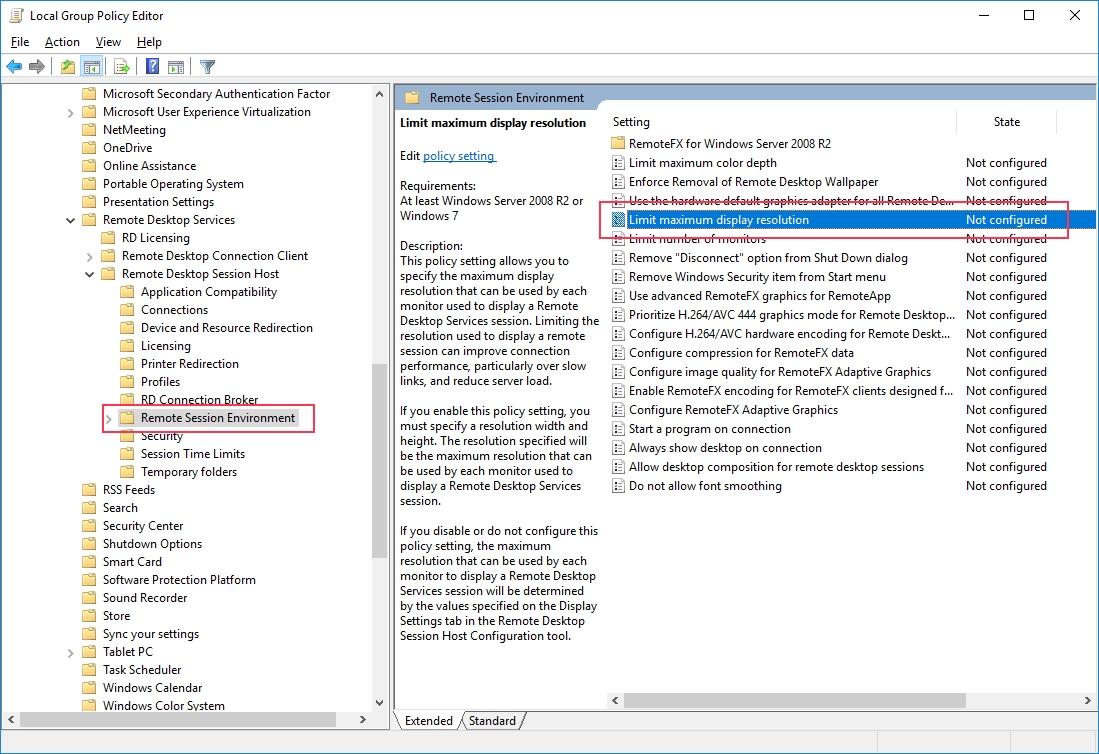
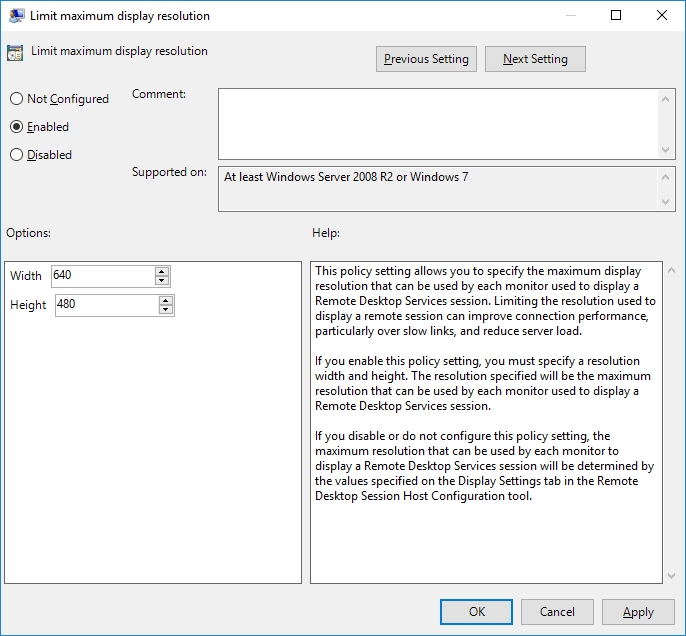
Client-side settings in the .rdp file
Users control their own multi-monitor behavior in the Remote Desktop client, and those choices are saved in the connection's .rdp file:
use multimon:i:1
desktopwidth:i:1920
desktopheight:i:1080
use multimon:i:1spreads the session across all the client's monitors;0keeps it on one.desktopwidthanddesktopheightset the resolution for a single-monitor session.
These are a client preference, not a control. When you need a guarantee, the server-side Group Policy limits win, because the host enforces them regardless of what the .rdp file asks for.
Why cap them
More monitors and higher resolution mean a larger screen area to encode and send, so each session uses more bandwidth and more memory on the host. Holding monitors and resolution to what users actually need keeps sessions lighter and more consistent, which matters most on a busy session host or over a slow link.
To see how the resulting sessions behave under load, Terminal Services Manager shows the active sessions on every server with their CPU and memory use, so you can confirm the change did what you wanted.
FAQ
Can I limit an RDP session to 2 monitors?
Yes. Enable the Limit number of monitors policy under Remote Desktop Session Host > Remote Session Environment and set it to 2. The host caps every session at two monitors, whatever the client connects with.
Where is the "Limit number of monitors" policy?
Computer Configuration > Administrative Templates > Windows Components > Remote Desktop Services > Remote Desktop Session Host > Remote Session Environment. On Windows Server 2008 R2 and earlier, use tsconfig.msc instead.
How do I set the maximum RDP resolution with Group Policy?
In the same Remote Session Environment folder, enable Limit maximum display resolution and set the maximum width and height. Sessions requesting more are reduced to your limit.
Does limiting monitors reduce RDP bandwidth?
Yes. Fewer monitors and lower resolution mean a smaller screen area to encode and transmit, which lowers the bandwidth and memory each session uses.
Related
- How to restrict the maximum number of monitors for a Remote Desktop session
- How to restrict the maximum resolution of a Remote Desktop session
- How to use multiple monitors with Remote Desktop