
Remote Desktop access on Windows Server comes down to two things: who belongs to the Remote Desktop Users group, and who holds the Allow log on through Remote Desktop Services user right. Get either one wrong and your users cannot connect, or far too many can. This guide covers both, through the GUI, PowerShell, and Group Policy.
Why RDP permissions matter
- Unauthorized RDP access is a common way into a network. It usually shows up first as a run of failed logons: see how to detect an RDP brute-force attack from failed logons.
- Regulations such as GDPR and HIPAA require access controls you can demonstrate.
- Every account that can sign in is another session the host has to serve.
Step 1: Enable Remote Desktop on Windows Server
Manual method
-
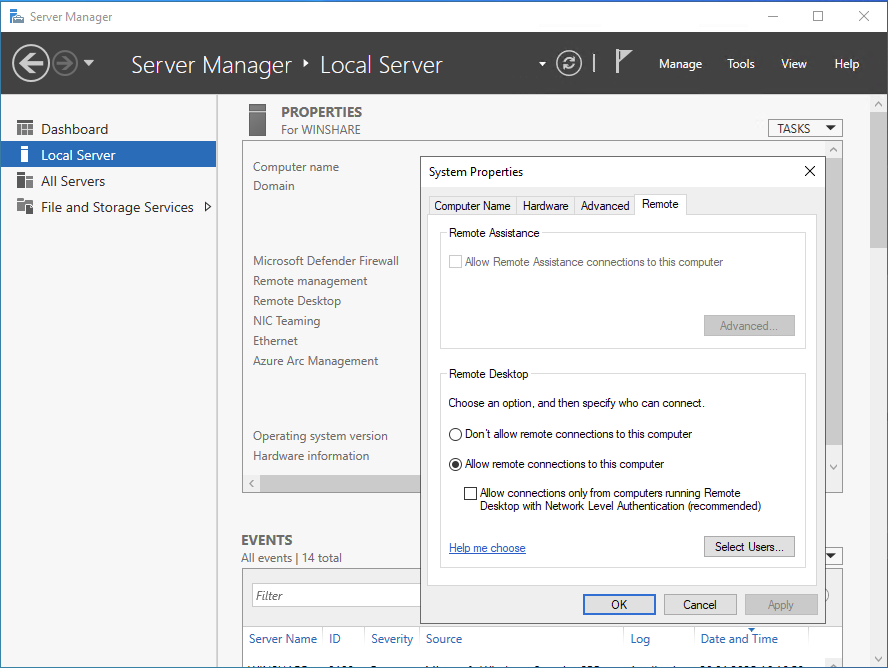
Open Server Manager → Local Server → Remote Desktop.
-
Select Allow remote connections to this computer.
-
Leave Network Level Authentication enabled. It makes the client authenticate before a session starts.
PowerShell
# Enable RDP and NLA
Set-ItemProperty -Path "HKLM:\System\CurrentControlSet\Control\Terminal Server" -Name "fDenyTSConnections" -Value 0
Set-ItemProperty -Path "HKLM:\System\CurrentControlSet\Control\Terminal Server\WinStations\RDP-Tcp" -Name "UserAuthentication" -Value 1
Step 2: Add users to the Remote Desktop Users group
Manual method
-
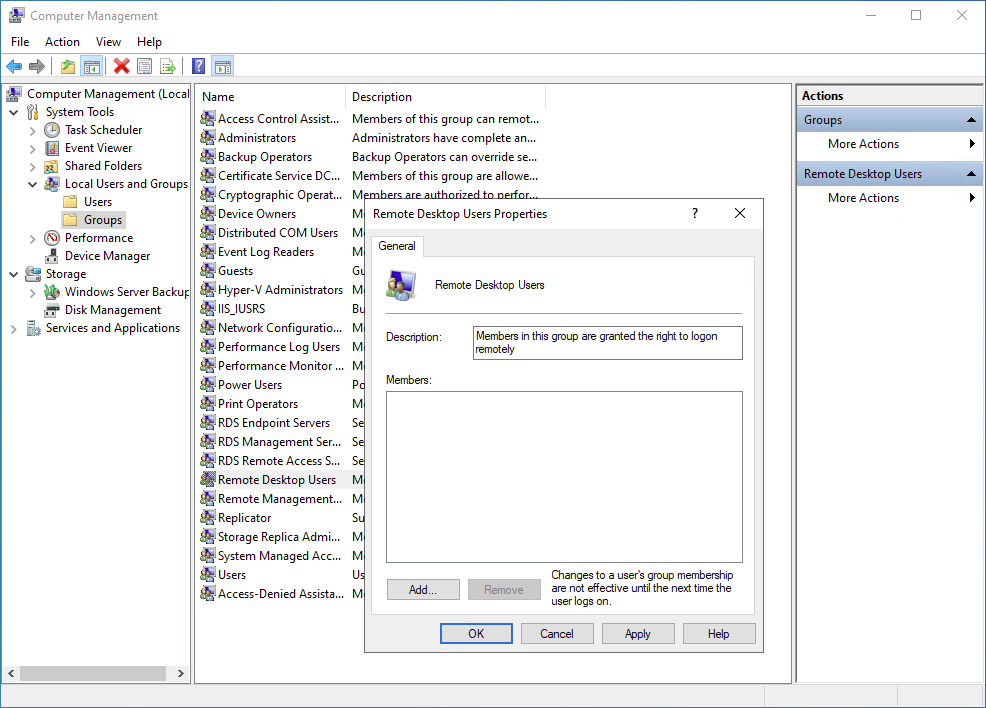
Open Computer Management → Local Users and Groups → Groups.
-
Double-click Remote Desktop Users, choose Add, and enter the account (for example, DOMAIN\User1).
PowerShell
# Add a domain user to the Remote Desktop Users group
Add-LocalGroupMember -Group "Remote Desktop Users" -Member "DOMAIN\User1"
Membership takes effect the next time the user signs in. Keeping this group small is the cheapest defense you have against credential-based attacks.
Step 3: Grant the user right with Group Policy
Group membership is not always enough. What the server actually checks is the Allow log on through Remote Desktop Services user right, and a matching entry under Deny log on through Remote Desktop Services overrides it.
Manual method
-
Open the Group Policy Management Console, create a GPO, and link it to the OU that holds your session hosts.
-
Edit the GPO and go to Computer Configuration → Policies → Windows Settings → Security Settings → Local Policies → User Rights Assignment.
-
Open Allow log on through Remote Desktop Services and add your group.
-
Confirm the same group is not listed under Deny log on through Remote Desktop Services.
PowerShell
The GroupPolicy module can create a GPO and decide which computers it applies to, but it cannot set a user right. Create the object here, then assign the right in the editor:
New-GPO -Name "RDP Access Policy"
Set-GPPermission -Name "RDP Access Policy" -TargetName "DOMAIN\FinanceTeam" -TargetType Group -PermissionLevel GpoApply
Set-GPPermission controls who the policy applies to. On its own it grants nobody RDP access.
Remote control, also called shadowing, is not covered by either of these. It is granted separately, through the Set rules for remote control policy and the Win32_TSPermissionsSetting WMI class: see how to grant RDS shadow access without full admin rights.
Best practices for secure RDP management
-
Put multi-factor authentication in front of Remote Desktop, or publish it through a gateway instead of exposing port 3389 to the internet.
-
Set session time limits so idle sessions stop accumulating, and log off disconnected RDP sessions nobody is coming back to.
-
Check who is connected.
qwinsta /server:SERVER01lists the sessions on one host. The graphical session list that used to do this wastsadmin.msc, and it is not part of Windows Server 2012 or later: see where the tsadmin.msc snap-in went. -
Review the membership of the Remote Desktop Users group on a schedule, not once, and check it against who actually connects: audit RDP logon history from the session logs.
Example: granting temporary RDP access
A contractor needs access to one server.
Add-LocalGroupMember -Group "Remote Desktop Users" -Member "Contractor01"
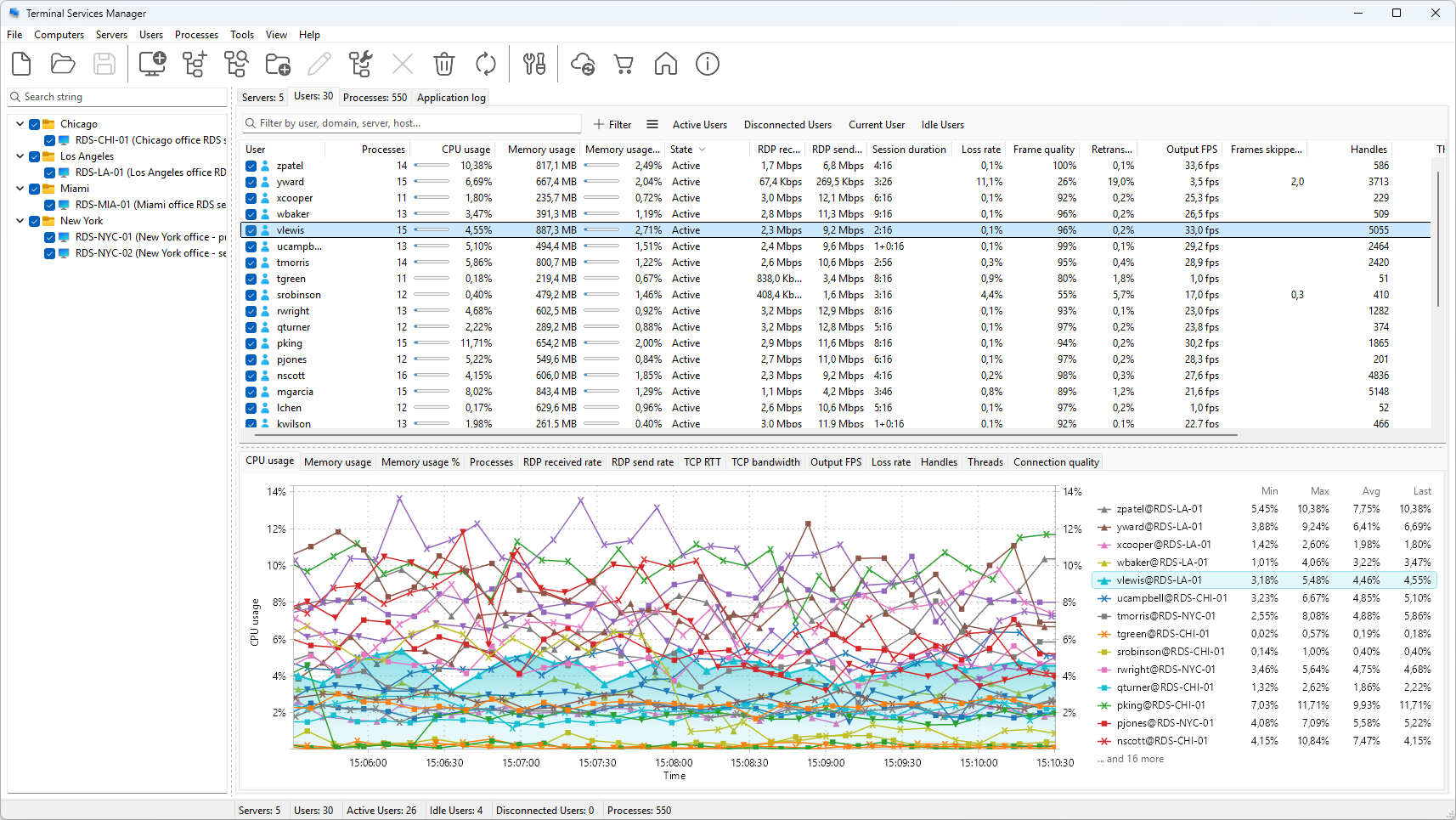
Then watch what the account does. Terminal Services Manager lists the sessions from every server in one window, with session duration, CPU, and memory per user, so you can tell when the work is finished and remove the account.
Troubleshooting common RDP issues
"User not in Remote Desktop Users group". Verify the membership:
Get-LocalGroupMember -Group "Remote Desktop Users"
If the account is in the group and still cannot connect, check the Deny user right, then run gpresult /h report.html to see which policy won.
RDP port blocked by the firewall. Make sure port 3389, or your custom RDP port, is open on the host.
Server overload. Find the sessions consuming the CPU and memory before you blame the network. See how to find which user is using high CPU on an RDS host.
Managing RDP across many servers
Everything above is per server. On a farm, checking group membership, counting sessions, and working out who is signed in where becomes its own job. Terminal Services Manager shows the sessions and processes from all your Remote Desktop hosts in a single window.