
A stuck Remote Desktop session, or one a user walked away from days ago, holds memory, CPU, and a Remote Desktop license until someone ends it. There are three ways to deal with it, and they are not the same thing. This guide covers when to use each, the commands that do them, and how to clear them in bulk when one server at a time is not enough.
Disconnect, log off, or reset: which one you want
| Action | Command | What happens | Use it when |
|---|---|---|---|
| Disconnect | tsdiscon |
The connection drops, but the session keeps running with its apps open. The user can reconnect and pick up where they left off. | You want to free the screen, not the work. |
| Log off | logoff |
The session ends cleanly. Apps close, and the memory and license are returned. | The user is finished. |
| Reset | reset session (rwinsta) |
The session is forcibly terminated. Anything unsaved is lost. | A session is hung and will not log off any other way. |
Reset is the blunt one. Reach for it only when a session is frozen and a normal log off does nothing, because it kills the session outright with no chance to save.
Find the session first
Every command needs the session ID or name. List the sessions on a host with query session (or its twin qwinsta):
query session /server:RDSH01
To see them with usernames and idle time, use quser:
quser /server:RDSH01
Note the ID in the leftmost column for the session you want to act on.
From the command line
All three commands take a session ID and an optional /server: so you can act on a remote host without signing in to it.
:: Disconnect session 3 (keeps the session running)
tsdiscon 3 /server:RDSH01

:: Log off session 3 (ends it, frees resources)
logoff 3 /server:RDSH01

:: Reset a hung session 3 (forced, unsaved work is lost)
reset session 3 /server:RDSH01
rwinsta 3 /server:RDSH01 does the same as reset session.
From the GUI
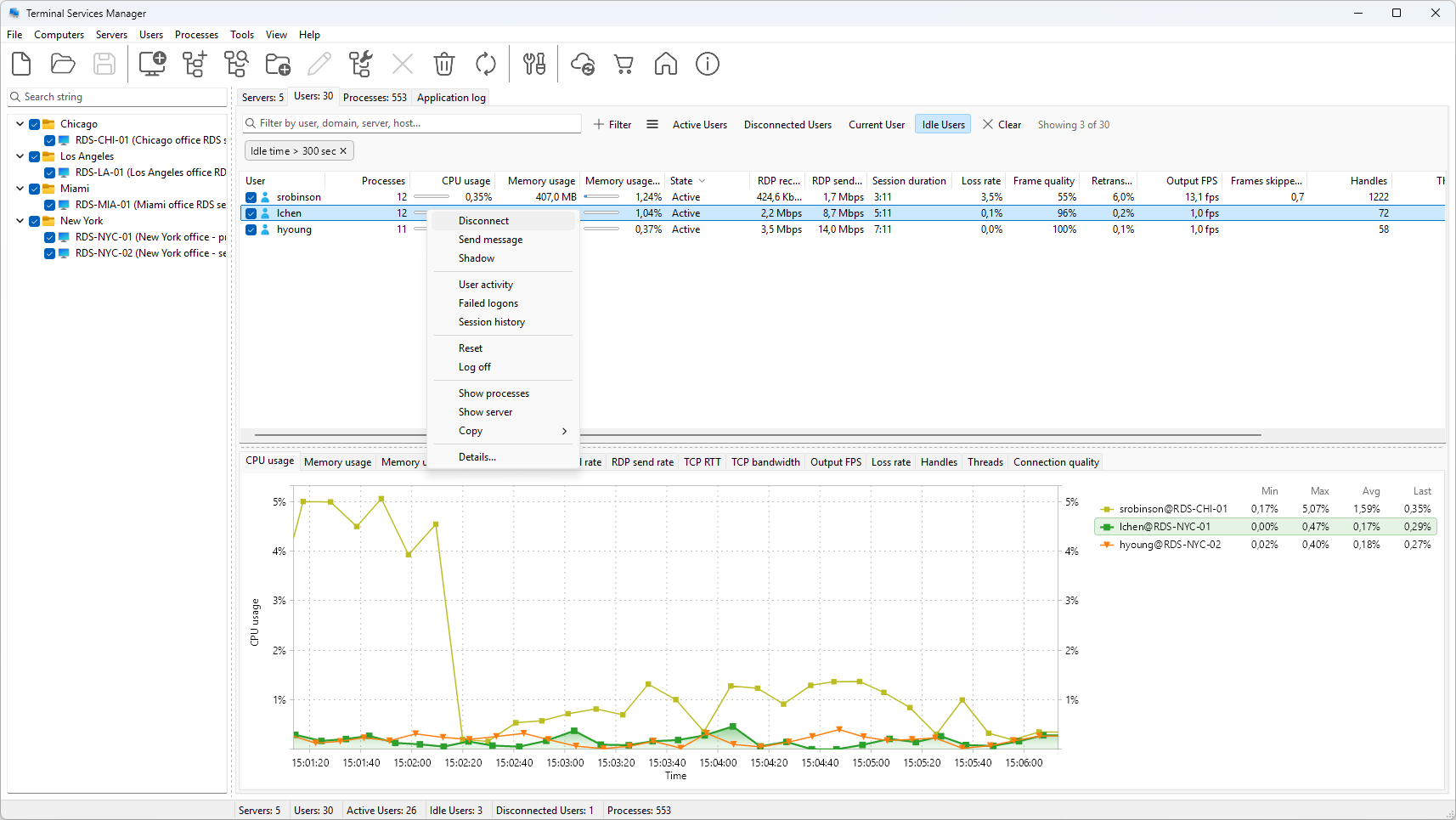
On the session host itself, the Users tab in Task Manager lists the signed-in users. Right-click one and choose Disconnect or Sign off. It is the quickest route when you are already on the machine, but it only covers that one server. The old tsadmin.msc snap-in offered all three actions in one console. Windows Server 2012 dropped it: see where Terminal Services Manager went in Windows Server 2012 and later.
With PowerShell
There is no dedicated cmdlet for a single logoff, so most people parse quser and call logoff. On a full RDS deployment with a Connection Broker, the RemoteDesktop module is cleaner:
Import-Module RemoteDesktop
Get-RDUserSession -ConnectionBroker BROKER01
Invoke-RDUserLogoff -HostServer RDSH01 -UnifiedSessionID 3 -Force
Get-RDUserSession lists every session across the deployment with its host and unified ID, which is what Invoke-RDUserLogoff needs.
Stop idle sessions from piling up
To end sessions automatically instead of chasing them by hand, set session time limits in Group Policy:
Computer Configuration > Administrative Templates > Windows Components > Remote Desktop Services > Remote Desktop Session Host > Session Time Limits
- Set time limit for active but idle Remote Desktop Services sessions disconnects a session after a set period of no input.
- Set time limit for disconnected sessions logs off a disconnected session after a set period, returning its resources.
These apply farm-wide on the next policy refresh. For the on-demand side of the same job, see how to log off idle users on a Remote Desktop server.
Doing it across many servers at once
The commands above work one session on one host at a time. On a farm, finding every disconnected session and clearing it becomes its own chore. Terminal Services Manager shows the sessions from all your Remote Desktop servers in one window, so you can:
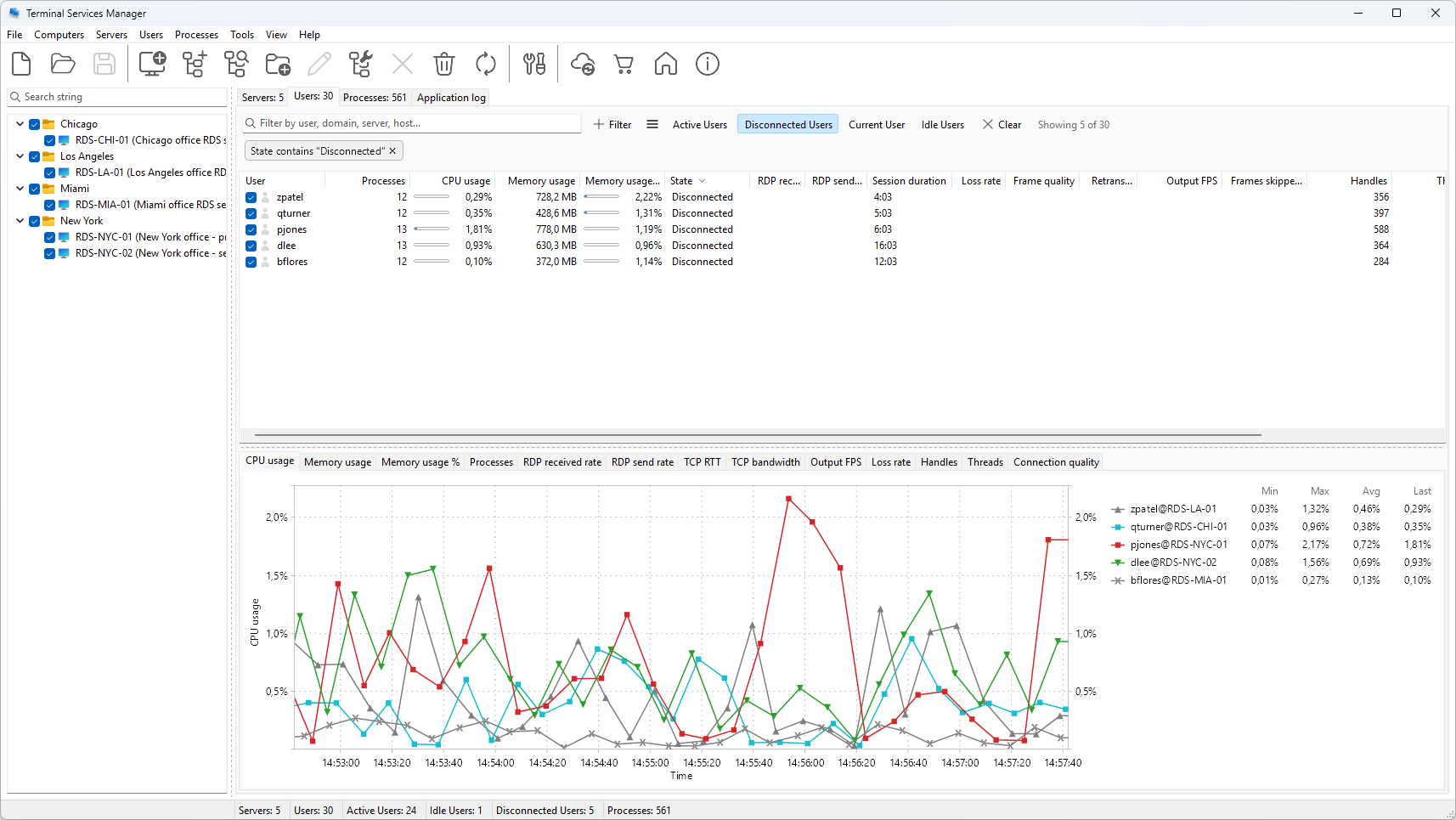
- Filter to disconnected or idle sessions across every server with a built-in preset.
- Select several sessions and disconnect or log them off together.
- Log off every disconnected session on one or more servers in a single action, from the Servers tab.
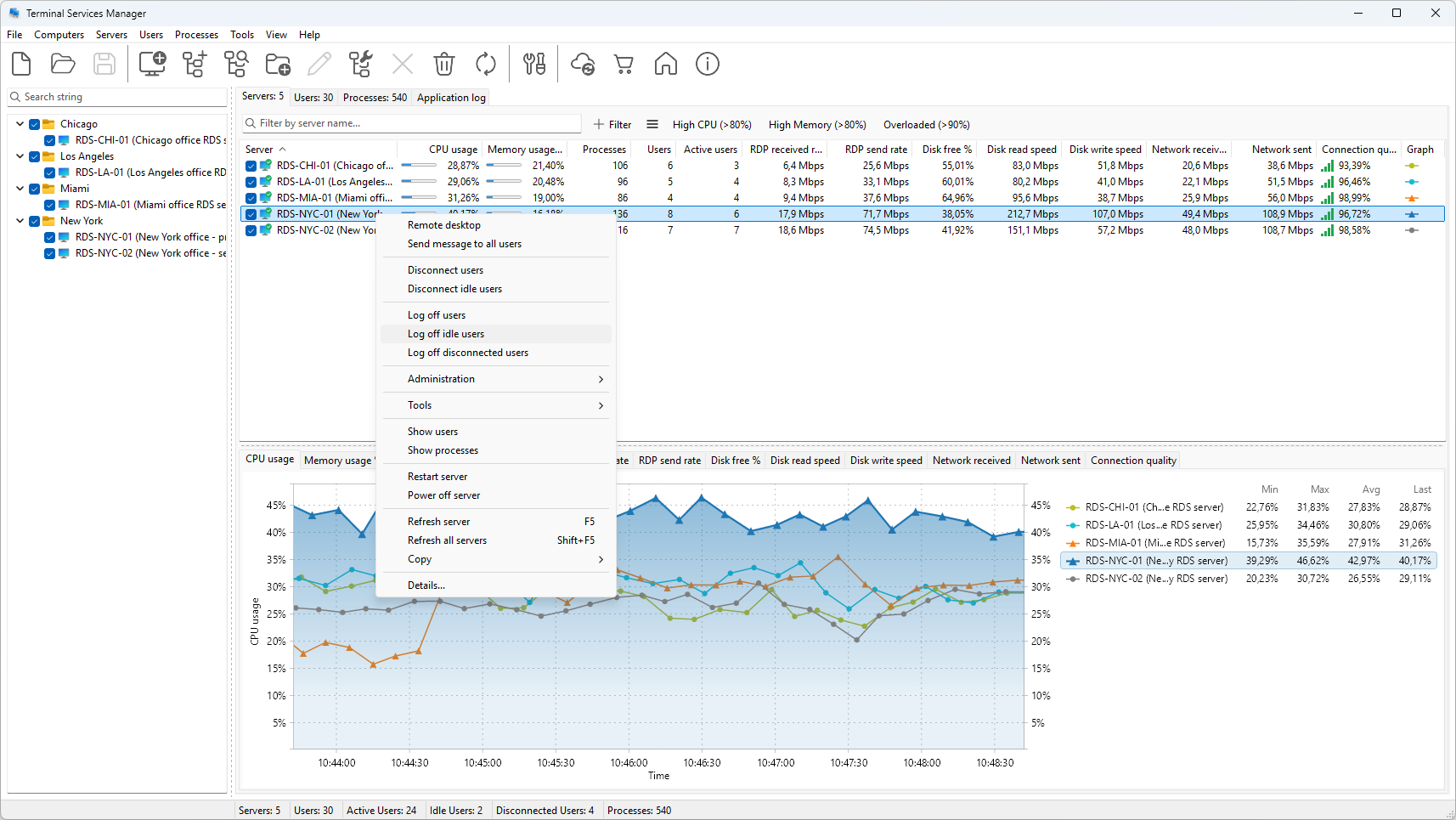
See how to log off disconnected RDP sessions for the disconnected-session cleanup, step by step.
FAQ
What is the difference between disconnect and log off?
Disconnect drops the connection but leaves the session running with its apps open, so the user can reconnect. Log off ends the session and returns its memory and license. Use disconnect to free the screen, log off to free the resources.
How do I reset a frozen RDP session from the command line?
Find the session ID with query session /server:HOST, then run reset session <ID> /server:HOST (or rwinsta <ID> /server:HOST). Reset forcibly terminates the session, so any unsaved work is lost. Use it only when a normal log off does not work.
How do I log off a disconnected RDP user?
Run quser /server:HOST to find the disconnected session, then logoff <ID> /server:HOST. To clear every disconnected session on a server at once, use the Log off disconnected users action in Terminal Services Manager.
How do I force idle RDS sessions to log off automatically?
Configure the Session Time Limits policies under Remote Desktop Session Host in Group Policy: one disconnects idle sessions after a set time, the other logs off disconnected sessions after a set time.
Related
- How to log off disconnected RDP sessions
- How to log off idle users on a Remote Desktop server
- How to monitor terminal server sessions and performance