
Install and launch
Terminal Services Manager installs in under a minute. You only need to do this once on the machine you will run it from.
Download and install
Get the latest installer, tsmanager_setup.exe, from the LizardSystems download page.
-
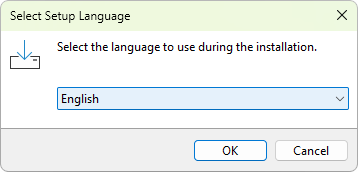
Run the installer. When Windows asks for permission to make changes, confirm it, then pick the language to use during setup.
-
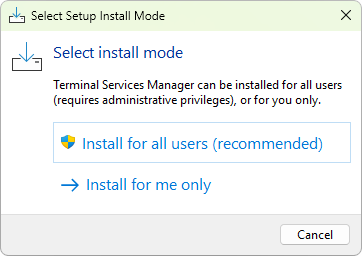
Choose Install for all users if you have administrative rights on this machine, or Install for me only otherwise.
-
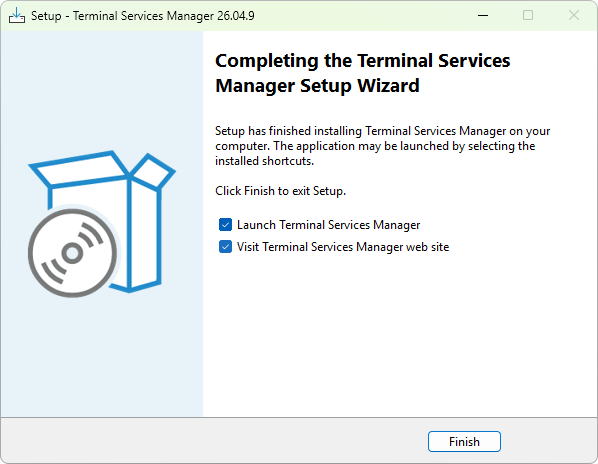
Accept the license agreement, keep the default install folder, and let the wizard finish. On the last page, leave Launch Terminal Services Manager ticked and click Finish.
If you prefer the command line, you can install with the Windows Package Manager instead: winget install tsmanager. The handbook covers winget and silent installs in full.
Launch with administrator rights
Terminal Services Manager needs administrator rights to read session data and run actions against Remote Desktop Services hosts, so Windows shows a User Account Control prompt every time it starts. Confirm the prompt to continue.
For the best results, run the program under an account that already has administrative rights on the servers you plan to manage. That way it can connect without asking for separate credentials each time. If your servers live on another domain, hold Shift, right-click the program shortcut, and choose Run as different user to start it under the right account.
When the main window opens, the computer list on the left is empty. The next step fills it.
Next: Add your first server.