
Take your first action
Monitoring is only half the job. From the User sessions tab you can act on a session straight away, without opening a remote desktop connection to the server. Select a session, then use the Users menu or right-click the row.
Disconnect a user
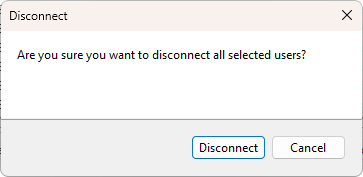
Disconnecting ends the connection but leaves the session running on the server. The user's programs keep going, and they can reconnect later and pick up where they left off.
- Select the session and choose Users > Disconnect.
- Confirm the prompt by clicking Disconnect.
Log off a user
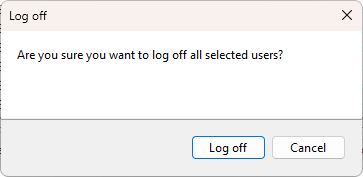
Logging off ends the session for good and closes the user's programs. Use it to free resources when someone is finished, but warn the user first if they may have unsaved work.
- Select the session and choose Users > Log off.
- Confirm the prompt by clicking Log off.
Send a message
Before you disconnect or log someone off, it is courteous to tell them. You can send a pop-up message to one user or to everyone on a server.
- Select one or more sessions and choose Users > Send message.
- Type a message title and the text you want to send, then click Send message.
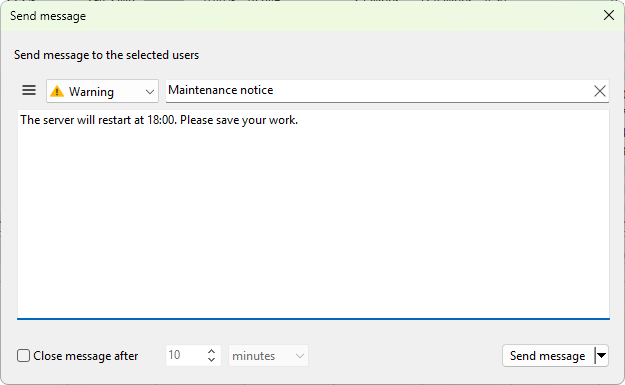
The message appears on the user's screen right away.
Where to go next
That is the core loop: add servers, watch sessions, and act when you need to. From here:
- The Administrator Guide covers building a large computer list, RDS administration tools, the application log, and updates and licensing.
- The handbook is the complete reference. See managing user sessions for shadowing, message presets, and resetting sessions, and filtering and searching to narrow large lists.