
A user calls to say their Remote Desktop session is slow. Before you change anything you need two answers: is the session really struggling, and who is this person?
The manual way: quser and Active Directory
quser lists the sessions on one server, with each user's state, idle time, and logon time:
quser /server:RDSH01
It says nothing about how well the session is running. For that you open Task Manager on the host, and for the person behind the account you query Active Directory:
Get-ADUser jsmith -Properties Title,Department,Manager,MobilePhone,PasswordLastSet,LockedOut
That is two tools, one server at a time, and you have to know which server the user is on.
The faster way: the inspector in Terminal Services Manager
Terminal Services Manager lists the sessions of all your servers in one place. Since version 26.10 an inspector on the right of the window describes whatever row you pick.
- Open User sessions in the sidebar and type the user name into the filter box above the list. You do not need to know the server.
- Click the row. The inspector shows CPU and memory with their recent trend, the session state, and every property the list holds: server, client name and address, logon time, idle time, and session duration. The Remote Desktop block lists TCP RTT, TCP bandwidth, and Output FPS.
- Check CPU and memory at the top of the inspector. A triangle before the name means the figure reached its warning level, and a diamond means it reached its bad level.
- Open the Active Directory tab. It shows the user's full name, job title, department, manager, email, phone, office, account state, password expiry, groups, and the management chain.
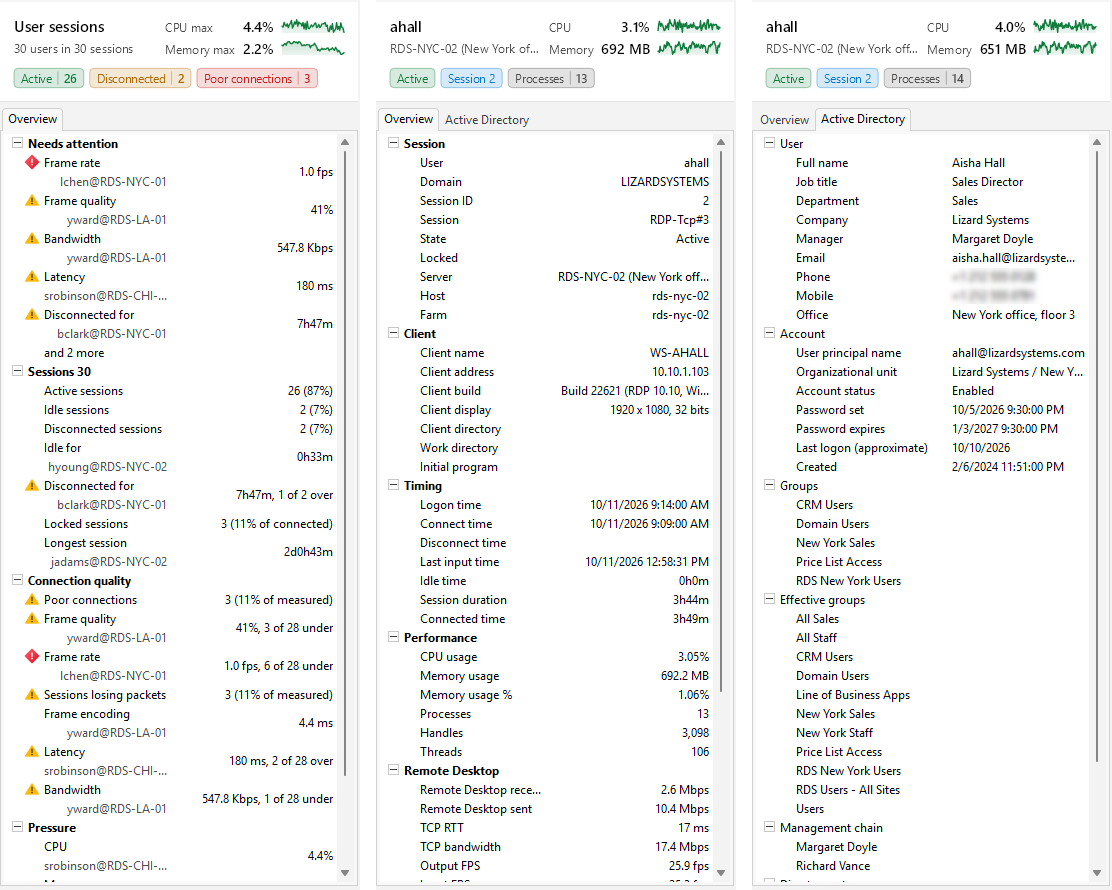
With no row picked, the inspector describes the whole list instead and puts the worst readings first, under Needs attention. That is a quick way to see which sessions to look at before anyone calls.
The program asks the domain only when you open the Active Directory tab. If you do not use Active Directory, clear Show Active Directory details in the inspector under Preferences > Network.
What to do next
You are already on the row you need, so the next step is a click away:
- Send the user a message or shadow the session from the Users menu or the right-click menu.
- Disconnect or log off the session if it is stuck.
- Choose Show processes in the right-click menu to see what the session is running and end a runaway task.
Related
- How to find which user is using high CPU on an RDS host
- How to shadow a Remote Desktop user's session
- How to send a message to all Remote Desktop users