
Discovering computers in bulk
Typing servers in one by one does not scale. Terminal Services Manager gives you two faster paths: generate a batch of names from a pattern, or run the discovery wizard against a source that already knows your machines.
Generate names from a pattern
When your servers follow a naming convention, Computers > Add multiple computers... turns a pattern into a batch of entries. A live preview shows the names as you type.
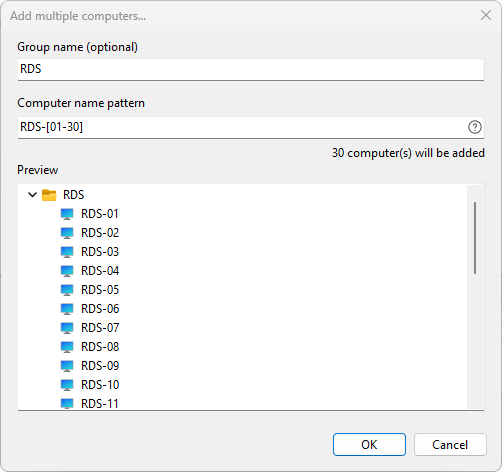
The pattern syntax expands ranges and lists:
| Pattern | Expands to |
|---|---|
server[01-10] |
server01 through server10 |
rds{web,app,db} |
rdsweb, rdsapp, rdsdb |
rds[1-10:2] |
rds1, rds3, rds5, and so on, in steps of 2 |
host[A-C][1-3] |
hostA1, hostA2, ... hostC3 |
Set an optional Group name to drop the whole batch into one group. The preview lists the first 1,000 names; the list accepts up to 10,000 entries in total.
Discover from a source
When you do not know every name, Computers > Add computers from... opens a three-step wizard that pulls servers from a source you already run.
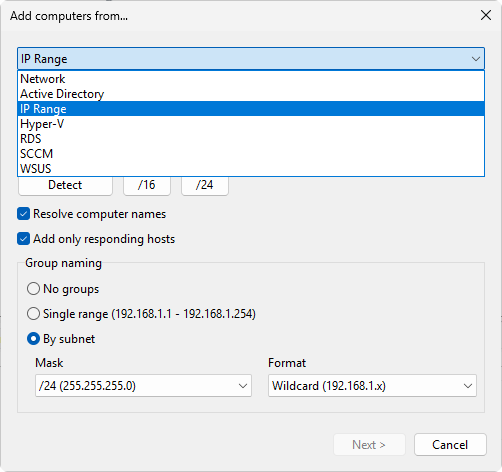
On the first page, pick the source from Import from:
- Network - browse the Windows network for computers
- Active Directory - query a domain for computer accounts
- IP Range - scan a range of IP addresses
- Hyper-V - list virtual machines on a Hyper-V host
- RDS - pull session hosts from a Remote Desktop Services deployment
- SCCM - read devices from a Configuration Manager database
- WSUS - read computers from a WSUS server
Fill in the fields for that source and click Next >. The wizard searches and fills the Found computers list; you can click Next > before the scan finishes to stop accepting new results.
On the last page, choose where the results land. Under Target group, keep the source's own grouping, create a New group, or add them to an Existing group. Under Duplicates, choose Skip duplicates (the default), Add duplicate, or Replace existing, then click Finish.
Each source has its own page in the handbook, starting with adding computers using the wizard.
Once the servers are on the list, organize them into groups so it stays readable.