
RDS configuration
When you are responsible for many hosts, you need to see how each one is configured without logging into it. These two dialogs read that configuration straight from the server.
Remote Desktop Services properties
Select a server and choose Servers > Administration > Remote Desktop Services properties.... The dialog reads the host's RDS settings, grouped on four pages you pick from the list on the left:
- Remote control - how shadowing is allowed: disabled, full control, or view only, with or without the user's permission. This is the one page you can change here; the rest are read-only.
- Security - the security layer, encryption level, and certificate the host uses.
- Client settings - which redirections are allowed (drive, clipboard, printer, audio, COM port) and the color depth.
- Session timeouts - the active, disconnected, and idle session limits.
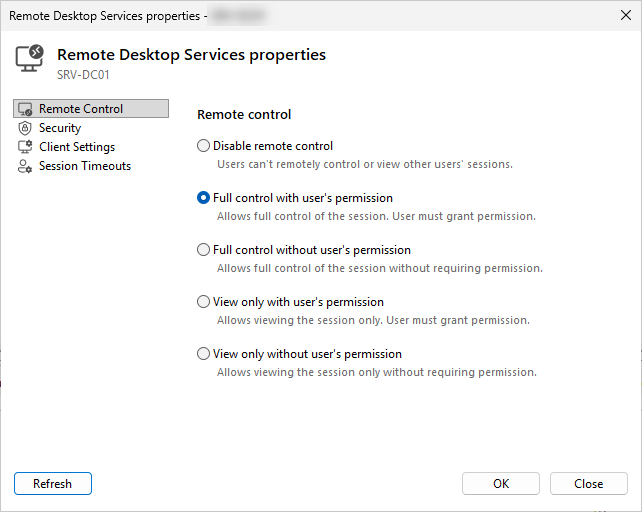
Reading these side by side across your hosts is the fastest way to spot one server whose timeouts or redirection settings drift from the rest. Click Refresh to re-read a host after a change.
Remote Desktop Services licensing
Choose Servers > Administration > Remote Desktop Services licenses... to see how a host's RDS Client Access Licenses are being used. The RDS licenses dialog shows the license server it points to, the grace period state, and a per-license breakdown of total, issued, and available counts with expiration dates.
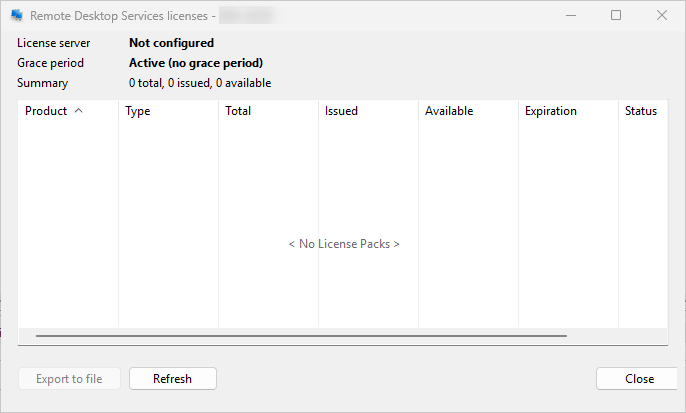
This is where you catch a host still in its grace period, or a license pool running low before users start getting turned away. Use Export to file to keep a record or feed it into a report.
The handbook has the full reference in RDS properties and RDS licensing.
To investigate who connected and when, move on to auditing sessions.