
RDS licensing
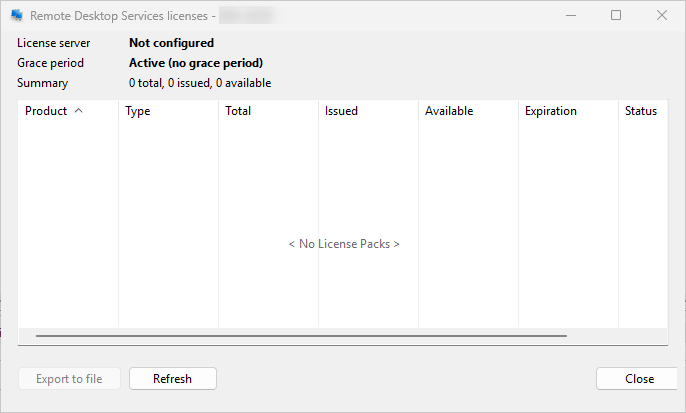
The RDS licensing dialog lists the Remote Desktop Services client access licenses (RDS CALs) installed on the selected licensing server. Use it to see how many seats are issued, how many are available, and which key packs are about to expire.
How to open it
Right-click the server on the Servers tab and choose Administration > Remote Desktop Services licenses....
The dialog opens a connection to the RDS licensing role on the target. The server you pick must have the licensing role installed; on a session host without licensing you will see an error.
Header
Three read-only values at the top:
- License server - the licensing server reported by the target. Shows Not configured when the target has no licensing server set.
- Grace period - one of three states: Active (no grace period) when the licensing role is fully activated, N days remaining (in red) while the role is still in its grace window, or Expired (in red) once the window has elapsed.
- Summary - totals across every visible key pack, written as N total, N issued, N available (the sums of the Total, Issued, and Available columns).
Columns
- Product - the Windows version the licenses apply to (for example, Windows Server 2022).
- Type - the key pack type: Retail, Volume, Concurrent, or Open.
- Total - seats in the key pack.
- Issued - seats currently handed out to clients.
- Available - seats still free (Total minus Issued).
- Expiration - date the key pack expires; permanent packs leave the cell blank.
- Status - an icon indicating the pack's health (OK, info, warning, or error).
- Description - the key pack's display name from the licensing console.
Actions
- Export to file - save the visible list to a file.
- Refresh - re-query the licensing server (also bound to F5).
- Close - dismiss the dialog.
The context menu adds Copy selected (Ctrl+C) and Copy all, which write the chosen rows to the clipboard as tab-separated text.
Column order, width, and sort direction are saved with the program's settings.
What it does not do
The dialog is read-only. To install, activate, or revoke licenses, use the Remote Desktop Licensing Manager console on the licensing server itself.