
Building a filter
The filter builder lets you compose conditions out of a field, an operator, and a value. Use it when the quick search is not enough, when you need a numeric threshold, or when you want to combine several conditions.
Opening the builder
Click the Filter button on the filter strip. A small popup opens where you set one quick condition - a field, an operator, and a value - and click Apply.
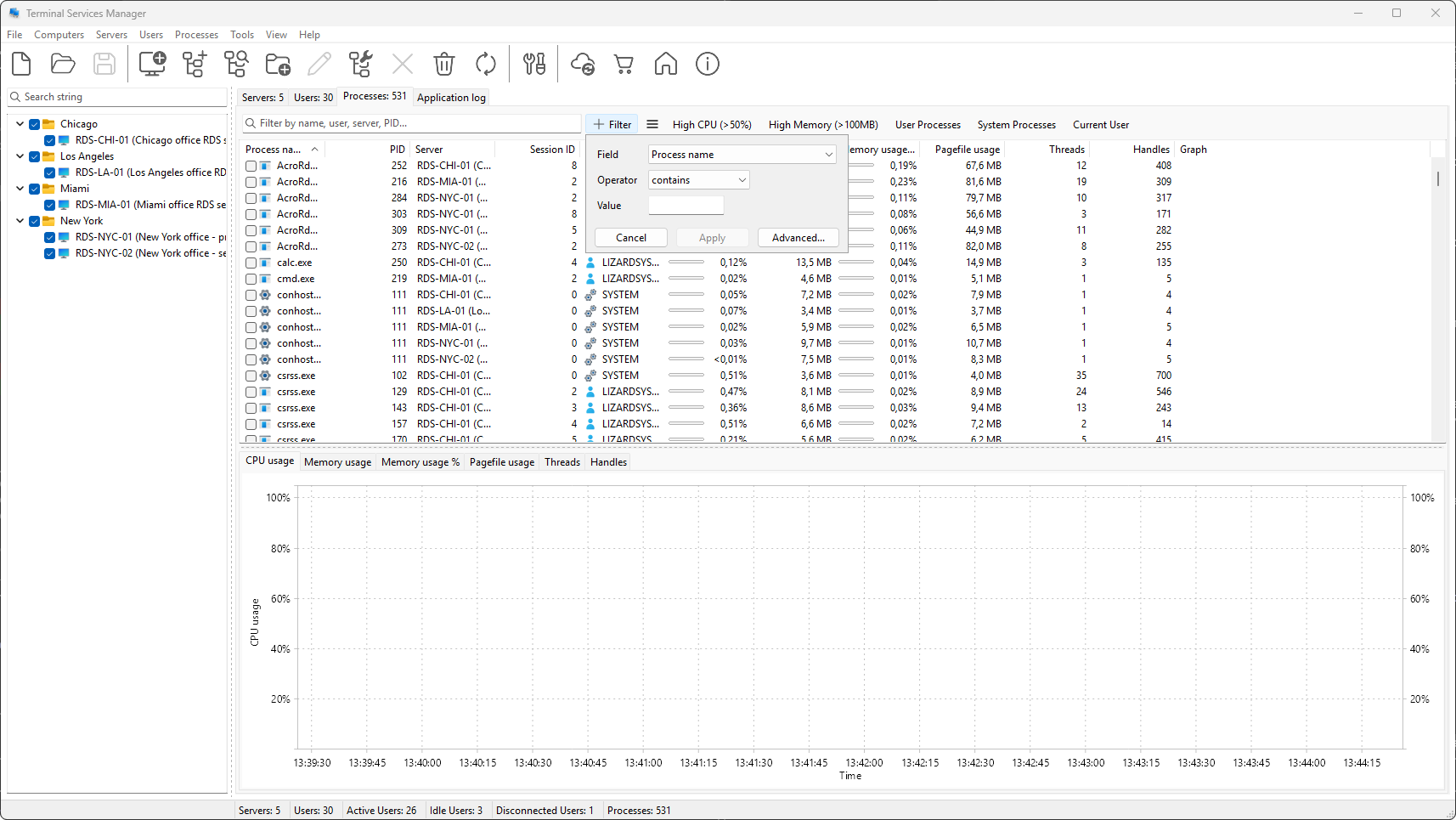
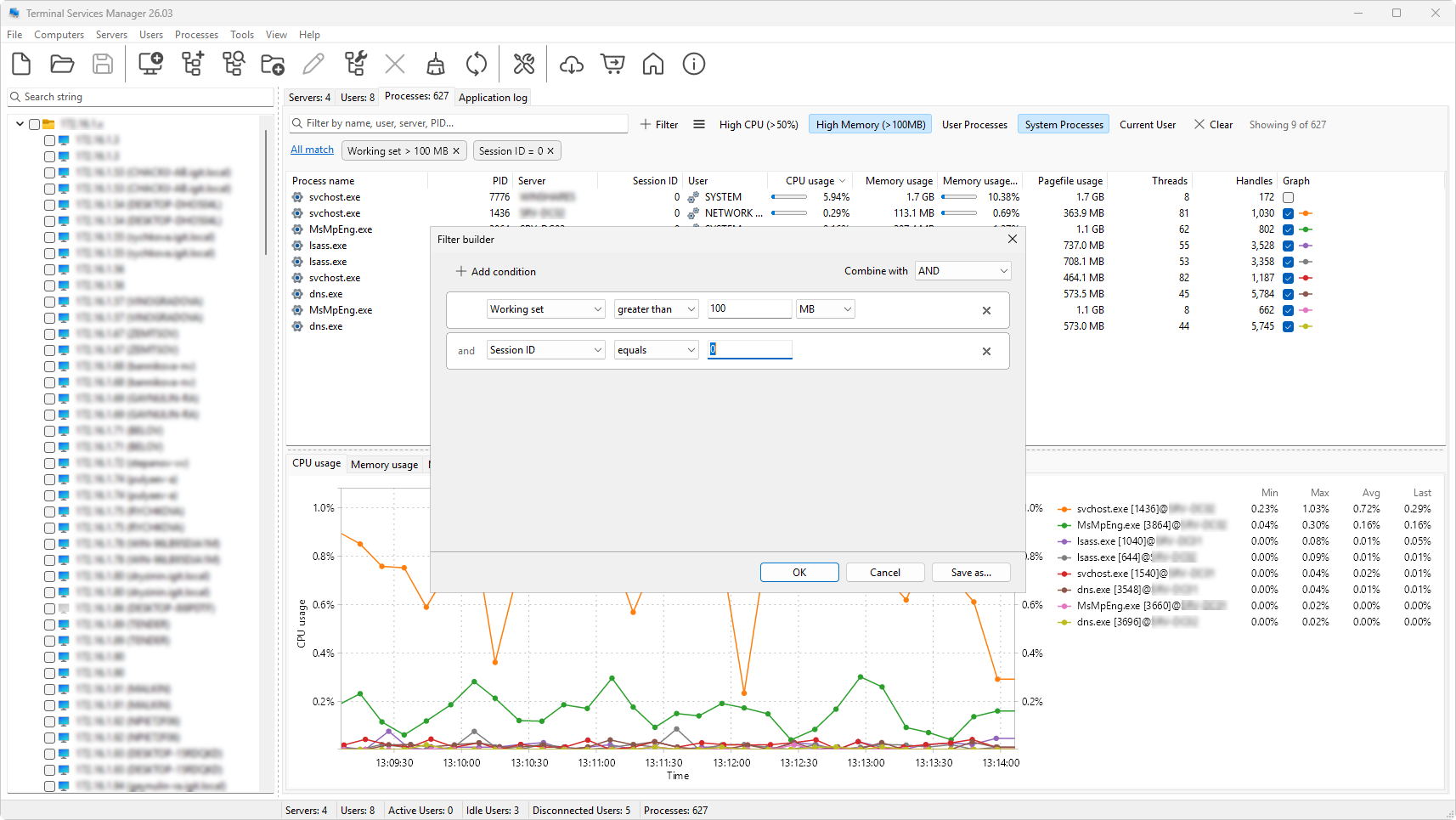
For several conditions, AND / OR logic, or saving the filter as a preset, click Advanced... in that popup. The full Filter builder dialog opens. If conditions already exist on the tab they are loaded so you can edit them; otherwise the dialog starts with one empty row.
Adding and removing conditions
- Click Add condition at the bottom of the row list to add another condition. Each condition is one field, one operator, one value (or two values, for Between).
- Click the x at the right of a row to remove that condition.
There is no hard limit on how many conditions you can stack.
A single AND or OR for the whole filter
The builder has one logical-operator dropdown for the whole condition list, not one per row. The choice (AND or OR) applies to every condition in the dialog. If you need mixed logic (for example, cpu > 80 OR (memory > 70 AND processes > 200)), nest by creating one preset for the OR group and one for the AND group, then use them together; the builder does not nest.
Field combo
The field combo lists every field for the current tab. See Filter fields reference for the full set. Picking a field updates the operator combo to show only the operators that make sense for that field's type:
- String fields (names, addresses, states) offer
contains,excludes,begins with,ends with,equals,not equals. - Numeric fields (CPU, memory, counts, times) offer
equals,not equals,greater than,less than,between.
See Operators reference for what each operator does.
Value field
The value field changes shape depending on the chosen field and operator:
- For text fields: a plain text edit.
- For numeric fields: a number edit with a unit selector. For sizes the units are KB, MB, GB, TB; for speeds B/s, KB/s, MB/s, GB/s; for time seconds, minutes, hours, days; for percentages just
%. - For the Between operator on numeric fields: two value edits with
andbetween them, both with their own unit selectors.
The default unit for each field matches the unit shown in the column on the data tab.
Save, save as..., cancel
The dialog has three buttons:
- OK applies the conditions to the active tab.
- Save as... opens a small prompt for a name and a description, then adds the preset to the current tab's preset list. The builder dialog stays open after saving so you can still tweak conditions and click OK when you're ready, or save more variants. The Show as button toolbar flag is not set at save time; toggle it later from Manage presets.
- Cancel discards your changes and leaves the tab's existing filter alone.
OK is disabled while any row is incomplete (no field, no value, or invalid value).
Quick edits without opening the builder
Each chip on the filter strip is editable: click the chip to reopen the builder pre-loaded with that condition, or click the chip's x to drop it. The All match / Any match label on the chip strip is also clickable and toggles the whole filter between the two modes.