
Disconnecting a user
Disconnect closes the user's RDP connection but leaves the session on the server. The user can connect again later and find their work where they left it.
How to do it
Select one or more sessions on the User sessions tab, then:
- Right-click and choose Disconnect, or
- Choose Users > Disconnect from the main menu.
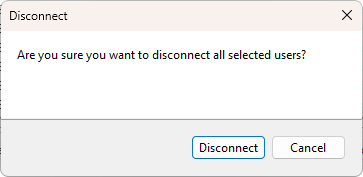
A confirmation dialog asks Are you sure you want to disconnect all selected users?. Click Disconnect to proceed.
What happens on the server
The Windows API call WTSDisconnectSession runs on each target server. The session state changes to Disconnected. The user sees their RDP client window close; any unsaved work in open applications is kept.
A disconnected session continues to consume memory and CPU. If you also want to free those resources, log the user off instead.
Common reasons it does not work
- The account running the program lacks the Disconnect session privilege on the target server. Adjust the user's permissions in the RDS session host configuration, or run the program under an account that has it.
- The session is in a transient state (init, listening, reset). Wait for it to settle and try again.
See also
Was this page helpful?
Thanks for your feedback.