
Status report
File > Report... builds an HTML status report of the servers you monitor: how many sessions are active, disconnected, and idle, which servers carry them, how busy each one is, and optional tables of servers, sessions, and processes. Open the file in a browser, attach it to an email, or keep it as a record of how the fleet looked at that moment.
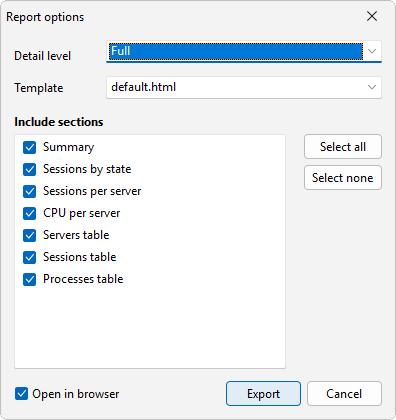
Build a report
- Choose File > Report.... The command is available once the computer list has servers to report on.
- In the Report options dialog, pick a Detail level, a Template, and the sections to include.
- Leave Open in browser ticked to see the report when it is ready.
- Click Export, then choose where to save the file. The default name is
terminal-services-status-report.html.
The report holds what the program knew at the moment you clicked Export.
Detail level
Detail level ticks a set of sections for you. You can still change the ticks afterward.
- Compact - Summary, Sessions by state, Sessions per server, and Servers table, with at most 25 rows in each table.
- Standard - everything except Processes table, with long tables cut to 200 rows.
- Full - every section and every row.
When a table is cut, the report says how many rows it shows and suggests a fuller detail level.
Sections
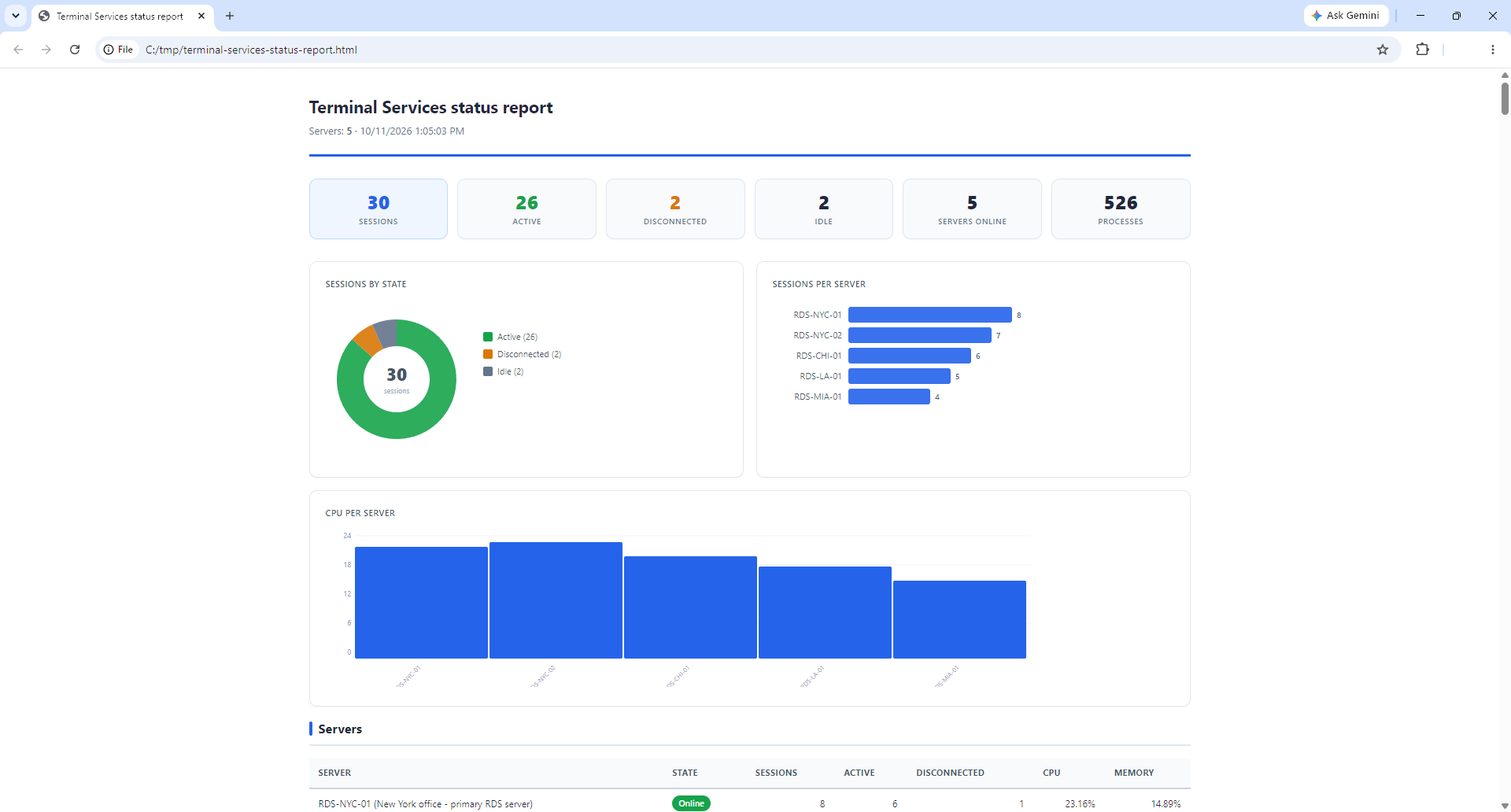
- Summary - the totals at the top: sessions, active, disconnected, idle, servers online, and processes.
- Sessions by state - a donut chart of active, disconnected, and idle sessions.
- Sessions per server - a bar for each server, the busiest first, up to 20 servers.
- CPU per server - a bar chart of CPU load for the same servers. A server whose counters did not answer gets no bar.
- Servers table - each server with its state (Online, Not responding, or Waiting for data), session counts (total, active, disconnected), CPU, and memory.
- Sessions table - each session with its user, server, session, state, client, idle time, and logon time.
- Processes table - each process with its server, user, and PID.
Use Select all and Select none to tick or clear every section at once.
Template
The Template list shows the HTML templates found in the program's report templates folder. The ready-made one is default.html. The dialog remembers your detail level, template, sections, and the Open in browser choice for next time.