
Checking for updates
The Software Update dialog tells you whether a newer version of Terminal Services Manager is available, lets you read the release notes, downloads the installer, and runs it.
How to open it
Choose Help > Check for updates.... The dialog opens and immediately starts a check; you do not need to click anything to begin.
If the built-in update checker is enabled (see Software updates), the dialog also opens on schedule when a new version is detected; you do not have to go to Help every time.
Header
The header has a title (always Software Update) and a subtitle that reflects the current state:
- Checking for available updates - the version check is in progress.
- A new version is available - the server returned a newer version.
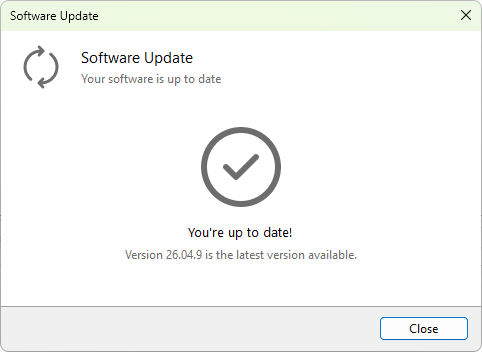
- Your software is up to date - the installed version matches or exceeds the latest published.
- Downloading update - the installer is being downloaded.
- Ready to install - the installer is downloaded and waiting for permission to run.
- Update check failed - the request did not complete; an error message appears below.
What you see when an update is available
When the server returns a newer version, the dialog shows:
- Current version with an arrow and the Available version next to it, plus the release date.
- A What's new panel with scrollable release notes for the new version.
Buttons
The button row changes depending on the state:
- Checking state: Cancel.
- Update available state: Download & Install (default), Skip version (skip this specific release; the dialog only resurfaces when an even newer version appears), Remind later (close the dialog; revisit on the next scheduled check), Close.
- Up to date state: Close.
- Downloading state: a progress bar with bytes-transferred and current download speed, plus a Cancel button.
- Ready to install state: Install now (default; closes the program and runs the installer), Later (close the dialog and leave the downloaded installer in place).
- Error state: Try again, Close.
What happens during install
When you click Install now, the program closes itself and launches the downloaded installer. The new version starts after the installer finishes; existing settings, the computer list, presets, and credentials are preserved by the upgrade.
See also
- Software updates - the auto-update settings (channel, frequency).
- Installing with winget - when you would rather let winget manage updates.