
Saved presets
A preset is a saved filter you can apply with one click. Presets are scoped to one tab; a server preset is not visible on the Processes tab.
Where presets appear
- As toolbar buttons on the filter strip, when the preset has the Show as button flag set. These are for the filters you reach for most often.
- In the presets menu (the button next to the toolbar preset buttons), where every preset for the current tab is listed.
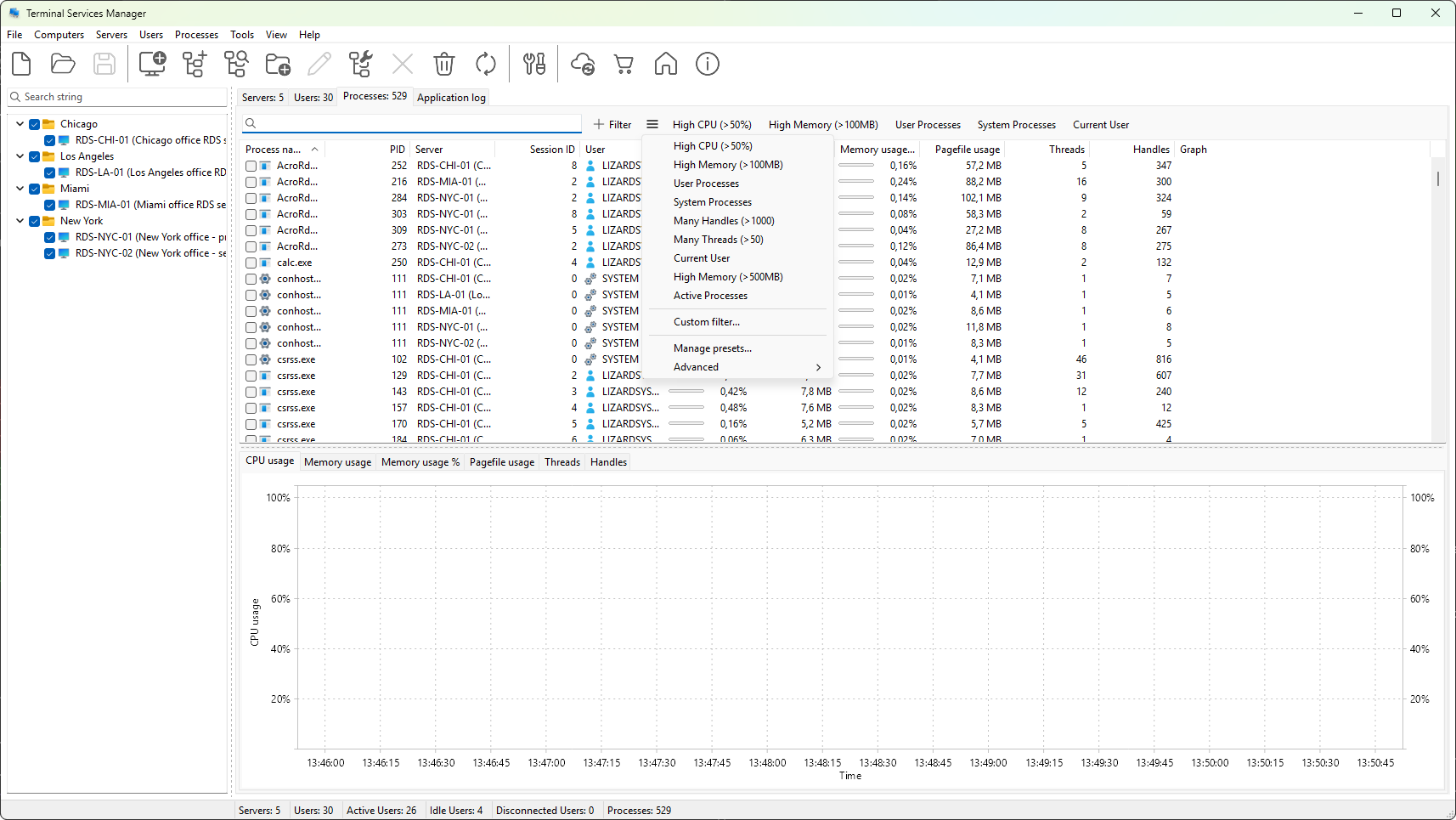
A preset name on a toolbar button doubles as a toggle: click to apply, click again to remove. You can have several toolbar presets toggled on at the same time; their conditions combine with the active condition tree using the same single AND / OR logical operator.
Creating a preset
Open the filter builder, set up the conditions you want, then click Save as.... A small input dialog asks for:
- Name - what the preset is called in the menu and on the button.
- Description - shown as the tooltip.
Save also applies the preset to the current tab. To make the preset appear on the toolbar, set the Show as button flag later from the preset's Edit dialog or from Manage presets.
Managing presets
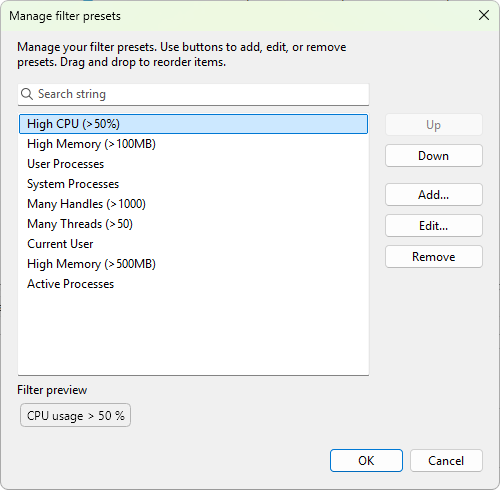
Open Manage presets from the presets menu. The Manage filter presets dialog opens with the list of presets for the current tab. From there you can:
- Add... - opens the builder in preset mode for a new preset.
- Edit... - reopens the builder with the selected preset loaded.
- Remove - delete the selected preset (after confirmation).
- Up / Down - reorder. The order controls both menu order and toolbar button position.
- Drag and drop - reorder by dragging within the list.
A preview pane below the list shows the selected preset as a stack of chips so you can see what conditions it carries without opening the builder.
Import and export
The presets menu has an Advanced submenu with Export presets and Import presets commands. Export writes every preset for the current tab to a single JSON file. Import reads the same format back in and asks how to handle duplicates:
- Skip duplicates - keep existing presets unchanged; only new names are added.
- Replace existing - overwrite presets that share a name; everything else is added.
Either way, brand-new presets are appended at the end of the list. After the import a small dialog summarizes how many were imported, replaced, skipped, or errored.
Use export to back up your presets or share them with another machine; import to restore them.
Reset to defaults
Reset to defaults is the last item in the Advanced submenu. It opens a task dialog with three choices:
- Keep custom presets - re-add the shipped defaults next to your custom presets, replacing any default-named ones that were edited.
- Remove all - delete every preset on the current tab and load only the shipped defaults. Use with care; custom presets are gone.
- Cancel - do nothing.
Back custom presets up with export first if you plan to use Remove all.
Where presets are kept
Presets are stored in the program's SQLite settings database. They survive program restarts and are scoped per tab type (process, session, server). Three separate lists exist, one per tab.