
Configuring user columns
The User sessions tab ships with 44 columns. Use the column tuning dialog to pick the ones you want and hide the rest.
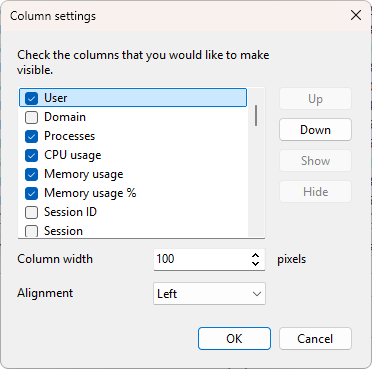
Opening the dialog
Right-click any column header on the User sessions tab and choose Column settings....
What the dialog does
- List - one row per available column. The checkbox controls visibility. The order in the list is the order on the tab.
- Up / Down - reorder the selected column.
- Show / Hide - turn the selected column on or off.
- Column width - the width in pixels for the selected column.
- Alignment - left, right, or center alignment.
Changes apply to the tab live as you make them.
The main column
The first column on the tab is the user name. Keep it visible and in position 1 so each row stays identifiable; the other 43 columns can be reordered or hidden freely.
OK and Cancel
OK keeps your changes. Cancel reverts to what was in place when you opened the dialog. The layout is saved with the program's settings.
The same dialog is used for the Servers and Processes tabs. Each tab has its own layout stored separately. The Application log tab has a fixed set of four columns (Time, Level, Category, Message) and does not use this dialog.