
RDS properties
The Remote Desktop Services properties dialog displays a subset of the Remote Desktop Services configuration on a server. Only the Remote control tab is editable; Security, Client settings, and Session timeouts are read-only. For settings the dialog doesn't expose, use the Group Policy editor or the RDS deployment console.
How to open it
Right-click the server on the Servers tab and choose Administration > Remote Desktop Services properties....
Tabs
The dialog has four pages selected from a list on the left.
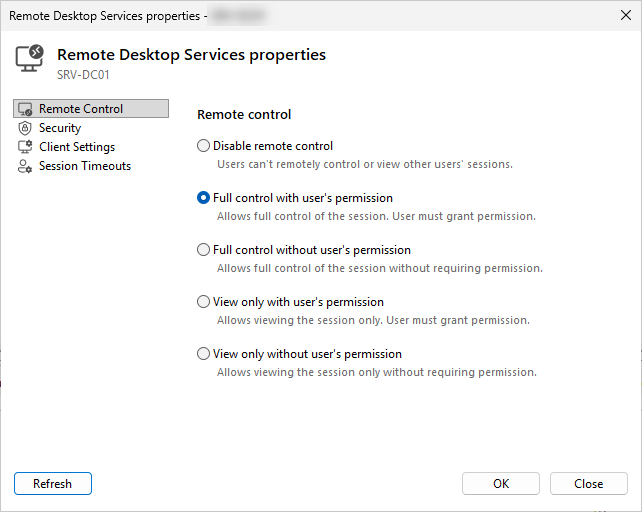
Remote control
Picks the policy the server applies to incoming shadow requests. Five radio buttons:
- Disable remote control - users can't remotely control or view other users' sessions.
- Full control with user's permission
- Full control without user's permission
- View only with user's permission
- View only without user's permission
A Controlled by policy label appears in the top-right of the tab when Group Policy is enforcing the setting; in that case the radio buttons are greyed out.
Changes are applied via WMI when you click OK.
Security
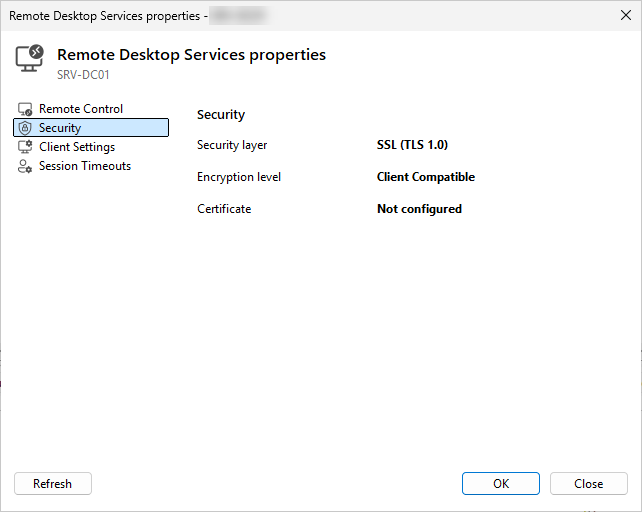
Read-only. Three values:
- Security layer - for example Negotiate, RDP, or SSL/TLS.
- Encryption level - for example Low, Client compatible, High, or FIPS compliant.
- Certificate - the certificate currently in use, or Not configured.
Client settings
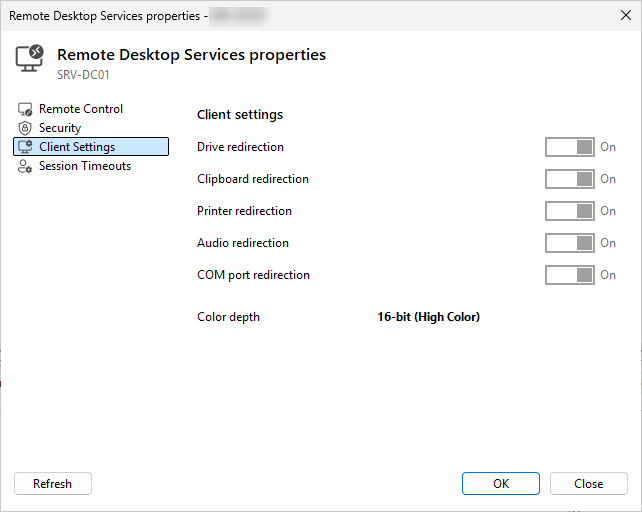
Read-only. Five toggle switches show the current client feature redirection state, plus one color depth value:
- Drive redirection
- Clipboard redirection
- Printer redirection
- Audio redirection
- COM port redirection
- Color depth - for example 32-bit (Highest quality).
The toggles reflect the server's current settings but can't be changed here. A Controlled by policy label appears when Group Policy locks the tab.
Session timeouts
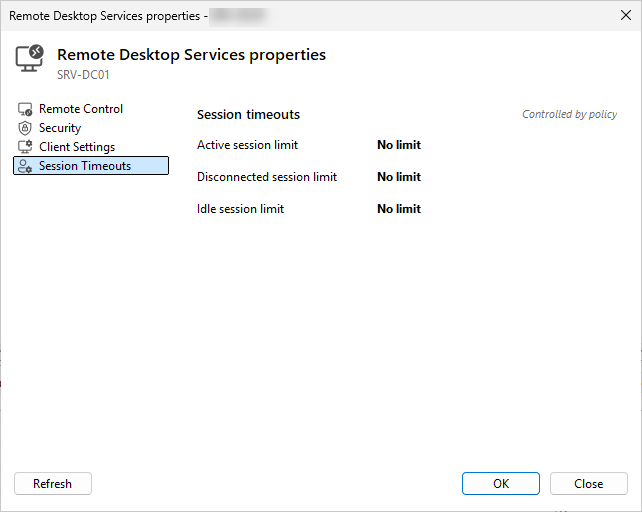
Read-only limits, in minutes. Each value shows No limit when nothing is enforced.
- Active session limit - end an active session after this much time.
- Disconnected session limit - drop a disconnected session after this much time.
- Idle session limit - disconnect an idle session after this much time.
The bottom toolbar has Refresh to re-read values from the server, plus OK and Cancel.