
Connecting via Remote Desktop
The Remote desktop action opens an interactive RDP session to the selected server using the standard Microsoft client (mstsc.exe).
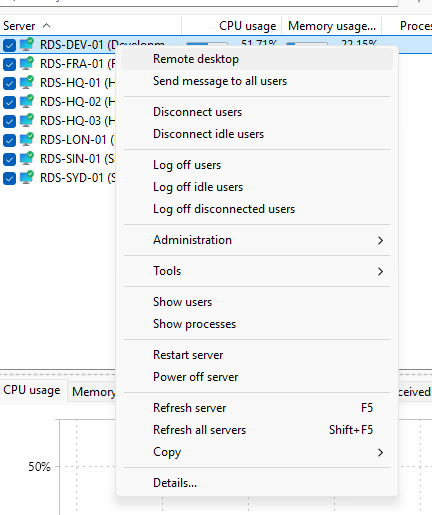
How to do it
Select one server on the Servers tab, then:
- Right-click and choose Remote desktop, or
- Choose Servers > Remote desktop from the main menu.
A new mstsc.exe window opens connected to the server's hostname or IP from the computer list entry. If the entry has explicit credentials stored, they are passed to the client; otherwise Windows handles the credentials prompt as usual.
Connecting from a user session
The User sessions tab also has a Connect action on the row's context menu. Use it when you want to start a new Remote Desktop session as a specific user without typing the password into the standard Windows credential prompt.
What you see:
- A small dialog asks for the password for the selected user account.
- After you confirm, there is a brief pause and then
mstsc.exeopens against the server. - You are signed in as that user; no separate credential prompt appears.
What happens under the hood:
- The program briefly saves the user name and the password you entered as a Windows generic credential for
TERMSRV/<server>, using thecmdkeycommand. This is the same store the Remote Desktop client looks at when it needs credentials for a server. - It then launches
mstsc.exe /v:<server>(with/multimonif Connect with /multimon option is enabled in the Terminal Services preferences).mstscpicks up the stashed credential automatically and signs in. - About five seconds later the program deletes that stored credential with
cmdkey /delete, so the password does not stay in the Windows Credential Manager after the session is launched. The RDP window itself keeps running until you close it.
Notes:
- This action always opens a brand-new session for the selected account. It does not reconnect to or attach to the row's existing session ID; for that, use Shadowing below.
- The same Connect action is available on the Processes tab and behaves the same way, using the account that owns the selected process.
To shadow a running session instead of opening a new one, use Shadowing a user.
Connecting to a specific user session
From the User sessions tab, use the Connect action on the row's context menu (described above) to open an RDP session as the selected user. On the Processes tab, the Remote desktop action on a process row opens an RDP session to the row's server using the standard mstsc.exe flow.
What this is not
Terminal Services Manager does not embed an RDP client. The session runs in the standard Microsoft mstsc.exe window; closing that window ends the session. Settings such as full-screen, multi-monitor, drive redirection, and clipboard sharing are taken from the saved .rdp profile or the current mstsc.exe defaults; they are not configurable from this program.