
Session history
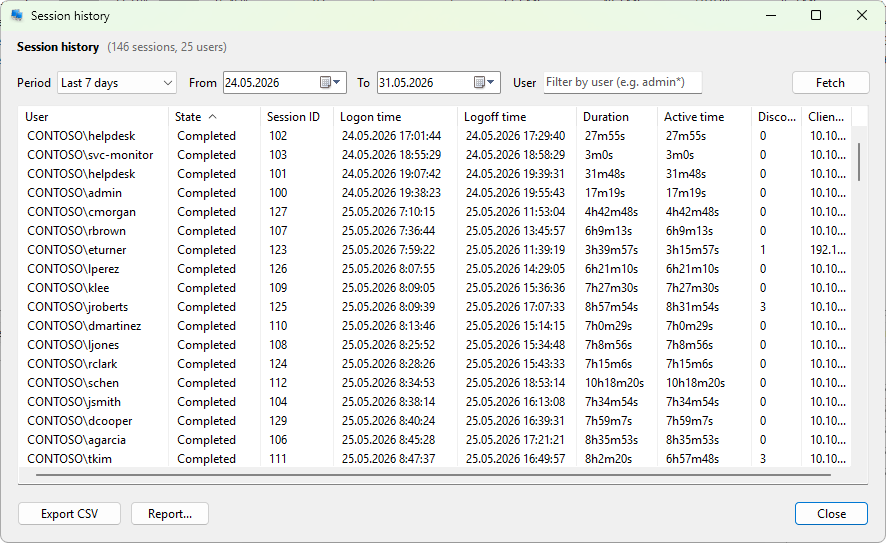
The Session history dialog reconstructs past logon, logoff, disconnect, and reconnect events for a server (or one user across a server) by reading the Windows event log. Use it to answer "who was on this box yesterday between 9 and 11", to audit access, or to compare typical activity across days.
How to open it
- Right-click a server on the Servers tab and pick Administration > Session history to see every session on the server in the chosen period.
- Right-click a user on the User sessions tab and pick Session history to see that user's sessions across the server.
The first time you open the dialog on a server, the program reads the Microsoft-Windows-TerminalServices-LocalSessionManager/Operational log and stitches together logon/logoff pairs. The reads run in the background; a progress indicator shows the current event being processed.
Time range
The toolbar at the top of the dialog has a Period dropdown of common ranges plus two date pickers. Pick a preset to set both pickers automatically, or set the pickers directly for a custom range, then click Fetch to reload the table.
Columns
- User - the account that signed in.
- State - whether the session was active, disconnected, or completed by the end of the period.
- Session ID
- Logon time - when the session was created.
- Logoff time - when it was destroyed (blank for sessions still active).
- Duration - logoff minus logon.
- Active time - time the session spent in the active state (excluding disconnected periods).
- Disconnects - how many times the user disconnected during this session.
- Client address - last known client IP.
Filter
The User field at the top of the dialog filters the table by user name; wildcards (*, ?) are supported. Press Enter in the field to apply.
Export
The bottom toolbar:
- Export CSV - tabular dump of the current view.
- Report... - opens a report-export dialog and writes an HTML report with summary analytics (sessions per user, hourly distribution, peak concurrent sessions).
Both buttons are enabled only when there's data to export. The context menu adds Copy selected (Ctrl+C) and Copy all.
What it does not do
Session history is built from the Windows event log; if the log has been cleared or has rolled over, the corresponding history is lost. The program does not replay logon/logoff events from any other source.