
Appearance
The Appearance page has two tabs: Theme picks the dark / light mode and the specific theme used; Data display controls how the small bars in percentage cells are rendered.
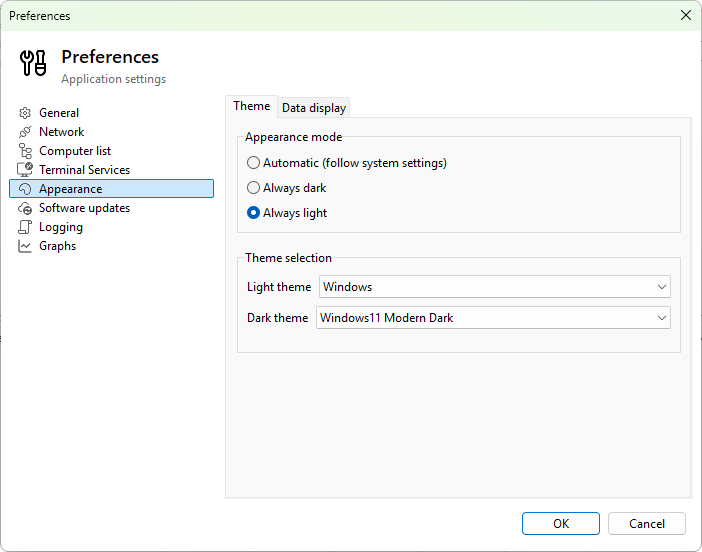
Theme tab
Appearance mode
- Automatic (follow system settings) - the program matches the Windows mode. When Windows is in dark mode the program uses the dark theme; in light mode the light theme. Default.
- Always dark - always use the dark theme, regardless of Windows.
- Always light - always use the light theme, regardless of Windows.
Theme selection
- Light theme - the theme used when the resolved mode is light.
- Dark theme - the theme used when the resolved mode is dark.
The dropdowns are populated from the theme registry built into the program. A change applies immediately; the program repaints without a restart.
Data display tab
Controls the small horizontal bars that appear in percentage cells (CPU usage, memory percent, disk free percent, and so on).
Style
- Style - the rendering style for the bar. Seven options:
- None - hide the bar; show only the numeric value.
- Flat - thin solid bar at the bottom of the cell.
- Modern - narrow centered bar with the theme accent color.
- Classic - centered rounded bar, color-coded by value.
- Segmented - discrete blocks with gaps.
- Gradient - smooth green-to-red gradient bar.
- Heat map - semi-transparent fill across the whole cell.
The dropdown shows a live preview of each style on a sample 65% value.
Modifiers
- Color-coded by value - tick to shade the bar by the value (green at low, amber at medium, red at high). Affects the styles that respond to color shading.
- Rounded corners - tick to round the bar's ends.
- Opacity - track bar that controls how solid the bar is. At 100% the bar is fully opaque; lower values let the cell background show through.
The settings apply to every cell that uses a percentage progress bar across the program (Servers, User sessions, Processes tabs, the User profiles dialog).
Was this page helpful?
Thanks for your feedback.