
Summary cards
Summary cards are the row of tiles between a list and its chart. Each card shows one headline figure for the list: the number of active sessions on the Servers list, the busiest session's CPU on the User sessions list, the process count on the Processes list.

What a card shows
- The current value, large, often with a share or a detail beside it, such as (87%) or the server it belongs to.
- Min, Avg, and Max over the recent history, each with the time it was reached.
- A sparkline: the trend of the figure over the same history.
A card turns amber when its figure passes the warning level and red when it passes the bad level. The inspector marks the same readings with a triangle or a diamond (see The inspector).

Each list has its own cards and its own levels. Twenty processes in a session is ordinary, twenty disconnected sessions on a server is not, so one set of numbers could not serve both.
The Cards button
The Cards button in the command row above a list opens a menu:
- Show the card band - show or hide the whole row.
- Cards - one checkbox per card of this list. Tick the ones you want.
- Size - Small, Normal, or Large.
- Restore defaults - put the cards, their order, their size, and their levels for this list back to the shipped set. Whether the row is visible stays as it is.

The same menu is under Summary cards in the Servers, Users, and Processes menus of the menu bar.
Preferences > Terminal Services > Summary cards
For more control, open Preferences, choose Terminal Services, and click the Summary cards tab.
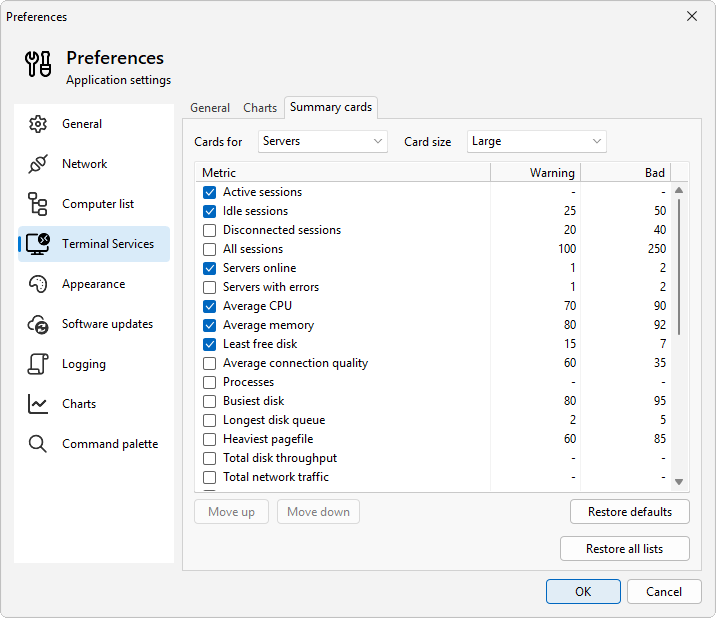
- Cards for - the list you are editing: Servers, User sessions, or Processes.
- Card size - Small, Normal, or Large.
- The table lists every card of the list. The checkbox in the Metric column turns a card on or off. The Warning and Bad columns hold the levels at which the card turns amber and red. A dash means the card has no level of that kind. Edit a level by changing its cell, or right-click a row for Edit. For free disk space and connection quality, a lower figure is worse, so Warning is the higher of the two.
- Move up and Move down change the order of the cards.
- Restore defaults resets the list you are editing: its cards, order, size, and levels. Right-click a row and choose Restore this row to reset only that row's levels.
- Restore all lists resets all three lists at once. It does not change whether the band is visible.
Click OK to keep your changes.